How to Set Up Auto-Archive in Outlook
Microsoft Outlook’s AutoArchive feature automatically moves old emails, calendar items, and tasks to a separate…
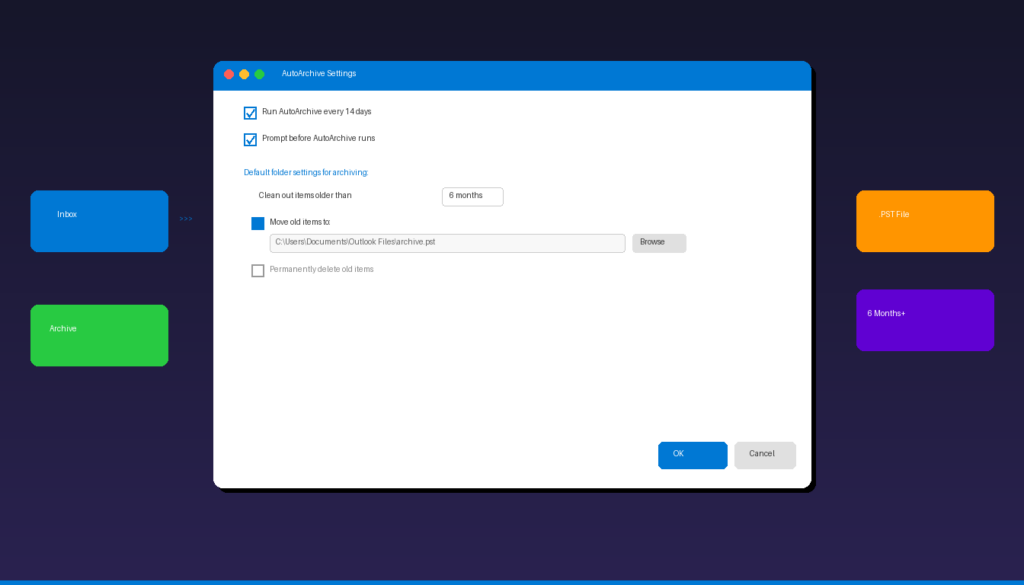
Microsoft Outlook’s AutoArchive feature automatically moves old emails, calendar items, and tasks to a separate archive file, keeping your mailbox lean and Outlook running fast. Whether you use classic Outlook on desktop or Microsoft 365, archiving prevents your inbox from growing beyond manageable size. For more ways to keep your inbox organized, see our guide to setting up Outlook rules.
Key Takeaways
- Outlook AutoArchive moves items older than a set number of days to a local .pst file, reducing mailbox size and improving performance.
- AutoArchive is configured under File > Options > Advanced > AutoArchive Settings in classic Outlook — it is not available in the new Outlook for Windows.
- Archived emails are stored in a .pst file at
C:\Users\{username}\Documents\Outlook Files\archive.pstby default.
How Do I Set Up AutoArchive in Outlook?
Open Outlook, go to File > Options > Advanced, click AutoArchive Settings, and configure the run frequency and item aging period to start automatic archiving.
Step 1: Open AutoArchive Settings
- Open Microsoft Outlook (classic desktop version).
- Click File > Options.
- Select Advanced from the left sidebar.
- Under the AutoArchive section, click AutoArchive Settings.
Step 2: Enable and Configure AutoArchive
In the AutoArchive dialog box, configure these settings:
- Check the box for Run AutoArchive every ___ days and set your preferred interval (e.g., 14 days).
- Check or uncheck Prompt before AutoArchive runs depending on whether you want a notification before each run.
- Under Default folder settings for archiving, set Clean out items older than to your preferred aging period (e.g., 6 months).
- Choose the action for old items:
- Move old items to: Select this and specify the archive .pst file path.
- Permanently delete old items: Select this only if you want items removed entirely.
- Click OK to save, then click OK again to close Options.
Recommended AutoArchive Settings
| Setting | Recommended Value | Why |
|---|---|---|
| Run frequency | Every 14 days | Balances performance without being intrusive |
| Prompt before run | Yes | Lets you review before items are moved |
| Clean out items older than | 6 months | Keeps recent items accessible |
| Move old items to | Default archive.pst | Keeps items recoverable |
| Delete expired items | Only mail folders | Prevents calendar/contact loss |
According to Microsoft Support, you can set aging periods from 1 day up to 60 months, giving you precise control over what gets archived and when.
How Do I Set AutoArchive for Individual Folders?
You can override the global AutoArchive settings on a per-folder basis — for example, archiving your Inbox after 3 months but your Sent Items after 12 months.
- Right-click the folder you want to customize (e.g., Inbox).
- Select Properties.
- Click the AutoArchive tab.
- Select Archive this folder using these settings.
- Set the aging period (e.g., Clean out items older than 3 months).
- Choose whether to move items to the default archive file or a different .pst file.
- Click OK.
Per-folder settings always take priority over the global AutoArchive configuration. This lets you keep important folders like Contacts and Calendar on longer retention while aggressively archiving high-volume folders like Inbox and Sent Items.
How Do I Archive Emails Manually in Outlook?
Use the manual archive option to archive emails on demand without waiting for the AutoArchive schedule — useful for one-time cleanup or when you need immediate mailbox space.
Method 1: Clean Up Old Items
- Click File > Info.
- Click Tools > Clean Up Old Items.
- Select Archive this folder and all subfolders and choose the folder.
- Set the Archive items older than date.
- Choose the archive .pst file location.
- Click OK to start archiving.
Method 2: Quick Archive (Backspace Key)
In newer versions of classic Outlook, select one or more emails and press the Backspace key (or click the Archive button in the ribbon). This moves them to the Archive folder immediately.
The quick archive method moves emails to the built-in Archive folder within your mailbox — it does not create a separate .pst file and does not reduce your mailbox size on the server.
What Is the Difference Between Archive and Delete in Outlook?
Archiving moves emails to a separate storage location where they remain indefinitely — deleting sends emails to the Deleted Items folder where they are automatically purged after a retention period.
| Action | Where Items Go | Retention | Recoverable? | Frees Mailbox Space? |
|---|---|---|---|---|
| Archive (AutoArchive) | Local .pst file | Indefinite | Yes, from .pst | Yes (moved off server) |
| Archive (button/Backspace) | Archive folder in mailbox | Indefinite | Yes, in folder | No (still in mailbox) |
| Delete | Deleted Items folder | 14-30 days | Limited window | Yes, after purge |
| Permanently delete (Shift+Del) | Recoverable Items | 14 days (Exchange) | Very limited | Yes, immediately |
Key distinction: AutoArchive to a .pst file genuinely frees server mailbox space because items are moved to a local file. The Archive button merely moves items to a different folder within the same mailbox — your mailbox size stays the same. According to Microsoft Support, the Archive folder is never automatically emptied, unlike Deleted Items.
Where Are Archived Emails Stored in Outlook?
AutoArchive stores emails in a local .pst file on your computer — the default location is C:\Users\{username}\Documents\Outlook Files\archive.pst on Windows.
Default Archive File Locations
| Windows Version | Default Path |
|---|---|
| Windows 10/11 | C:\Users\{username}\Documents\Outlook Files\archive.pst |
| Older Windows | C:\Users\{username}\AppData\Local\Microsoft\Outlook\archive.pst |
How to Change the Archive File Location
- Open AutoArchive Settings (File > Options > Advanced > AutoArchive Settings).
- Click Browse next to the Move old items to field.
- Navigate to your preferred location (e.g., an external drive or network folder).
- Click OK.
How to Open an Existing Archive File
If you need to access previously archived emails:
- Click File > Open & Export > Open Outlook Data File.
- Navigate to your archive .pst file.
- Click Open. The archive appears as a separate folder in your Outlook sidebar.
Back up your archive .pst files regularly — if the file becomes corrupted or the drive fails, archived emails cannot be recovered from the mail server.
Can I Set Up Auto-Archive in Outlook 365 or the New Outlook?
AutoArchive is not available in the new Outlook for Windows or Outlook on the web — these versions use the Online Archive feature for Microsoft 365 enterprise accounts instead.
Classic Outlook (Recommended for AutoArchive)
AutoArchive works fully in classic Outlook desktop (Outlook 2016, 2019, 2021, 2024, and the classic Microsoft 365 Outlook). If you are using the new Outlook for Windows and need AutoArchive, switch back by toggling Try the new Outlook off in the top-right corner.
Online Archive (Microsoft 365 Enterprise)
For organizations with Microsoft 365 E3, E5, or Exchange Online Plan 2, the Online Archive provides server-side archiving:
- Separate archive mailbox with its own folder structure
- Actually frees primary mailbox space (unlike the Archive folder)
- Managed by IT administrators through retention policies
- Not the same as the AutoArchive .pst feature
If your organization uses Microsoft 365 and you need Outlook with full desktop features, Microsoft Office 2024 Professional Plus ($199.99) includes the classic Outlook application with AutoArchive support.
How Do I Manage Outlook Mailbox Size Without Archiving?
If you prefer not to use AutoArchive, Outlook offers other ways to reduce mailbox size and keep performance fast.
- Rules: Automatically move emails to folders or delete them based on sender, subject, or keywords. See our Outlook rules setup guide for details.
- Cleanup tool: File > Info > Tools > Mailbox Cleanup shows your mailbox size and lets you find large items.
- Empty Deleted Items on exit: File > Options > Advanced > check Empty Deleted Items folders when leaving Outlook.
- Compact .pst files: Right-click any data file in Account Settings > Data Files > Settings > Compact Now.
- Automatic replies: Set up out-of-office replies to manage expectations while you clean up your inbox.
Frequently Asked Questions
How often should AutoArchive run in Outlook?
Every 14 days is a good default for most users. This keeps your mailbox manageable without constant interruptions. High-volume email users (50+ emails per day) may benefit from running AutoArchive every 7 days. You can set the interval from 1 to 99 days in AutoArchive Settings.
Can I recover emails from an Outlook archive .pst file?
Yes. Go to File > Open & Export > Open Outlook Data File, then browse to your archive.pst file. The archived emails will appear in a separate folder in your Outlook sidebar. You can drag and drop individual emails back to your Inbox or any other folder.
Does archiving in Outlook reduce mailbox size?
It depends on the method. AutoArchive to a .pst file moves emails off the server, genuinely reducing mailbox size. The Archive button (Backspace key) only moves emails to the Archive folder within your mailbox — your total mailbox size stays the same.
Is AutoArchive available in the new Outlook for Windows?
No. The new Outlook for Windows does not support AutoArchive. If you need this feature, use the classic Outlook desktop application. Microsoft 365 enterprise users can use the Online Archive feature instead, which is managed by IT administrators through retention policies.

by Editorial Team
Updated on April 5, 2026

by Editorial Team
Updated on April 5, 2026
ON THIS PAGE