How to Create and Use Email Templates in Outlook
Email templates in Microsoft Outlook let you save pre-written messages that you can reuse anytime…
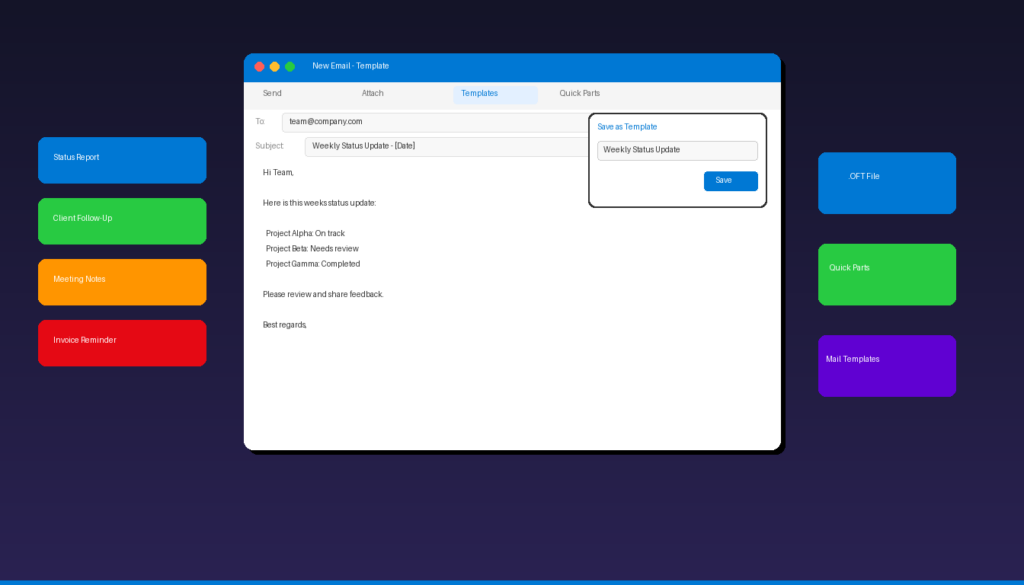
Email templates in Microsoft Outlook let you save pre-written messages that you can reuse anytime — saving minutes on repetitive emails like status updates, client follow-ups, and meeting confirmations. Both classic Outlook and the new Outlook for Windows support templates, though the methods differ. Once you have templates set up, pair them with a professional email signature for a polished, consistent look.
Key Takeaways
- Classic Outlook saves templates as .oft files via File > Save As > Outlook Template, stored in
AppData\Roaming\Microsoft\Templatesby default. - The new Outlook for Windows uses built-in Mail Templates that sync across devices — up to 50 templates per account with rich formatting and attachments.
- Quick Parts in Outlook let you save reusable text snippets with formatting, tables, and images for quick insertion into any email.
How Do I Create an Email Template in Classic Outlook?
In classic Outlook desktop, compose your template email, then save it as an Outlook Template (.oft) file using File > Save As — you can reuse it anytime from the Choose Form dialog.
Step 1: Compose the Template Email
- Open Microsoft Outlook and click New Email.
- Enter the subject line you want to reuse (e.g., “Weekly Status Update — [Date]”).
- Write the body content including any formatting, images, tables, or links.
- Add default recipients in the To, CC, or BCC fields if the template always goes to the same people.
- Do not click Send.
Step 2: Save as Outlook Template (.oft)
- In the compose window, click File > Save As.
- In the Save as type dropdown, select Outlook Template (*.oft).
- Give the template a descriptive name (e.g., “Weekly Status Update”).
- Click Save.
By default, .oft files are saved to: C:\Users\{username}\AppData\Roaming\Microsoft\Templates
Step 3: Use the Template
- In Outlook, go to the Home tab.
- Click the small arrow next to New Items > More Items > Choose Form.
- In the Look In dropdown, select User Templates in File System.
- Select your template and click Open.
- Customize the message as needed and click Send.
According to Microsoft Support, you can create unlimited .oft templates in classic Outlook. Each template preserves the subject, body, formatting, attachments, and recipient fields.
How Do I Create Templates in the New Outlook?
The new Outlook for Windows includes a built-in Mail Templates feature — compose your email, click the three-dot menu, and select Save as Template to store up to 50 templates per account.
Create a Template
- Open the new Outlook and click New Mail.
- Compose your email with subject, body text, formatting, and attachments.
- Click the three-dot menu (More actions) in the compose toolbar.
- Select Save as template.
- Enter a name for the template and click Save.
Use a Template
- Click New Mail.
- Click the three-dot menu in the compose toolbar.
- Select My templates or Mail templates.
- Click the template you want to use — the content fills the compose window.
- Edit as needed and click Send.
New Outlook Mail Templates offer advantages over classic .oft files:
| Feature | Classic .oft | New Outlook Mail Templates |
|---|---|---|
| Rich formatting | Yes | Yes |
| Attachments | Yes | Yes |
| Subject line | Yes | Yes |
| Pre-filled recipients | Yes | Yes |
| Sync across devices | No (local file) | Yes (cloud-synced) |
| Maximum templates | Unlimited | 50 per account |
| Shared with team | Copy .oft file | Not natively |
| Works offline | Yes | Limited |
Note: Classic .oft files cannot be imported directly into the new Outlook. You need to recreate templates manually or copy-paste the content.
What Are Quick Parts and How Do I Use Them?
Quick Parts are reusable content blocks in Outlook that can include formatted text, images, tables, and links — unlike basic templates, Quick Parts insert content into an existing email rather than creating a new one.
Create a Quick Part
- Open a new email or reply window in Outlook.
- Type and format the text you want to save as a Quick Part.
- Select the text (and any images or tables).
- Click the Insert tab in the ribbon.
- Click Quick Parts > Save Selection to Quick Part Gallery.
- Give the Quick Part a name and click OK.
Use a Quick Part
- Place your cursor where you want to insert the content.
- Click Insert > Quick Parts.
- Click the Quick Part you want to use — the content is inserted at the cursor position.
Quick Parts are ideal for:
- Standard paragraphs you insert into different email contexts
- Formatted tables with pricing or specification data
- Disclaimer text or legal notices
- Meeting agenda templates that you add to calendar invites
What Is the Difference Between Templates and Quick Parts?
Templates create entirely new emails with pre-filled subject, body, and recipients — Quick Parts insert reusable content blocks into an existing email at the cursor position.
| Feature | Email Templates (.oft) | Quick Parts | Mail Templates (New Outlook) |
|---|---|---|---|
| Creates new email | Yes | No (inserts into existing) | Yes |
| Includes subject line | Yes | No | Yes |
| Includes recipients | Yes | No | Yes |
| Rich formatting | Yes | Yes | Yes |
| Best for | Repetitive full emails | Reusable paragraphs/snippets | Repetitive full emails |
| Storage | .oft file (local) | Outlook data file | Cloud (synced) |
Use templates when you send the same type of email repeatedly (weekly reports, client onboarding). Use Quick Parts when you need to insert standard paragraphs into different types of emails (disclaimers, pricing tables, project updates).
Where Are Email Templates Saved in Outlook?
Classic Outlook .oft files are stored locally on your computer — the default location depends on your Windows version and Outlook configuration.
| Template Type | Storage Location |
|---|---|
| Classic .oft files | C:\Users\{username}\AppData\Roaming\Microsoft\Templates |
| Quick Parts | Outlook NormalEmail.dotm file (local) |
| New Outlook Mail Templates | Microsoft cloud (syncs across devices) |
| My Templates add-in | Exchange server or Microsoft account |
How to Find Your .oft Files
- Press Windows + R to open the Run dialog.
- Type
%appdata%\Microsoft\Templatesand press Enter. - Your .oft template files are listed in this folder.
Back Up Your Templates
To back up classic templates, copy the entire Templates folder to an external drive or cloud storage. For Quick Parts, export your Outlook profile or copy the NormalEmail.dotm file from %appdata%\Microsoft\Templates.
Can I Share Outlook Email Templates With My Team?
You can share classic .oft template files by copying them to a shared network folder or emailing the .oft file to teammates — new Outlook Mail Templates do not support native sharing between accounts.
Sharing Classic .oft Templates
- Navigate to your Templates folder (
%appdata%\Microsoft\Templates). - Copy the .oft file(s) you want to share.
- Distribute via shared network drive, email, or file sharing service.
- Each team member saves the .oft file to their own Templates folder.
Alternative: Organizational Templates
For larger teams using Microsoft 365, IT administrators can deploy shared templates through:
- Organizational templates managed in the Exchange admin center
- Shared mailboxes with pre-saved draft templates
- Power Automate flows that generate emails from templates
If your team needs Outlook with full template support, Microsoft Office 2024 Professional Plus ($199.99) includes the classic Outlook desktop application with .oft file support and Quick Parts.
How Do I Automate Emails Using Templates and Rules?
Combine Outlook templates with rules to automatically send pre-written responses — useful for auto-replies, acknowledgments, and standard notifications.
- Create and save your template as an .oft file (using the steps above).
- Go to Home > Rules > Manage Rules & Alerts.
- Click New Rule > Apply rule on messages I receive.
- Set your conditions (e.g., from a specific sender, with specific words in subject).
- Under actions, select Reply using a specific template.
- Browse to your .oft file and select it.
- Click Finish.
For more on setting up rules, see our complete Outlook rules guide. You can also set up automatic out-of-office replies for a simpler auto-response that does not require rules.
Frequently Asked Questions
How many email templates can I save in Outlook?
In classic Outlook, you can save unlimited .oft template files — the only limit is your disk space. In the new Outlook for Windows and Outlook on the web, you can save up to 50 Mail Templates per account. Quick Parts are also unlimited in classic Outlook.
Can I use Outlook email templates on my phone?
Mail Templates created in the new Outlook sync across devices, including Outlook mobile. Classic .oft files do not sync to mobile devices because they are stored locally. If you need templates on mobile, create them using the new Outlook or Outlook on the web.
What happens to my .oft templates if I switch to the new Outlook?
Classic .oft template files are not compatible with the new Outlook for Windows. You need to manually recreate each template using the new Mail Templates feature. Open each .oft file in classic Outlook, copy the content, then save it as a new template in the new Outlook.
Can I include attachments in an Outlook email template?
Yes. Both classic .oft templates and new Outlook Mail Templates support attachments. When you save a template, any attached files are saved with it. Each time you use the template, the attachments are automatically included in the new email.

by Editorial Team
Updated on April 5, 2026

by Editorial Team
Updated on April 5, 2026
ON THIS PAGE