How to Set Up Outlook on Android (Step-by-Step)
Microsoft Outlook for Android brings your email, calendar, and contacts into one app on your…
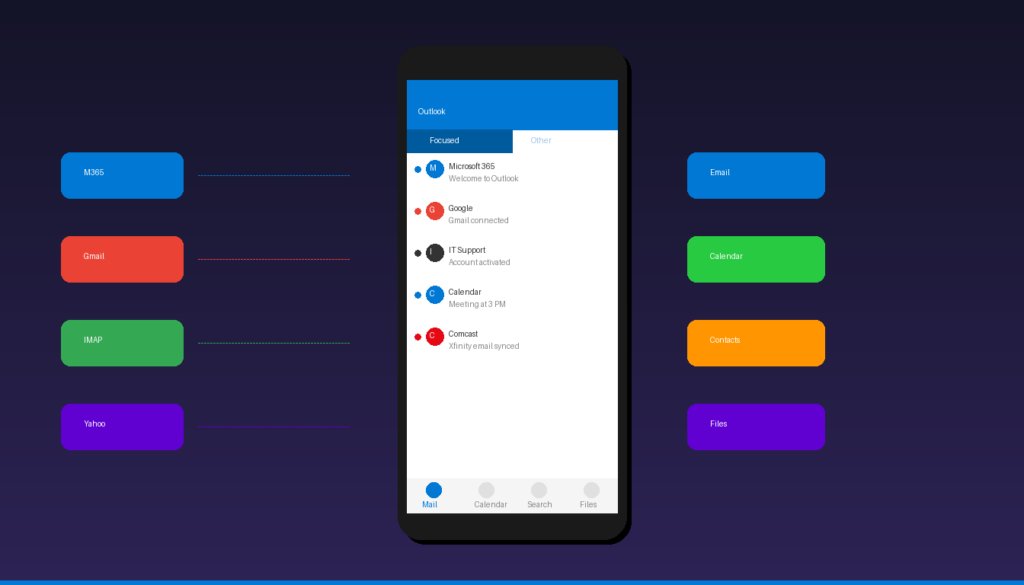
Microsoft Outlook for Android brings your email, calendar, and contacts into one app on your phone. The setup process takes under 5 minutes for most email providers, including Microsoft 365, Exchange, Gmail, Yahoo, and IMAP accounts. Once configured, you can also personalize your emails with a professional Outlook signature right from your Android device.
Key Takeaways
- Microsoft Outlook for Android supports Microsoft 365, Exchange, Outlook.com, Gmail, Yahoo, and IMAP/POP email accounts.
- Exchange and Microsoft 365 accounts sync email, calendar, and contacts automatically — IMAP accounts sync email only.
- The app requires Android 10.0 or later and is free to download from the Google Play Store.
How Do I Set Up Outlook on My Android Phone?
Download the Microsoft Outlook app from the Google Play Store and follow the in-app prompts to add your email account — the app auto-detects most account types.
Step 1: Install the App
- Open the Google Play Store on your Android phone.
- Search for Microsoft Outlook.
- Tap Install on the app by Microsoft Corporation.
- Wait for the download to finish, then tap Open.
Step 2: Add Your Email Account
- When Outlook opens for the first time, tap Add Account.
- Enter your full email address (e.g., yourname@outlook.com, yourname@company.com, or yourname@gmail.com).
- Tap Continue.
Step 3: Authenticate
- Microsoft 365 / Exchange / Outlook.com: You will be redirected to the Microsoft sign-in page. Enter your password and complete multi-factor authentication (MFA) if prompted.
- Gmail / Google Workspace: You will be redirected to the Google sign-in page. Enter your Google password and approve access.
- IMAP / POP: Toggle Advanced Settings and enter your email password, incoming server (IMAP), and outgoing server (SMTP) manually.
Step 4: Complete Setup
- Outlook will verify your credentials and connect to the mail server.
- Tap Maybe Later to skip adding another account, or add additional accounts now.
- Your inbox will load within a few seconds.
How Do I Add Multiple Email Accounts to Outlook on Android?
You can manage up to 25 email accounts in a single Outlook app — tap your profile icon, then the envelope-plus icon to add each one.
- Open Outlook and tap your profile picture (or initials) in the top-left corner.
- Tap the envelope icon with a plus sign at the bottom-left of the sidebar.
- Enter the email address for the new account and tap Add Account.
- Follow the same authentication steps as your first account.
Each account gets its own inbox view, or you can use the Focused Inbox to see all important emails across accounts in one place. If you also use Outlook on your computer, our Gmail on Outlook setup guide covers adding additional accounts on desktop.
What Are the IMAP Settings for Outlook on Android?
For IMAP email accounts, you need to enter your email provider’s incoming and outgoing server settings manually in Outlook’s Advanced Settings during account setup.
| Setting | Field |
|---|---|
| Email Address | Your full email address |
| Display Name | Your name as shown to recipients |
| IMAP Server | Your provider’s incoming server (e.g., imap.provider.com) |
| IMAP Port | Usually 993 (SSL/TLS) |
| SMTP Server | Your provider’s outgoing server (e.g., smtp.provider.com) |
| SMTP Port | Usually 587 (STARTTLS) |
| Security Type | SSL/TLS for IMAP, STARTTLS for SMTP |
Common IMAP servers for popular providers:
| Provider | IMAP Server | SMTP Server |
|---|---|---|
| Comcast/Xfinity | imap.comcast.net | smtp.comcast.net |
| AT&T | imap.mail.att.net | smtp.mail.att.net |
| Yahoo | imap.mail.yahoo.com | smtp.mail.yahoo.com |
| GoDaddy | imap.secureserver.net | smtpout.secureserver.net |
For detailed Comcast configuration, see our Comcast email in Outlook setup guide. For SMTP troubleshooting on any provider, our Outlook SMTP settings guide covers port configurations in depth.
Can I Sync Outlook Calendar and Contacts on Android?
Exchange and Microsoft 365 accounts automatically sync calendar events and contacts to the Outlook app — IMAP and POP accounts only sync email, not calendar or contacts.
Enable Calendar Sync
Calendar sync is automatic for Exchange-based accounts. Your events appear in the Outlook calendar tab immediately after setup. To check:
- Open Outlook and tap the Calendar tab at the bottom.
- Tap the hamburger menu (three lines) in the top-left.
- Verify your account’s calendar is checked (toggled on).
Enable Contact Sync
To sync Outlook contacts to your Android phone’s native contacts app:
- Open Outlook and tap your profile picture in the top-left.
- Tap the gear icon (Settings) at the bottom-left.
- Tap your email account under Mail accounts.
- Scroll down and toggle Sync Contacts to on.
- If the toggle is grayed out, go to Android Settings > Accounts > enable Auto sync data.
According to Microsoft Support, contacts sync from Outlook to your device’s address book so other apps (Phone, Messages) can access them.
Why Is Outlook Not Working on My Android Device?
The most common causes of Outlook problems on Android are an outdated app, corrupted cache, or authentication issues — updating the app and clearing cache fixes most problems.
1. Update the App
- Open the Google Play Store.
- Search for Microsoft Outlook.
- If an Update button appears, tap it.
- Also check for Android OS updates: Settings > System > Software Update.
2. Clear App Cache
- Go to Android Settings > Apps > Outlook.
- Tap Storage & cache.
- Tap Clear cache (do not tap “Clear storage” — that removes your accounts).
- Restart Outlook.
3. Remove and Re-Add Your Account
If clearing cache does not help:
- Open Outlook and go to Settings (gear icon).
- Tap your email account.
- Scroll down and tap Delete Account.
- Re-add the account using the steps in the setup section above.
4. Check Authentication
- Microsoft 365: Ensure MFA is configured correctly. Try signing in at outlook.office365.com in your phone’s browser first.
- IMAP providers: Verify your email provider allows third-party app access. Some providers (Comcast, AT&T) require you to enable this in their account settings.
- App passwords: If your email provider uses two-step verification, generate an app-specific password.
5. Check Device Storage
Outlook needs sufficient storage to sync emails and attachments. If your phone has less than 500 MB free, delete unused apps or clear temporary files to free up space.
How Do I Customize Outlook on Android?
After setup, configure these settings to optimize your experience.
- Focused Inbox: Outlook automatically sorts your email into Focused (important) and Other (newsletters, promotions). Toggle it in Settings > Mail > Focused Inbox.
- Swipe Actions: Customize what happens when you swipe left or right on an email. Go to Settings > Mail > Swipe Options.
- Notifications: Control which accounts trigger notifications and set notification sounds. Go to Settings > tap your account > Notifications.
- Signature: Set a mobile-specific email signature under Settings > Signature. For advanced signature tips, see our Outlook signature setup guide.
- Dark Mode: Outlook supports Android’s system-wide dark mode and also has its own dark theme under Settings > Appearance.
Outlook on Android vs iPhone: What Are the Differences?
Both Outlook for Android and Outlook for iPhone offer the same core features — the main differences are in notification handling and platform-specific integrations.
| Feature | Android | iPhone |
|---|---|---|
| Email providers | M365, Exchange, Gmail, Yahoo, IMAP | M365, Exchange, Gmail, Yahoo, IMAP |
| Calendar sync | Exchange/M365 only | Exchange/M365 only |
| Contact sync | To native contacts app | To native contacts app |
| Widgets | Home screen email widget | Lock screen & home widget |
| Dark mode | System + app setting | System + app setting |
| Biometric unlock | Fingerprint, face unlock | Face ID, Touch ID |
| Minimum OS | Android 10.0+ | iOS 16.0+ |
If you also need to set up Outlook on an iPhone, our Outlook on iPhone setup guide walks through the process.
Frequently Asked Questions
Is the Outlook app free on Android?
Yes. Microsoft Outlook for Android is free to download and use from the Google Play Store. You do not need a Microsoft 365 subscription to use it — any email account (Gmail, Yahoo, IMAP) works. However, Microsoft 365 and Exchange accounts unlock additional features like calendar and contact sync. If you need Outlook on desktop, Microsoft Office 2024 Professional Plus ($199.99) includes the full Outlook desktop application.
Why can’t I sync my calendar on Outlook for Android?
Calendar sync only works with Exchange and Microsoft 365 accounts. If your account is set up as IMAP or POP, calendar events will not sync to the Outlook mobile app. To get calendar sync, you need an email provider that supports Microsoft Exchange ActiveSync.
How many email accounts can I add to Outlook on Android?
You can add up to 25 email accounts in the Outlook Android app. Each account can be a different provider — for example, one Microsoft 365 account, one Gmail, and one IMAP account all in the same app.
Does Outlook for Android work with Comcast email?
Yes. You can add your Comcast (Xfinity) email to Outlook for Android using IMAP settings. Use imap.comcast.net (port 993, SSL) for incoming and smtp.comcast.net (port 587, STARTTLS) for outgoing mail. You must enable third-party access in your Xfinity account settings first.

by Editorial Team
Updated on April 5, 2026

by Editorial Team
Updated on April 5, 2026
ON THIS PAGE