How to Set Up Reminders and Follow-Ups in Outlook
Microsoft Outlook reminders help you stay on top of emails that need follow-up, upcoming calendar…
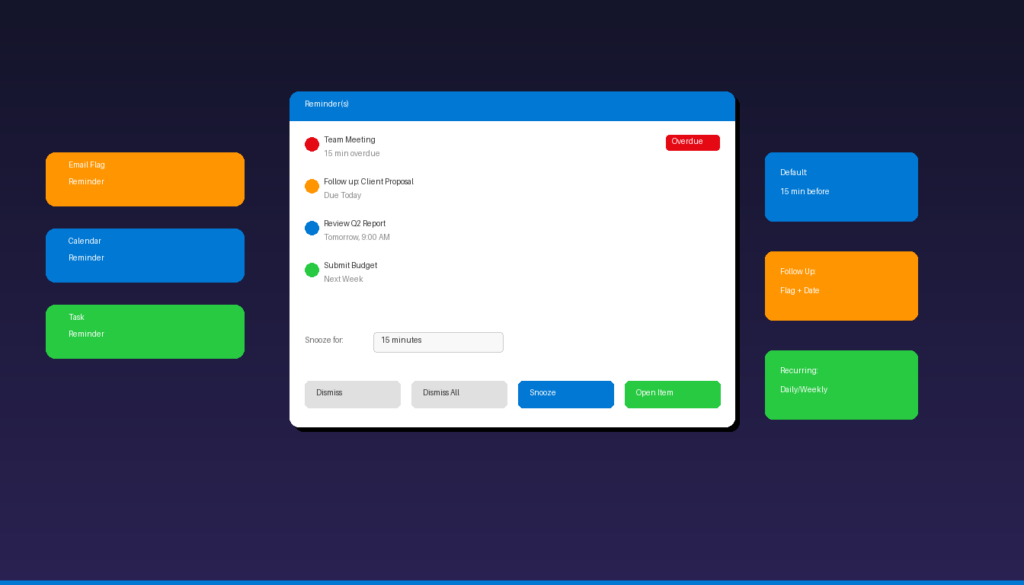
Microsoft Outlook reminders help you stay on top of emails that need follow-up, upcoming calendar events, and task deadlines. You can flag emails for follow-up with a specific reminder date, set calendar alerts from 5 minutes to 2 weeks before an event, and create tasks with due date notifications. For other productivity features, see our guide to creating Outlook rules to automate your inbox.
Key Takeaways
- Flag any email for follow-up with a reminder by selecting Home > Follow Up > Add Reminder and setting the date and time.
- Calendar event reminders default to 15 minutes before but can be changed globally under File > Options > Calendar > Default reminders.
- Task reminders pop up at a specified date and time, keeping you accountable for to-do items alongside your email and calendar.
How Do I Set a Follow-Up Reminder on an Email in Outlook?
Right-click any email, select Follow Up > Add Reminder, then set the flag type, due date, and reminder time — Outlook will pop up a notification at the specified time.
Classic Outlook Desktop
- Select the email you want to follow up on.
- Click Home > Follow Up > Add Reminder (or right-click the email > Follow Up > Add Reminder).
- In the Custom dialog:
- Flag to: Choose the action (Follow Up, Call, Reply, etc.)
- Start date: When you plan to start the follow-up
- Due date: When the follow-up should be completed
- Reminder: Check the box and set the date and time for the pop-up
- Click OK.
A flag icon appears on the email, and Outlook will display a reminder pop-up at the scheduled time.
New Outlook for Windows
- Right-click the email or click the flag icon that appears on hover.
- Select Add reminder.
- Choose a preset time (Today, Tomorrow, This Week, Next Week) or click Custom to set a specific date and time.
- Click Save.
Quick Flags (No Custom Reminder)
For faster flagging without setting a specific reminder time:
| Flag Option | Due Date | Reminder |
|---|---|---|
| Today | End of today | Today at close of business |
| Tomorrow | End of tomorrow | Tomorrow at start of business |
| This Week | End of this week | Two days before end of week |
| Next Week | End of next week | Start of next week |
| No Date | No due date | No automatic reminder |
| Custom | You choose | You choose |
According to Microsoft Support, flagged emails also appear in your Outlook To-Do list, making them visible across Outlook, Microsoft To Do, and Teams.
How Do I Set Calendar Event Reminders in Outlook?
Open any calendar event and use the Reminder dropdown to choose when the notification appears — from 0 minutes (at event time) to 2 weeks before.
Set a Reminder on a New Event
- Click Calendar in Outlook’s navigation.
- Click New Appointment or New Meeting.
- Fill in the event title, date, time, and location.
- Click the Reminder dropdown in the ribbon (classic) or the bell icon (new Outlook).
- Select the reminder time: 0 minutes, 5 minutes, 10 minutes, 15 minutes, 30 minutes, 1 hour, 2 hours, 12 hours, 1 day, 2 days, or 1 week.
- Click Save & Close.
Set a Reminder on an Existing Event
- Double-click the calendar event to open it.
- Change the Reminder dropdown to your preferred time.
- Click Save & Close.
Reminder Times Explained
| Reminder Setting | Best For |
|---|---|
| 0 minutes | Events that need attention right at start time |
| 5-15 minutes | Regular meetings (time to wrap up current task) |
| 30-60 minutes | Meetings requiring preparation |
| 12 hours – 1 day | Events needing advance preparation or travel |
| 1-2 weeks | Major deadlines or events requiring significant prep |
How Do I Change the Default Reminder Time in Outlook?
Change the global default so all new calendar events automatically include your preferred reminder time — no need to set it on each event individually.
Classic Outlook Desktop
- Click File > Options.
- Select Calendar from the left sidebar.
- Under Calendar options, check Default reminders and set the time (e.g., 15 minutes, 30 minutes, 1 hour).
- Click OK.
All new calendar events will now use this default reminder time. Existing events are not affected.
New Outlook for Windows / Outlook on the Web
- Click the gear icon (Settings).
- Select Calendar > Events and invitations.
- Under Events you create, find the Default reminder dropdown.
- Select your preferred default time.
- Click Save.
Disable All Reminders
To turn off reminders for all calendar events:
- Go to File > Options > Calendar (classic) or Settings > Calendar (new).
- Uncheck Default reminders or set the dropdown to None.
How Do I Create Task Reminders in Outlook?
Create a task with a reminder to get a pop-up notification at a specific date and time — tasks appear in your To-Do list alongside flagged emails.
- Click Tasks in Outlook’s navigation (or the checkmark icon).
- Click New Task.
- Enter the Subject (task name).
- Set the Start date and Due date.
- Check the Reminder box and set the reminder date and time.
- Set Priority (Low, Normal, High) if needed.
- Click Save & Close.
Recurring Task Reminders
For tasks that repeat on a schedule:
- Create a new task and set the reminder as above.
- Click Recurrence in the ribbon.
- Choose the pattern: Daily, Weekly, Monthly, or Yearly.
- Set the range (no end date, end after X occurrences, or end by date).
- Click OK, then Save & Close.
The reminder will trigger each time the task recurs, automatically creating the next instance when you mark the current one complete.
How Do I Snooze or Dismiss Reminders in Outlook?
When a reminder pops up, click Snooze to postpone it or Dismiss to clear it permanently — you can also snooze all reminders at once or set a custom snooze duration.
Reminder Window Options
| Button | Action |
|---|---|
| Dismiss | Clears the individual reminder permanently |
| Dismiss All | Clears all pending reminders at once |
| Snooze | Postpones the reminder by the selected duration |
| Open Item | Opens the email, event, or task associated with the reminder |
Snooze Duration Options
Classic Outlook offers these snooze times: 5 minutes, 10 minutes, 15 minutes, 30 minutes, 1 hour, 2 hours, 4 hours, 8 hours, 0.5 days, 1 day, 2 days, 3 days, 4 days, 1 week, 2 weeks.
In the new Outlook, default snooze options are more limited (5, 10, 30 minutes, 1 hour, 2 hours), but you can type a custom time value in the snooze field.
According to Microsoft Support, snoozed reminders will reappear at the new time. Dismissed reminders are gone permanently — there is no undo for dismiss.
Why Are My Outlook Reminders Not Popping Up?
The most common cause is Outlook not running or reminder notifications being disabled in settings — check both before troubleshooting further.
1. Make Sure Outlook Is Running
Classic Outlook desktop reminders only trigger while the application is running. If you close Outlook, no reminders will appear until you reopen it.
2. Enable Reminder Pop-Ups
Classic Outlook: 1. Go to File > Options > Advanced. 2. Under Reminders, check Show reminders. 3. Click OK.
New Outlook / Web: 1. Go to Settings > General > Notifications. 2. Under Calendar, toggle notifications to On.
3. Check Windows Notification Settings
- Open Windows Settings > System > Notifications.
- Scroll down to Microsoft Outlook and make sure notifications are On.
- Ensure Do Not Disturb / Focus Assist is turned off.
4. Reset the Reminders Folder
If reminders are completely broken in classic Outlook:
- Close Outlook.
- Press Windows + R and type
outlook.exe /cleanreminders. - Press Enter. Outlook will open and rebuild the reminders folder.
5. Check Dismissed Reminders
If you accidentally clicked Dismiss All, those reminders cannot be recovered. Re-flag the emails or re-set the calendar event reminders manually.
For managing your Outlook workflow further, set up automatic out-of-office replies when you are away, or create email templates for quick responses to follow-up emails. If you need Outlook with full reminder support, Microsoft Office 2024 Professional Plus ($199.99) includes the classic Outlook desktop application.
Frequently Asked Questions
Can I set a reminder for someone else’s email in Outlook?
You can only set follow-up flags and reminders on emails in your own mailbox. However, when composing or replying to an email, you can click Follow Up > Custom and check “Flag for Recipients” to add a follow-up flag that appears in the recipient’s inbox — though you cannot control their reminder time.
Do Outlook reminders work on mobile?
Yes. Calendar reminders sync to the Outlook mobile app for iPhone and Android if your account is Exchange or Microsoft 365. Flagged email reminders also appear in the Microsoft To Do app, which syncs across all devices. IMAP accounts do not sync reminders to mobile.
How do I set a recurring reminder in Outlook without a calendar event?
Create a recurring task instead. Go to Tasks > New Task, set a reminder, then click Recurrence to choose daily, weekly, or monthly. Each time you complete the task, the next occurrence is created with its own reminder.
What happens if I dismiss a reminder accidentally?
Dismissed reminders cannot be recovered. For calendar events, open the event and set a new reminder manually. For flagged emails, right-click the email, select Follow Up > Add Reminder, and set a new reminder time.

by Editorial Team
Updated on April 5, 2026

by Editorial Team
Updated on April 5, 2026
ON THIS PAGE