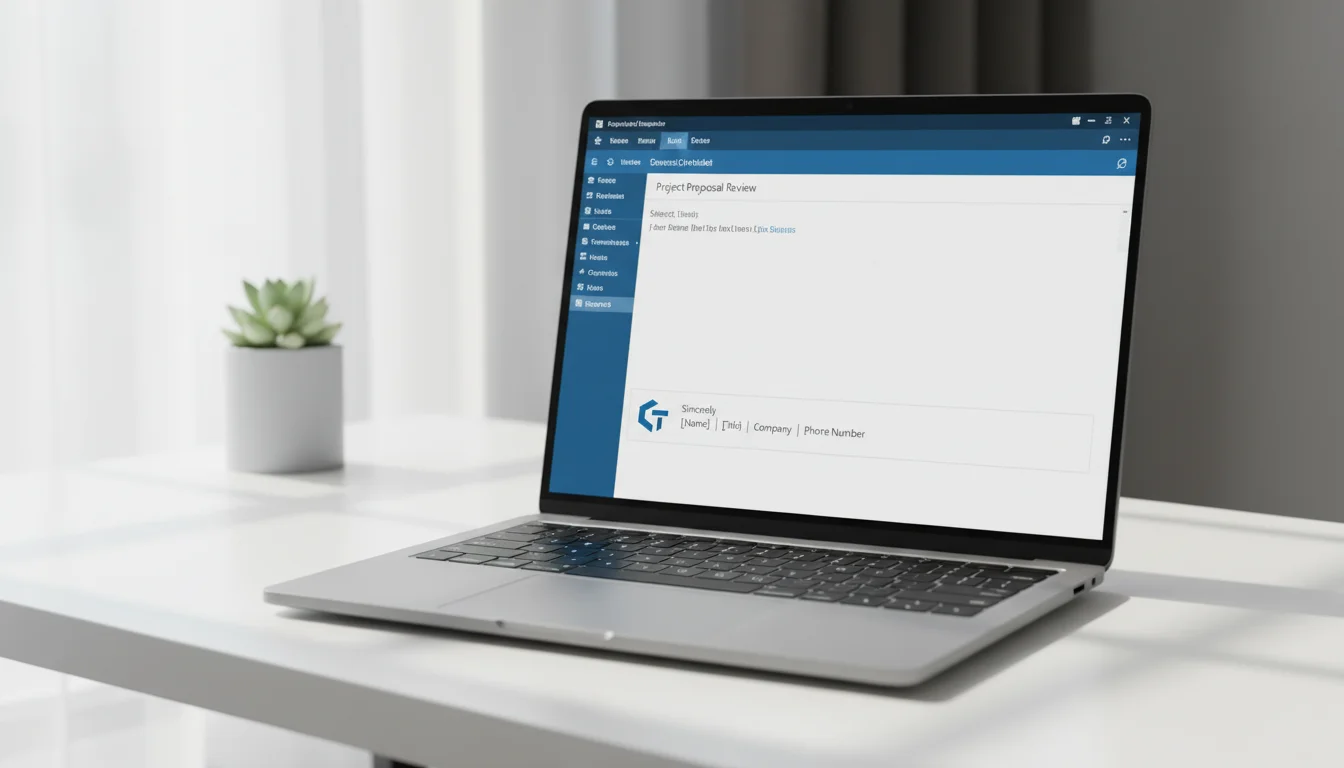
A professional email signature turns every message you send into a mini business card. Microsoft Outlook — the email client included in Microsoft Office and Microsoft 365 — lets you create rich signatures with your name, title, contact details, a company logo, and clickable links. Once configured, your signature appears automatically on every new email or reply, so you never forget to add it manually.
This guide covers every platform: Outlook Desktop (Classic), New Outlook 2024, Outlook on the Web, and Outlook Mobile on iOS and Android.
Key Takeaways
- Desktop: File → Options → Mail → Signatures — create, format, and assign signatures per account in under 2 minutes.
- Web: Settings → Mail → Compose and reply → Email signature — same result from any browser, no software install needed.
- Multiple signatures: Outlook supports separate signatures for new emails and for replies/forwards on each account.
How Do I Set Up an Email Signature in Outlook?
Go to your Outlook signature settings, click New, type your signature text, then assign it as the default for new messages and/or replies. The exact path depends on which version of Microsoft Outlook you use — Classic desktop, New Outlook 2024, or Outlook on the Web.
Which Version of Outlook Do You Have?
| Version | How to identify |
|---|---|
| Classic Outlook (2016–2021) | Title bar shows “Outlook” with a blue icon; File menu is visible |
| New Outlook (2024+) | Streamlined toolbar, Settings gear top-right, no classic File menu ribbon |
| Outlook on the Web | Accessed via outlook.live.com or outlook.office.com in a browser |
| Outlook Mobile | App installed on iOS or Android device |
How to Set Up a Signature in Outlook Desktop (Classic)
Follow these steps for Microsoft Outlook 2016, 2019, or 2021 on Windows:
- Open Microsoft Outlook.
- Click File in the top-left ribbon.
- Select Options from the left panel.
- In the Outlook Options window, click Mail.
- Under the “Compose messages” section, click Signatures…
- In the Signatures and Stationery dialog, click New.
- Type a name for your signature (e.g., “Professional” or “Work”) and click OK.
- In the editing area at the bottom, type and format your signature — name, title, phone number, website, etc.
- Use the formatting toolbar to adjust font, size, color, and alignment.
- Under Choose default signature, select the email account in the “E-mail account” dropdown.
- Set New messages and Replies/forwards dropdowns to your new signature name (or leave Replies/forwards as “(none)” if you prefer a shorter reply signature).
- Click OK to save.
Your signature is now active. Every new email from that account will include it automatically.
Tip: You can create as many signatures as you like and switch between them manually while composing an email using the Insert → Signature menu.
How to Set Up a Signature in the New Outlook (2024)
New Outlook, released in 2024, uses a refreshed Settings panel instead of the classic File menu:
- Open New Outlook.
- Click the Settings gear icon in the top-right corner.
- In the Settings panel, go to Accounts → Signatures.
- Click New signature.
- Give your signature a name.
- Type and format your signature in the text editor provided.
- Click Save.
- Under Select default signatures, choose your email account and assign your new signature to New messages and Replies/forwards as desired.
- Close the Settings panel.
New Outlook syncs your signature settings to the cloud, so they persist if you sign in on another Windows device running New Outlook.
How Do I Add a Signature in Outlook on the Web?
To add a signature in Outlook on the Web, go to Settings → Mail → Compose and reply, then create a new signature and save it. Here are the full steps:
- Go to outlook.live.com or outlook.office.com and sign in.
- Click the Settings gear icon in the top-right corner.
- Click View all Outlook settings at the bottom of the quick settings panel.
- Navigate to Mail → Compose and reply.
- Under Email signature, click + New signature.
- Enter a name for the signature.
- Type and format your signature in the rich-text editor.
- Under Select default signatures, assign the signature to New messages and/or Replies/forwards.
- Click Save.
Changes take effect immediately. Your web signature is stored in your Microsoft account and does not automatically sync to Outlook Desktop — each platform has its own signature store.
How to Set Up a Signature in Outlook Mobile (iOS & Android)
Microsoft Outlook’s mobile app supports simple text signatures. To set one up:
- Open the Outlook app on your iPhone or Android device.
- Tap the profile icon or the hamburger menu (three lines) at the top-left.
- Tap the Settings gear at the bottom of the menu.
- Scroll down and tap your email account name.
- Tap Signature.
- Delete the default “Get Outlook for iOS/Android” text and type your preferred signature.
- Tap the back arrow or Save — the change saves automatically.
Note: Outlook Mobile signatures are plain text only. For HTML signatures with logos and formatted styling, use Outlook Desktop or the web version.
Can I Have Different Signatures for New Emails and Replies?
Yes. Microsoft Outlook lets you assign separate signatures for new messages and for replies or forwards on every email account you have configured.
On Outlook Desktop (Classic)
In the Signatures and Stationery dialog (File → Options → Mail → Signatures…), use the two dropdowns under “Choose default signature”:
- New messages — shown when you compose a fresh email
- Replies/forwards — shown when you reply or forward
Set “Replies/forwards” to a shorter signature (name and phone only, no logo) to keep reply threads clean.
On New Outlook (2024) and Outlook on the Web
In the signature settings under Select default signatures, the same two dropdowns appear: New messages and Replies/forwards. Assign different signatures or set one to “(No signature)” for replies.
Best Practice
Keep your new-message signature comprehensive (name, title, company, phone, website, logo). Set your reply signature to a minimal version — just your name and direct line. This reduces clutter in long email threads while keeping your branding visible on first contact.
How Do I Add a Logo or Image to My Outlook Signature?
You can embed a logo directly into your Outlook signature using the Insert Pictures Inline button. Here is how to do it on each platform:
On Outlook Desktop (Classic) and New Outlook (2024)
- Open the signature editor (File → Options → Mail → Signatures or Settings → Accounts → Signatures).
- Place your cursor in the signature editing area where you want the logo to appear.
- Click the Insert Pictures Inline icon (looks like a small image/mountain icon) in the editor toolbar.
- Browse to your logo file, select it, and click Insert.
- Right-click the inserted image and select Picture… to set exact dimensions.
Logo Specifications
| Setting | Recommendation |
|---|---|
| Width | 150 px |
| Height | 50 px |
| File format | PNG (transparent background) |
| File size | Under 50 KB |
| Color mode | RGB |
A 150×50 px PNG keeps your logo sharp on high-DPI screens without bloating email file size. Avoid JPEG for logos — compression artifacts make text-in-logos look blurry.
On Outlook on the Web
The web signature editor includes an image upload button in its toolbar. Click the image icon, upload your PNG, and resize as needed. Note that some corporate Microsoft 365 environments restrict inline image uploads — contact your IT administrator if the option is grayed out.
Important: Inline vs. Linked Images
Always use Insert Pictures Inline (embedded image), not an image hosted on an external URL. Linked images often display as broken red X icons when recipients have image-loading blocked in their email client. An embedded image is part of the email itself and always renders correctly.
Why Isn’t My Outlook Signature Showing Up?
If your Microsoft Outlook signature is not appearing in new emails or replies, use this troubleshooting table to diagnose the cause:
| Symptom | Likely Cause | Fix |
|---|---|---|
| Signature missing on all new emails | Default signature not assigned | Go to signature settings and set the “New messages” dropdown to your signature name |
| Signature missing only on replies | Reply signature not assigned | Set the “Replies/forwards” dropdown in signature settings |
| Signature disappeared after reinstall | Signatures not backed up | Signatures are stored locally in %AppData%\Microsoft\Signatures — restore from backup or recreate |
| Signature shows in draft but not sent email | Sending from wrong account | Check the From field — ensure it matches the account the signature is assigned to |
| Logo shows as red X / broken image | Image linked externally | Re-insert using Insert Pictures Inline so the image is embedded |
| Signature missing in Outlook Web | Separate signature store | Web signatures are independent — configure them at outlook.live.com or outlook.office.com separately |
| Signature not syncing to another PC | Signatures are local (Classic Outlook) | New Outlook 2024 syncs to cloud; Classic Outlook stores signatures locally per machine |
| Signature editor option is grayed out | Corporate IT policy | Contact your Microsoft 365 administrator to enable signature permissions |
According to Microsoft’s official support documentation, signature files are stored in %APPDATA%\Microsoft\Signatures on Windows. Backing up this folder protects your signatures if you reinstall Outlook or switch computers.
How to Get Microsoft Outlook
Microsoft Outlook is included with Microsoft Office and Microsoft 365 subscriptions. If you are looking for a one-time purchase — no monthly fees — The Software City offers genuine Microsoft Office license keys at significant savings over retail pricing.
Microsoft Office — One-Time Purchase Options
| Product | Price | Best For |
|---|---|---|
| Microsoft Office 2024 Professional Plus | $199.99 | Full productivity suite (Word, Excel, PowerPoint, Outlook, Teams, and more) |
| Microsoft Office 2024 Home & Business | $189.99 | Home users and small business owners who need Outlook and core apps |
| Microsoft Office 2021 Professional Plus | $64.99 | Budget-friendly one-time purchase with full Outlook included |
All licenses are 100% genuine Microsoft keys with instant digital delivery (15–45 minutes by email) and a 180-day warranty. No subscription, no recurring charges. Read our Office 2024 lifetime license guide for a full breakdown of what each edition includes, or explore affordable Microsoft Office keys to compare your options.
Frequently Asked Questions
How do I set up automatic signatures in Outlook?
In Outlook Desktop, go to File → Options → Mail → Signatures, create your signature, then set the “New messages” and “Replies/forwards” dropdowns under “Choose default signature.” Once assigned, Microsoft Outlook inserts the signature automatically every time you compose or reply — no manual action needed.
Can I use HTML in my Outlook signature?
Yes. Outlook Desktop supports HTML formatting through its built-in rich-text signature editor, which renders bold, italic, colored text, hyperlinks, and inline images. If you need advanced HTML (custom CSS, tables), paste your HTML code directly into the signature editor in Outlook Desktop — it processes a subset of HTML. Outlook on the Web also supports rich formatting via its editor toolbar.
How many signatures can I create in Outlook?
Microsoft Outlook does not enforce a fixed limit on the number of signatures you can create. You can build a full library — one per client, one per role, one for formal correspondence, one for quick replies — and switch between them manually using Insert → Signature while composing an email.
Does my Outlook signature sync across devices?
It depends on your version. New Outlook 2024 stores signatures in the cloud and syncs them across devices running New Outlook. Classic Outlook (2016, 2019, 2021) stores signatures locally in %AppData%\Microsoft\Signatures and does not sync automatically. Outlook on the Web has its own independent signature store. Outlook Mobile has a separate signature setting as well.


