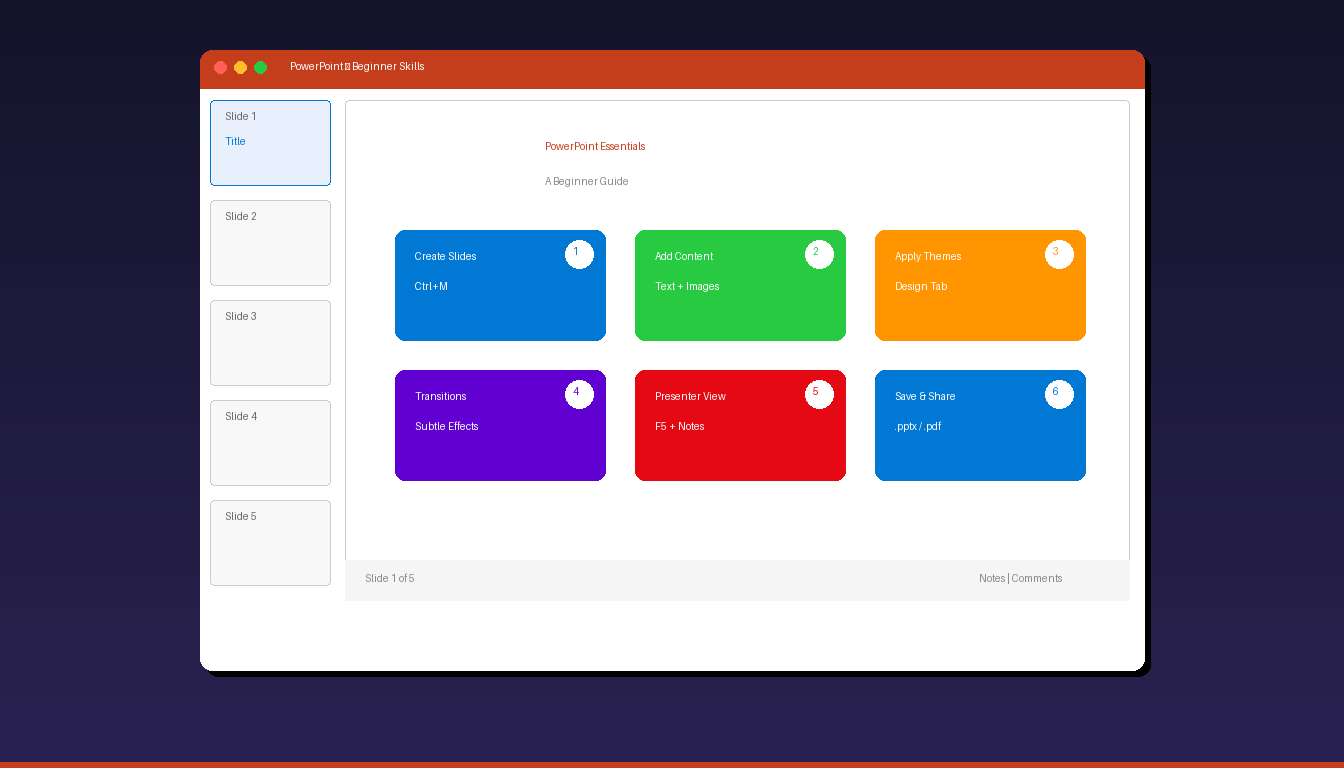
Microsoft PowerPoint lets you create professional presentations by combining text, images, charts, and animations on slides. Whether you are presenting a school project, business pitch, or training session, these essential skills get you from a blank slide to a polished presentation. For a more comprehensive guide, see our PowerPoint tutorial for beginners.
Key Takeaways
- Create a new presentation from File > New — choose a blank presentation or start with a pre-designed template for instant professional design.
- Add new slides with Ctrl+M, add text by clicking placeholders, and insert images via Insert > Pictures — these three actions form 90% of basic slide creation.
- Use Presenter View (Slide Show tab > Use Presenter View) to see your notes and upcoming slides on your screen while the audience sees only the current slide.
How Do I Create a New Presentation?
Open PowerPoint and click File > New, then choose Blank Presentation for a fresh start or select a template for pre-designed layouts with colors, fonts, and placeholders already configured.
From Blank
- Open PowerPoint.
- Click File > New > Blank Presentation.
- A single blank slide appears with a title placeholder.
- Click “Click to add title” and type your presentation title.
- Click “Click to add subtitle” for a subtitle or author name.
From a Template
- Click File > New.
- Browse templates by category or search (e.g., “business pitch,” “education”).
- Click a template to preview it.
- Click Create to open it as a new presentation.
- Replace the placeholder text and images with your content.
Templates save significant time — they include coordinated colors, fonts, and slide layouts designed by professionals.
How Do I Add and Manage Slides?
Add new slides with Ctrl+M, choose layouts from the New Slide dropdown, and reorder by dragging slide thumbnails in the left panel.
Essential Slide Operations
| Action | How | Shortcut |
|---|---|---|
| Add new slide | Home > New Slide | Ctrl+M |
| Duplicate slide | Right-click slide > Duplicate | Ctrl+D |
| Delete slide | Right-click slide > Delete | Delete key |
| Reorder slides | Drag thumbnail in left panel | — |
| Change layout | Home > Layout > choose layout | — |
| Hide slide | Right-click > Hide Slide | — |
Common Slide Layouts
| Layout | Contains | Best For |
|---|---|---|
| Title Slide | Title + subtitle | First slide of presentation |
| Title and Content | Title + content placeholder | Most slides |
| Two Content | Title + two content areas | Comparisons, side-by-side |
| Section Header | Large text area | Dividing presentation sections |
| Blank | Nothing (empty canvas) | Custom layouts, full-screen images |
| Title Only | Just a title | Slides with primarily visual content |
How Do I Add Text, Images, and Shapes?
Click text placeholders to type, use Insert > Pictures for images, and Insert > Shapes for diagrams — these three content types form the foundation of every presentation.
Text
- Click any text placeholder on the slide.
- Type your content.
- Format using the Home tab: font, size, bold, italic, color, alignment.
- For text outside placeholders: Insert > Text Box > click and drag to create.
Images
- Go to Insert > Pictures.
- Choose source:
- This Device — from your computer
- Stock Images — free Microsoft library
- Online Pictures — search the web
- Select an image and click Insert.
- Resize by dragging corner handles (hold Shift to maintain proportions).
Shapes
- Go to Insert > Shapes.
- Choose a shape (rectangle, circle, arrow, callout, etc.).
- Click and drag on the slide to draw the shape.
- Format: Shape Format tab > Fill, Outline, Effects.
Tip: Use SmartArt (Insert > SmartArt) for diagrams like org charts, process flows, and lists — SmartArt automatically arranges and formats shapes based on a template.
How Do I Apply Themes and Design?
Go to the Design tab and click a Theme to instantly change the colors, fonts, and backgrounds of the entire presentation — use Variants for color and style variations within a theme.
Apply a Theme
- Click the Design tab.
- Browse the Themes gallery.
- Hover over any theme to preview it live on your current slide.
- Click to apply.
Customize with Variants
- In the Design tab, look at Variants (to the right of Themes).
- Click a variant to change the color scheme.
- Click the dropdown arrow for more options: Colors, Fonts, Effects, Background Styles.
Design Ideas
PowerPoint’s Designer (Design tab > Design Ideas) automatically suggests professional layouts based on your slide content. Add an image or text, then check the Design Ideas panel for instant layout suggestions.
For controlling themes at a deeper level, see our PowerPoint Slide Master tutorial.
How Do I Add Transitions and Present My Slides?
Apply transitions between slides from the Transitions tab, then press F5 to start the slideshow — use Presenter View to see your notes while the audience sees only the current slide.
Add Transitions
- Click the slide in the left panel.
- Go to the Transitions tab.
- Choose a transition effect (Fade, Push, Wipe, etc.).
- Adjust Duration (0.5-1.0 seconds recommended).
- Click Apply To All to use the same transition on every slide.
Recommended transitions: Fade and Push are professional and subtle. Avoid flashy transitions (Vortex, Airplane) in business presentations.
Start the Slideshow
| Action | How | Shortcut |
|---|---|---|
| From beginning | Slide Show > From Beginning | F5 |
| From current slide | Slide Show > From Current Slide | Shift+F5 |
| Next slide | Click or press arrow keys | Right/Down |
| Previous slide | Press left arrow | Left/Up |
| End show | Press Escape | Esc |
| Black screen | Press B | B |
| White screen | Press W | W |
Use Presenter View
- Go to Slide Show tab > check Use Presenter View.
- Start the slideshow (F5).
- Your screen shows: current slide, next slide preview, speaker notes, timer.
- The audience screen shows only the current slide.
Presenter View requires two displays (laptop + projector/external monitor). It is the single most useful feature for confident presenting.
For adding animations to individual elements, see our PowerPoint animation tutorial.
What Are Essential PowerPoint Keyboard Shortcuts?
These shortcuts save time during both slide creation and presentation delivery.
Editing Shortcuts
| Shortcut | Action |
|---|---|
| Ctrl+M | Insert new slide |
| Ctrl+D | Duplicate selected slide or object |
| Ctrl+G | Group selected objects |
| Ctrl+Shift+G | Ungroup objects |
| Ctrl+Z | Undo |
| Ctrl+Y | Redo |
| Tab | Select next object on slide |
| Ctrl+A | Select all objects on slide |
Presentation Shortcuts
| Shortcut | Action |
|---|---|
| F5 | Start from beginning |
| Shift+F5 | Start from current slide |
| B | Black screen (pause) |
| W | White screen (pause) |
| Ctrl+P | Pointer/pen tool |
| Ctrl+E | Eraser tool |
| Number+Enter | Jump to specific slide (e.g., 5+Enter) |
How Do I Save and Share My Presentation?
Save as .pptx for editing, export as PDF for sharing, or save as .potx to create a reusable template.
| Format | Extension | Best For |
|---|---|---|
| PowerPoint | .pptx | Editing and collaboration |
| Sharing (no editing, universal viewer) | ||
| Template | .potx | Reusable design for future presentations |
| Show | .ppsx | Opens directly in slideshow mode |
| Images | .png/.jpg | Individual slide images for social media |
| Video | .mp4 | Self-running video of the presentation |
Save to Cloud
- File > Save As > OneDrive (or SharePoint).
- Name the file and click Save.
- Share via File > Share > enter recipient emails.
If you need PowerPoint with all features including Designer, Presenter View, and templates, Microsoft Office 2024 Professional Plus ($199.99) includes the full PowerPoint desktop application.


