How to Schedule a Microsoft Teams Meeting from Outlook
Microsoft Outlook and Teams work together to let you schedule video meetings directly from your…
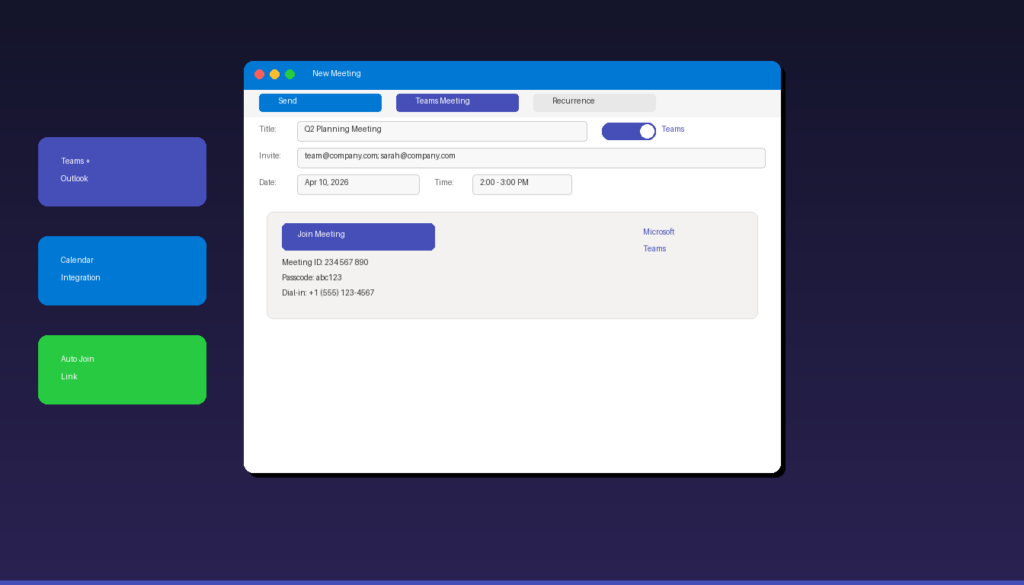
Microsoft Outlook and Teams work together to let you schedule video meetings directly from your calendar — a Teams join link is automatically added to the meeting invite when you toggle Teams on. This works in classic Outlook, new Outlook, Outlook on the web, and the mobile app. For other Outlook productivity tips, see our guide to setting up reminders and follow-ups.
Key Takeaways
- In new Outlook and Outlook on the web, toggle the Teams meeting switch next to the meeting title to automatically add a Teams join link.
- In classic Outlook desktop, use the Teams Meeting button in the ribbon when creating a new meeting — this requires the Teams desktop app installed.
- You can set Microsoft Teams as the default meeting provider so every new calendar event automatically includes a Teams link.
How Do I Schedule a Teams Meeting in New Outlook?
Open a new calendar event in new Outlook, toggle the Teams meeting switch to on, add your attendees and details, then send — the Teams join link is added automatically.
- Open new Outlook for Windows or outlook.office365.com.
- Click the Calendar icon in the left navigation.
- Click New event (or double-click a time slot).
- Next to the event Title field, find the Teams meeting toggle and switch it to on.
- Enter the meeting title, date, time, and location.
- Add attendees in the Invite people field.
- Add an agenda or description in the meeting body.
- Click Send.
The Teams join link, dial-in number, and conference ID are automatically inserted into the meeting body. Attendees receive the calendar invite with a Join button they can click to enter the Teams meeting.
According to Microsoft Support, the Teams toggle appears when your account is connected to a Microsoft 365 subscription that includes Teams.
How Do I Schedule a Teams Meeting in Classic Outlook?
In classic Outlook desktop, click New Meeting, then select the Teams Meeting button in the ribbon to add a Teams join link — the Teams desktop app must be installed for the button to appear.
Method 1: New Teams Meeting Button
- Open classic Outlook desktop.
- Go to the Calendar view.
- On the Home tab, click the dropdown arrow next to New Email.
- Select Meeting.
- In the Meeting tab ribbon, click the Teams Meeting dropdown.
- Select Schedule meeting.
- A Teams join link is automatically generated in the meeting body.
- Add attendees, title, date, time, and agenda.
- Click Send.
Method 2: From Calendar View
- In Calendar view, click New Meeting in the ribbon.
- Click the Teams Meeting button in the Meeting tab.
- The Teams link populates in the body.
- Fill in details and click Send.
Both methods produce the same result — a calendar invitation with an embedded Teams join link, dial-in number, and meeting ID.
How Do I Add a Teams Link to an Existing Outlook Meeting?
Open the existing calendar event for editing, toggle Teams on (new Outlook) or click the Teams Meeting button (classic), then save and send updates to attendees.
New Outlook / Web
- Open the Calendar and double-click the existing meeting.
- Toggle the Teams meeting switch to on.
- The Teams join link is automatically added to the meeting body.
- Click Save (for personal events) or Send update (for meetings with attendees).
Classic Outlook
- Double-click the meeting to open it.
- In the Meeting tab, click the Teams Meeting button.
- The Teams join details populate in the body.
- Click Send Update to notify attendees of the added Teams link.
Note: You cannot remove a Teams link from a meeting once added without canceling and recreating the event. If you need to switch from Teams to an in-person meeting, add a note in the body explaining the change.
How Do I Make Teams the Default for All Outlook Meetings?
Enable the “Add online meeting to all meetings” setting so every new calendar event automatically includes a Teams join link without manually toggling it each time.
New Outlook / Web
- Click the gear icon (Settings).
- Select Calendar > Events and invitations.
- Under Events you create, toggle Add online meeting to all meetings to on.
- If multiple providers are available, select Microsoft Teams as the default.
- Click Save.
Classic Outlook
- Click File > Options > Calendar.
- Check Add online meeting to all meetings.
- Click Meeting Providers and select Microsoft Teams.
- Click OK.
With this enabled, every new meeting you create will have the Teams toggle pre-enabled. You can still turn it off for individual meetings where you do not need a virtual link.
Why Is the Teams Meeting Button Missing in Outlook?
The most common cause is the Teams COM add-in being disabled or the Teams desktop app not being installed — re-enable the add-in or install Teams to restore the button.
For Classic Outlook
| Issue | Fix |
|---|---|
| Teams add-in disabled | File > Options > Add-ins > COM Add-ins > enable Teams add-in |
| Teams not installed | Install Teams desktop app from teams.microsoft.com |
| Add-in crashed | Close Outlook + quit Teams from system tray > restart both |
| Using web-only Teams | Add-in requires desktop app, not web client |
| Old Teams version | Update to New Teams (classic Teams is being retired) |
| Add-in not in list | Restart Teams to force add-in reinstallation |
Step-by-step to re-enable:
- In Outlook, click File > Options > Add-ins.
- Look for Microsoft Teams Meeting Add-in for Microsoft Office.
- If it is in the Disabled Application Add-ins list:
- Select Manage > COM Add-ins > Go.
- Check the Microsoft Teams Meeting Add-in box.
- Click OK and restart Outlook.
For New Outlook
The new Outlook does not use the Teams COM add-in — Teams meeting support is built-in natively. If the Teams toggle does not appear when creating an event:
- Verify your account is a Microsoft 365 account (free Outlook.com may not include Teams).
- Check that Teams is enabled for your organization by your IT administrator.
- Sign out and sign back into new Outlook.
According to Microsoft Learn, the most common fix for classic Outlook is re-enabling the COM add-in after Outlook disables it due to a crash or slow load.
How Do I Schedule a Teams Meeting from Outlook Mobile?
Open the Outlook mobile app, create a new event, and toggle the Teams Meeting switch — the app generates a join link automatically.
- Open the Microsoft Outlook app on your iPhone or Android.
- Tap the Calendar tab.
- Tap + or New Event.
- Toggle Teams Meeting (or Online Meeting) to on.
- Enter the meeting title, date, time, and attendees.
- Tap Send (or the checkmark).
The Teams join link is included in the invite. Attendees can join from the Teams mobile app, desktop app, or web browser.
For setting up Outlook on mobile, see our guides on Outlook for iPhone and Outlook for Android. To send meeting invites to groups of people, create a distribution list in Outlook first.
Do I Need Microsoft 365 to Schedule Teams Meetings in Outlook?
Yes — scheduling Teams meetings from Outlook requires a Microsoft 365 account that includes Microsoft Teams, either through a business subscription or an education plan.
| Microsoft 365 Plan | Teams Included | Teams in Outlook |
|---|---|---|
| Microsoft 365 Business Basic | Yes | Yes |
| Microsoft 365 Business Standard | Yes | Yes |
| Microsoft 365 E3 / E5 | Yes | Yes |
| Microsoft 365 Education | Yes | Yes |
| Microsoft 365 Personal / Family | Yes | Yes |
| Office 2024 (standalone) | No | No |
| Free Outlook.com | Limited (Teams free) | Limited |
If you have a standalone Office license without Microsoft 365, the Teams meeting button will not appear in Outlook. You can still schedule Teams meetings directly from the Teams app or Teams web.
For a standalone Outlook license with full desktop features, Microsoft Office 2024 Professional Plus ($199.99) includes classic Outlook — but Teams meeting integration requires a separate Microsoft 365 subscription. To complete your professional Outlook setup, add an email signature.
Frequently Asked Questions
Can attendees join a Teams meeting without a Teams account?
Yes. Anyone with the meeting link can join as a guest through a web browser without installing Teams or having a Microsoft account. They enter their name and join the meeting lobby. The meeting organizer or a presenter must admit guests from the lobby.
How do I add a co-organizer to a Teams meeting scheduled from Outlook?
After creating the meeting, open it in Teams (click “Edit in Teams” from the calendar event). Go to Meeting options and add co-organizers by name. Co-organizers can manage the lobby, mute participants, and control meeting settings.
Can I schedule a recurring Teams meeting from Outlook?
Yes. When creating the meeting, click the Recurrence button (classic Outlook) or set the repeat pattern (new Outlook) before toggling Teams on. The Teams join link remains the same for all occurrences, so attendees use one consistent link.
Why does my Teams meeting link say “Meeting expired”?
Teams meeting links expire 60 days after the scheduled end time if no one joins. For recurring meetings, the link stays active as long as the series has future occurrences. To fix an expired link, create a new meeting with a fresh Teams link and send updates to attendees.

by Editorial Team
Updated on April 5, 2026

by Editorial Team
Updated on April 5, 2026
ON THIS PAGE