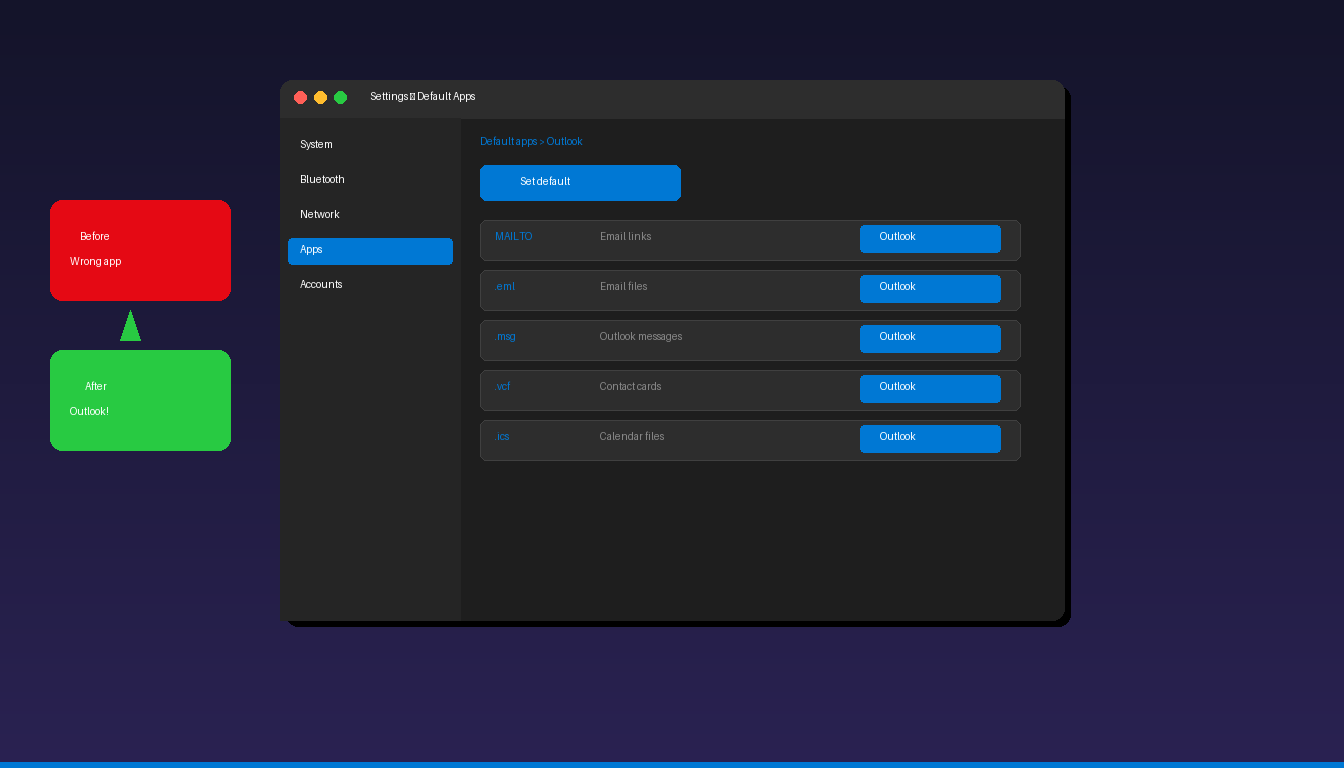
Setting Microsoft Outlook as your default email client ensures that all mailto links, .eml files, and email-related actions open in Outlook instead of the Windows Mail app or another email program. This takes under a minute to configure in Windows Settings. For setting up your first email account, see our Outlook email setup guide.
Key Takeaways
- On Windows 11, go to Settings > Apps > Default apps, search for “Outlook,” and click Set default to make it handle all email-related files and links.
- Configure the MAILTO protocol separately if mailto links still open in the wrong app — find it under Default apps > Choose defaults by protocol.
- You must open Outlook at least once before it appears as an option in the Default Apps settings.
How Do I Set Outlook as Default on Windows 11?
Open Settings > Apps > Default apps, search for “Outlook,” click on it, and click Set default — this assigns Outlook to handle all email file types and the mailto protocol.
Quick Method (Set Default Button)
- Press Windows + I to open Settings.
- Click Apps > Default apps.
- In the search bar, type “Outlook”.
- Click Outlook in the results list.
- Click Set default at the top.
- Outlook is now the default for MAILTO links, .eml files, .msg files, and calendar invitations.
Manual Method (Per Protocol/File Type)
If the Set default button does not appear or you need to change specific associations:
- Open Settings > Apps > Default apps.
- Search for “Outlook” and click on it.
- Scroll through the list of file types and protocols:
| File Type / Protocol | What It Handles | Click to Set |
|---|---|---|
| MAILTO | Email links on web pages | Select Outlook |
| .eml | Email message files | Select Outlook |
| .msg | Outlook message files | Select Outlook |
| .vcf | Contact card files | Select Outlook |
| .ics | Calendar invitation files | Select Outlook |
| .vcs | Calendar event files | Select Outlook |
- Click each entry and select Outlook from the list of available apps.
Classic Outlook vs New Outlook
Windows 11 may show two Outlook entries in Default Apps:
| Entry | App | When to Choose |
|---|---|---|
| Outlook | Classic Outlook desktop | Full-featured, IMAP/POP3 support |
| Outlook (new) | New Outlook for Windows | Cloud-first, modern interface |
Choose the version you primarily use. If you switch between both, set the one you use most frequently as the default.
How Do I Fix Mailto Links Not Opening in Outlook?
If clicking a mailto link on a website opens the wrong email app, configure the MAILTO protocol directly in Windows Settings or through the browser.
Fix in Windows Settings
- Open Settings > Apps > Default apps.
- Scroll to the bottom and click Choose defaults by link type (or Choose defaults by protocol).
- Find MAILTO in the list.
- Click the current app and select Outlook.
Fix in Chrome
- Click a mailto link — Chrome may show a popup asking which app to use.
- Select Outlook and check Always use this app.
- If no popup appears: go to chrome://settings/handlers and set Outlook or remove other handlers.
Fix in Edge
- Go to edge://settings/content/protocolHandlers.
- Remove any email handlers that are not Outlook.
- Click a mailto link — Edge should now prompt you to select Outlook.
According to Microsoft Support, Outlook must be opened at least once before Windows recognizes it as an available default email handler.
How Do I Set Outlook as Default on Windows 10?
The process is similar to Windows 11 but uses a slightly different Settings layout.
- Open Settings > Apps > Default apps.
- Under Email, click the current default app.
- Select Outlook from the list.
- For calendar defaults, scroll to Calendar and select Outlook.
Alternatively: 1. Open Control Panel > Default Programs > Set your default programs. 2. Select Microsoft Outlook from the list. 3. Click Set this program as default.
How Do I Set Outlook as Default on Mac?
Open Apple Mail, go to Preferences > General, and change the Default email reader dropdown to Microsoft Outlook.
- Open Apple Mail (even if you do not use it).
- Go to Mail menu > Preferences (or Settings on newer macOS).
- On the General tab, find Default email reader.
- Select Microsoft Outlook from the dropdown.
- Close Preferences.
Alternatively, if Apple Mail is not installed: 1. Open Microsoft Outlook. 2. Go to Outlook menu > Preferences > General. 3. Click Make Default next to “Default email application.”
Why Is Outlook Not Showing as a Default App Option?
The most common causes are Outlook not being installed, never opened, or a corrupted registration — reinstalling or repairing Outlook fixes most cases.
Troubleshooting
| Issue | Fix |
|---|---|
| Outlook not in Default Apps list | Open Outlook at least once, then check again |
| Only “Outlook (new)” appears | Classic Outlook may need repair: Control Panel > Programs > Repair |
| Set default has no effect | Restart Windows after changing defaults |
| Mailto still opens wrong app | Set MAILTO protocol individually (see above) |
| Multiple Outlook versions | Uninstall the version you do not use |
| Managed by organization | IT may enforce defaults via Group Policy — contact IT |
Re-Register Outlook
If Outlook is installed but does not appear as an option:
- Open Command Prompt as Administrator.
- Run:
"C:\Program Files\Microsoft Office\root\Office16\OUTLOOK.EXE" /regserver - Wait for the command to complete (no output is normal).
- Check Default Apps again — Outlook should now appear.
For more Outlook configuration, see our Outlook signature setup guide and Outlook rules setup guide. If you need Outlook desktop, Microsoft Office 2024 Professional Plus ($199.99) includes the classic Outlook application.
Frequently Asked Questions
Does setting Outlook as default affect all email accounts?
Setting Outlook as the default email client only determines which app opens when you click a mailto link or double-click an .eml file. It does not change which email accounts are configured inside Outlook. You still need to add your email accounts separately through File > Add Account.
Can I set different default apps for different email accounts?
No. Windows allows only one default email application. All mailto links and email file types open in the same app. However, within Outlook, you can configure multiple email accounts and choose which account sends each email using the From dropdown in the compose window.
Why do mailto links open in the browser instead of Outlook?
Your browser may be intercepting mailto links before Windows can route them to Outlook. Check your browser settings for protocol handlers (Chrome: chrome://settings/handlers, Edge: edge://settings/content/protocolHandlers) and remove any web-based email handlers like Gmail or Outlook.com web.
Does this work with the new Outlook for Windows?
Yes. The new Outlook for Windows can be set as the default email client using the same Settings > Apps > Default apps method. It appears as “Outlook (new)” in the list. However, the new Outlook has limited support for some file types (.msg files) compared to classic Outlook.


