How to Set Up Comcast (Xfinity) Email in Outlook
Comcast Xfinity provides free email accounts to its internet subscribers, but accessing that email through…
Comcast Xfinity provides free email accounts to its internet subscribers, but accessing that email through Microsoft Outlook requires manual IMAP and SMTP configuration. Whether you use Outlook on desktop or the web, connecting your Xfinity email lets you manage everything from one inbox. If you need Outlook for other tasks too, check our complete guide to setting up email signatures in Outlook for a professional finish.
Key Takeaways
- Comcast Xfinity email connects to Microsoft Outlook using IMAP server
imap.comcast.neton port 993 with SSL/TLS encryption. - You must enable “Third Party Access” in your Xfinity email security settings before Outlook can connect.
- The outgoing SMTP server is
smtp.comcast.neton port 587 with STARTTLS — port 25 is blocked by Comcast.
What Are the IMAP and SMTP Settings for Comcast Email?
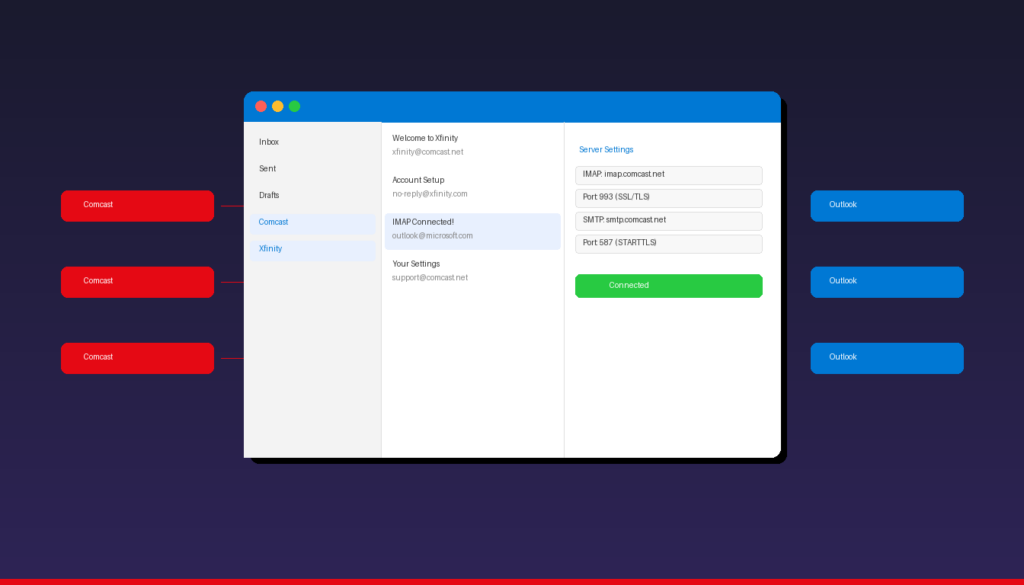
The correct server settings for connecting Comcast Xfinity email to Microsoft Outlook use IMAP for incoming mail and SMTP for outgoing mail with encryption enabled on both.
| Setting | Value |
|---|---|
| Incoming Server (IMAP) | imap.comcast.net |
| IMAP Port | 993 |
| IMAP Encryption | SSL/TLS |
| Outgoing Server (SMTP) | smtp.comcast.net |
| SMTP Port | 587 |
| SMTP Encryption | STARTTLS |
| Username | Your full Comcast email address |
| Password | Your Xfinity account password |
| Authentication | Required for both incoming and outgoing |
IMAP is the recommended protocol over POP3 because it syncs your email across all devices — messages you read on your phone also appear as read in Outlook. For a deeper look at SMTP configuration, see our Outlook SMTP settings guide.
How Do I Enable Third-Party Access for Xfinity Email?
You must turn on third-party access in your Xfinity account settings before Outlook can connect — without this step, Outlook will fail to authenticate even with correct server settings.
- Open a web browser and go to connect.xfinity.com/appsandsettings/managethirdpartyaccess.
- Sign in with your Xfinity ID and password.
- Under Third Party Access Security, check the box that says Allow third-party programs to access your Xfinity Email.
- Click Save.
If you have two-step verification enabled on your Xfinity account, you may need to generate a separate app password. Use that app password in Outlook instead of your regular Xfinity password.
How Do I Add Comcast Email to Outlook on Desktop?
Adding your Comcast Xfinity email to the classic Outlook desktop app takes about 5 minutes with manual IMAP configuration.
Step 1: Open Account Settings
- Open Microsoft Outlook on your PC or Mac.
- Click File > Account Settings > Account Settings.
- Click New to add a new email account.
Step 2: Choose Manual Setup
- Select Manual setup or additional server types and click Next.
- Choose POP or IMAP and click Next.
Step 3: Enter Server Settings
Fill in the following fields:
- Your Name: Your display name
- E-mail Address: Your full Comcast email (e.g., yourname@comcast.net)
- Account Type: IMAP
- Incoming mail server: imap.comcast.net
- Outgoing mail server: smtp.comcast.net
- User Name: Your full Comcast email address
- Password: Your Xfinity password (or app password if two-step verification is on)
Step 4: Configure More Settings
- Click More Settings > Outgoing Server tab.
- Check My outgoing server (SMTP) requires authentication.
- Select Use same settings as my incoming mail server.
- Go to the Advanced tab.
- Set Incoming server (IMAP) port to 993 and choose SSL for encryption.
- Set Outgoing server (SMTP) port to 587 and choose TLS for encryption.
- Click OK, then Next to test the connection.
Outlook will send a test email to verify both incoming and outgoing settings. If the test passes, click Finish.
Can I Use Comcast Email With the New Outlook App?
The new Outlook for Windows has known compatibility issues with Comcast Xfinity email accounts — the classic desktop version of Outlook provides a more reliable experience for IMAP email setup.
Microsoft’s new Outlook app uses a cloud-based architecture that routes email through Microsoft servers. Some Comcast users on the Xfinity Community Forums report authentication failures and syncing problems with this version. If you must use the new Outlook:
- Open the new Outlook app.
- Click Settings (gear icon) > Add account.
- Enter your Comcast email address and click Continue.
- Select IMAP when prompted for the account type.
- Enter the same server settings listed in the table above.
If the new Outlook fails to connect, switch back to the classic Outlook desktop app by toggling Try the new Outlook off in the top-right corner.
How Do I Set Up Comcast Email on Outlook for Mobile?
You can also access your Xfinity email on the Outlook mobile app for iPhone and Android using the same IMAP server settings.
- Download the Microsoft Outlook app from the App Store or Google Play.
- Open the app and tap Add Account.
- Enter your Comcast email address (yourname@comcast.net).
- When prompted, select IMAP as the account type.
- Enter the IMAP and SMTP server settings from the table above.
- Tap Sign In to complete the setup.
For a more detailed walkthrough on mobile email setup, see our guide on how to set up Outlook on iPhone.
Why Is My Comcast Email Not Working in Outlook?
The most common cause of Comcast email failing in Outlook is disabled third-party access in your Xfinity account settings — enabling it resolves the issue in most cases.
Here are the top troubleshooting steps:
1. Enable Third-Party Access
Sign in at xfinity.com, go to Email Settings > Security, and check the third-party access box. This is the number one fix, according to Xfinity Support.
2. Verify Your Password
Log in to your Comcast email via webmail at connect.xfinity.com to confirm your password works. If you recently changed your Xfinity password, update it in Outlook under File > Account Settings.
3. Check Server Ports and Encryption
| Common Mistake | Correct Setting |
|---|---|
| IMAP port 143 (no SSL) | Port 993 with SSL/TLS |
| SMTP port 25 (blocked) | Port 587 with STARTTLS |
| SMTP auth disabled | Must enable authentication |
4. Clear Cached Credentials
- Close Outlook completely.
- Open Windows Credential Manager (search in Start menu).
- Under Windows Credentials, find entries for
comcast.netorxfinity.com. - Remove them and restart Outlook to re-enter your password.
5. Generate an App Password
If two-step verification is enabled on your Xfinity account, your regular password will not work. Generate an app-specific password through your Xfinity security settings and use it in Outlook.
6. Repair Your Outlook Profile
If Outlook was previously receiving Comcast email but stopped:
- Search for Scanpst.exe in the Windows search bar (Outlook repair tool).
- Run the tool and select your Outlook data file (.ost or .pst).
- Click Start to scan for and repair errors.
Should I Use IMAP or POP3 for Comcast Email?
IMAP is the better choice for Comcast email in Outlook because it keeps your email synchronized across all devices — changes made on one device appear everywhere.
| Feature | IMAP | POP3 |
|---|---|---|
| Sync across devices | Yes | No |
| Server storage | Emails stay on server | Downloads to device |
| Best for | Multiple devices | Single device only |
| Comcast server | imap.comcast.net | mail.comcast.net |
| Port | 993 (SSL) | 995 (SSL) |
POP3 downloads emails to your computer and optionally deletes them from the server. If you check email on your phone, tablet, and computer, POP3 creates disconnected copies on each device. IMAP avoids this by keeping everything in sync.
Comcast previously defaulted new accounts to POP3, but Xfinity now recommends IMAP for all email clients including Microsoft Outlook.
How Do I Organize My Comcast Email in Outlook?
Once your Comcast email is connected, use Outlook’s built-in tools to manage your inbox efficiently.
- Rules: Automatically sort incoming Comcast emails into folders. See our Outlook rules setup guide for step-by-step instructions.
- Folders: Create folders for bills, subscriptions, and personal emails to keep your inbox clean.
- Focused Inbox: Outlook separates important emails from newsletters and promotions automatically.
- Signatures: Add a professional signature to all outgoing emails from your Comcast account. Our Outlook signature guide walks you through the process.
If you manage multiple email accounts in Outlook — such as Gmail alongside Comcast — our Gmail on Outlook setup guide covers adding additional accounts.
Frequently Asked Questions
What are the correct IMAP settings for Comcast email in Outlook?
Use imap.comcast.net on port 993 with SSL/TLS encryption. Your username is your full Comcast email address (e.g., yourname@comcast.net), and your password is your Xfinity account password or app password if two-step verification is enabled.
Why does Outlook keep asking for my Comcast password?
This usually happens when third-party access is disabled in your Xfinity email security settings, your password was recently changed but not updated in Outlook, or cached credentials in Windows Credential Manager are outdated. Enable third-party access, update your password, and clear cached credentials to fix it.
Can I use Comcast email with Microsoft 365 Outlook?
Yes. Microsoft 365 subscribers can add Comcast email as an additional IMAP account in Outlook. The server settings are the same whether you use a standalone Outlook license or Microsoft 365. If you need a license, Microsoft Office 2024 Professional Plus ($199.99) includes the full Outlook desktop app.
Is Comcast email the same as Xfinity email?
Yes. Comcast rebranded to Xfinity, but email addresses ending in @comcast.net continue to work. The email servers (imap.comcast.net, smtp.comcast.net) remain unchanged. Both @comcast.net and @xfinity.com addresses use the same IMAP and SMTP settings.

by Editorial Team
Updated on April 5, 2026

by Editorial Team
Updated on April 5, 2026
ON THIS PAGE