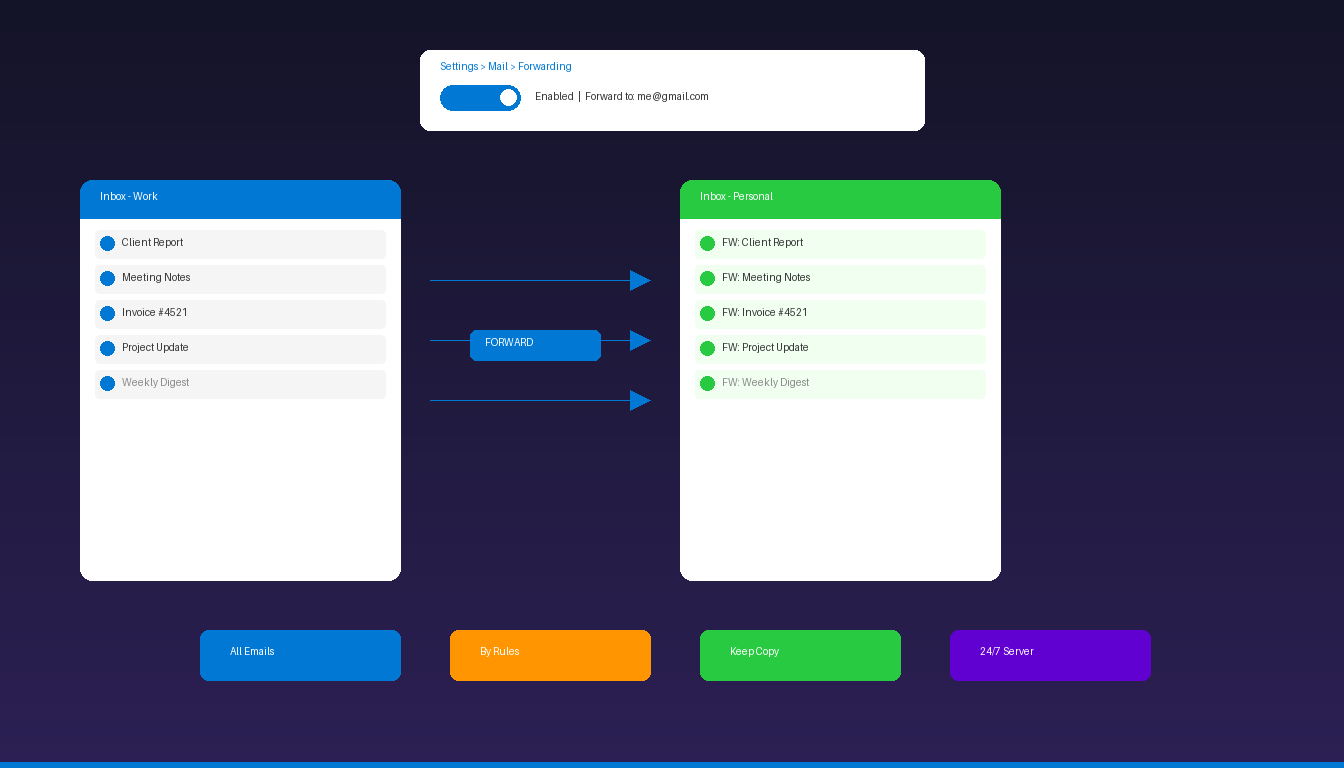
Email forwarding in Microsoft Outlook automatically sends incoming messages to another email address, keeping you connected even when you switch accounts or delegate inbox management. You can forward all emails globally or use rules to forward only specific messages based on sender, subject, or keywords. For other ways to manage your inbox, see our complete guide to Outlook rules.
Key Takeaways
- Outlook on the web and new Outlook offer one-click forwarding under Settings > Mail > Forwarding — this works server-side even when your computer is off.
- Classic Outlook desktop uses rules to forward emails, but rules only run while Outlook is open unless your account is on Exchange or Microsoft 365.
- You can choose to keep a copy of forwarded messages in your original inbox or let them forward only.
How Do I Set Up Email Forwarding in Outlook on the Web?
Go to Settings > Mail > Forwarding in Outlook on the web, toggle forwarding on, and enter the destination email address — this server-side setting works 24/7 without needing Outlook open.
- Sign in to outlook.office365.com or outlook.com.
- Click the gear icon (Settings) in the top-right corner.
- Select Mail > Forwarding.
- Toggle Enable forwarding to on.
- Enter the email address where you want messages forwarded.
- Optionally check Keep a copy of forwarded messages to retain emails in your inbox.
- Click Save.
This method works for Outlook.com, Microsoft 365, and Exchange Online accounts. According to Microsoft Support, forwarded messages appear to come from you, not the original sender.
How Do I Set Up Forwarding in the New Outlook for Windows?
The new Outlook for Windows uses the same server-side forwarding as Outlook on the web — open Settings, navigate to Mail > Forwarding, and toggle it on.
- Open the new Outlook for Windows app.
- Click the gear icon (Settings) in the top-right corner.
- Select Mail > Forwarding.
- Toggle Enable forwarding to on.
- Enter the forwarding email address.
- Check Keep a copy of forwarded messages if desired.
- Click Save.
Since this is server-side forwarding, it continues working even when you close the app or shut down your computer. The setting syncs with Outlook on the web — changing it in one place updates the other automatically.
How Do I Forward Emails in Classic Outlook Desktop?
Classic Outlook desktop does not have a global forwarding toggle — instead, create an inbox rule that forwards all incoming messages to another email address.
Forward All Emails
- Open Outlook desktop and go to Home > Rules > Manage Rules & Alerts.
- Click New Rule.
- Under Start from a blank rule, select Apply rule on messages I receive and click Next.
- Do not check any conditions (this applies the rule to all messages). Click Next and confirm by clicking Yes.
- Under actions, check forward it to people or public group.
- Click the people or public group link and enter the forwarding email address.
- Click Next, optionally set exceptions, then click Next again.
- Name the rule (e.g., “Forward all to personal email”) and click Finish.
Important Limitation
Rules created in classic Outlook desktop are client-side rules — they only run while Outlook is open on your computer. If you close Outlook or shut down, forwarding stops.
Workaround: If your account is on Exchange or Microsoft 365, create the rule in Outlook on the web instead. Web-created rules are server-side and run 24/7 regardless of whether Outlook desktop is open.
Can I Forward Only Specific Emails in Outlook?
Yes — use conditional rules to forward emails based on sender, subject line, keywords, or other criteria instead of forwarding everything.
Example: Forward Emails From a Specific Sender
- Go to Home > Rules > Manage Rules & Alerts > New Rule.
- Select Apply rule on messages I receive > Next.
- Check from people or public group and specify the sender.
- Click Next and check forward it to people or public group.
- Enter the forwarding address and click Finish.
Common Forwarding Rule Conditions
| Condition | Use Case |
|---|---|
| From specific sender | Forward all emails from your boss to your assistant |
| With specific words in subject | Forward invoices to your accounting email |
| With attachments | Forward emails with attachments to a shared drive |
| Sent only to me | Forward direct messages, skip group emails |
| Marked as high importance | Forward urgent emails to your phone |
For a complete guide to creating complex rules with multiple conditions, see our Outlook rules setup guide.
What Is the Difference Between Forward and Redirect in Outlook?
Forwarding sends the email as if it came from you — redirecting sends it as if it came from the original sender, preserving the original From address.
| Feature | Forward | Redirect |
|---|---|---|
| From address | Shows your email address | Shows original sender |
| Reply goes to | You (the forwarder) | Original sender |
| Available in | All Outlook versions | Rules only (classic Outlook) |
| Best for | Delegating to an assistant | Transparent routing |
| Recipient sees | “FW:” in subject line | No forwarding indicator |
To set up redirect instead of forward:
- Create a new rule in Manage Rules & Alerts.
- Under actions, select redirect it to people or public group instead of “forward.”
- Enter the destination address and finish the rule.
Redirect is useful when you want the recipient to reply directly to the original sender rather than back to you. According to Microsoft Support, redirected messages appear to come from the original sender.
Does Email Forwarding Work When My Computer Is Off?
It depends on how you set it up — server-side forwarding in Outlook on the web works 24/7, but client-side rules in classic Outlook desktop only work while the application is running.
| Setup Method | Works When PC Is Off? | Account Type Required |
|---|---|---|
| Outlook on the web (Settings > Forwarding) | Yes | Outlook.com, M365, Exchange |
| New Outlook for Windows (Settings > Forwarding) | Yes | Outlook.com, M365, Exchange |
| Classic Outlook rule (created in desktop) | No | Any |
| Classic Outlook rule (created via OWA) | Yes | M365, Exchange |
| M365 Admin Center (transport rule) | Yes | M365 (admin only) |
If you need 24/7 forwarding, always configure it through Outlook on the web or the new Outlook app rather than classic Outlook desktop rules.
How Do I Stop Email Forwarding in Outlook?
Disable forwarding the same way you enabled it — toggle it off in Settings or delete the forwarding rule.
In Outlook on the Web / New Outlook
- Go to Settings > Mail > Forwarding.
- Toggle Enable forwarding to off.
- Click Save.
In Classic Outlook Desktop
- Go to Home > Rules > Manage Rules & Alerts.
- Find your forwarding rule in the list.
- Either uncheck the rule to disable it temporarily, or select it and click Delete to remove it permanently.
- Click OK.
If forwarding was set up by your organization’s IT administrator through the Microsoft 365 Admin Center, you cannot disable it yourself — contact your IT department.
How Do I Set Up Forwarding as a Microsoft 365 Administrator?
Microsoft 365 administrators can configure email forwarding for any user through the Admin Center or Exchange admin — this overrides individual user settings.
- Sign in to admin.microsoft.com.
- Go to Users > Active users.
- Select the user whose email you want to forward.
- Click the Mail tab.
- Under Email forwarding, click Manage email forwarding.
- Toggle forwarding on, enter the destination address, and choose whether to keep a copy.
- Click Save.
According to Microsoft Learn, administrators can also block external forwarding organization-wide through outbound spam policies in Microsoft Defender — useful for preventing data exfiltration.
If your team needs Outlook with full rule and forwarding capabilities, Microsoft Office 2024 Professional Plus ($199.99) includes the complete Outlook desktop application. For teams setting up out-of-office auto-replies, forwarding can complement auto-replies by routing emails to a colleague during extended absences.
Frequently Asked Questions
Can I forward Outlook emails to a Gmail address?
Yes. You can forward Outlook emails to any email address including Gmail, Yahoo, or custom domain addresses. Use the Settings > Mail > Forwarding method in Outlook on the web for server-side forwarding that works 24/7, or create a rule in classic Outlook desktop.
How many email addresses can I forward to in Outlook?
The built-in forwarding setting in Outlook on the web supports one forwarding address. To forward to multiple addresses, create separate rules for each destination address, or create one rule that forwards to a distribution group or shared mailbox.
Will the original sender know I forwarded their email?
No. When you use automatic forwarding or rules, the original sender receives no notification. However, if you use the “forward” action (not “redirect”), the recipient sees your email address in the From field, which reveals that the email was forwarded through your account.
Why is email forwarding blocked in my Outlook?
Your organization’s IT administrator may have disabled external forwarding through Microsoft 365 outbound spam policies or Exchange transport rules. This is a common security measure to prevent data leaks. Contact your IT department to request an exception or use internal forwarding to another company mailbox instead.


