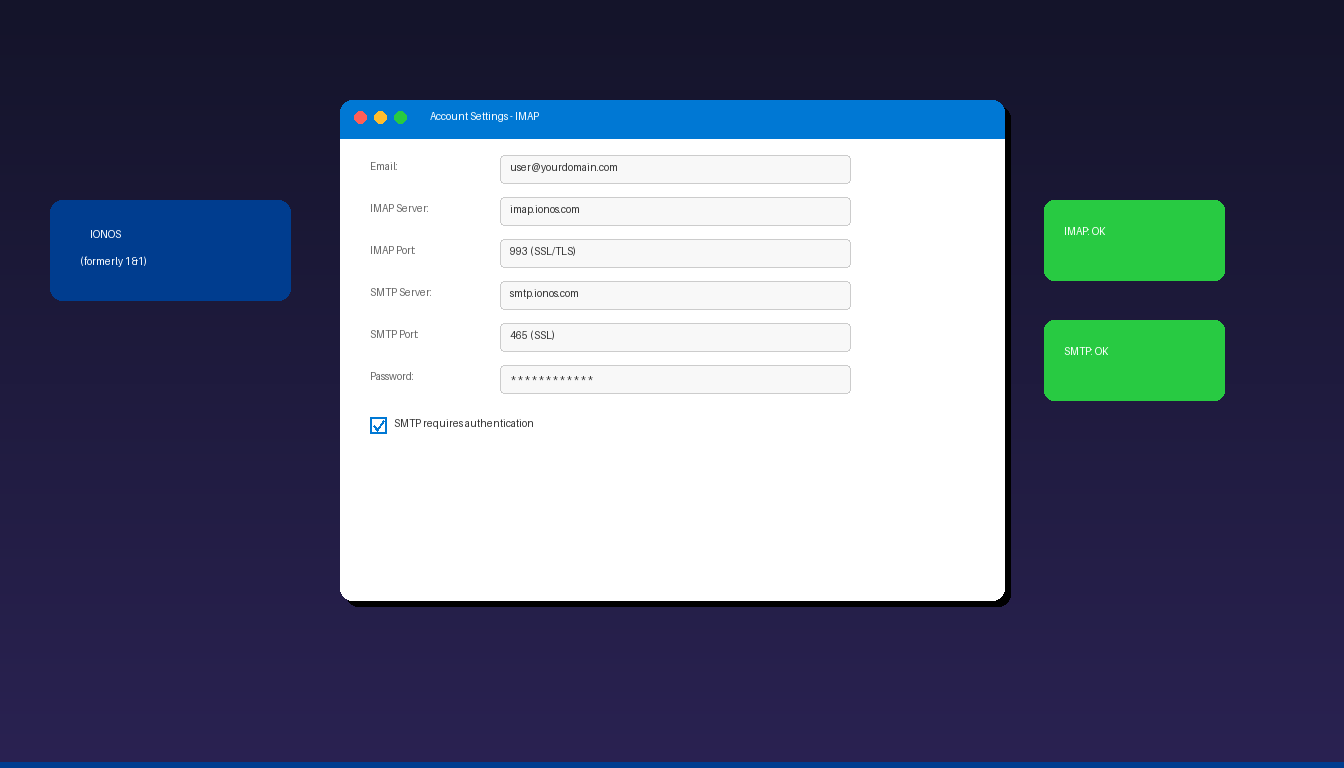
IONOS (formerly 1&1 Internet) email connects to Microsoft Outlook using IMAP and SMTP with SSL encryption. The setup requires manual server configuration since Outlook’s auto-detect typically does not recognize IONOS accounts. Once connected, add a professional email signature to complete your business email setup.
Key Takeaways
- IONOS uses IMAP server
imap.ionos.comon port 993 (SSL) and SMTP serversmtp.ionos.comon port 465 (SSL) or 587 (STARTTLS). - Use your full IONOS email address as the username and enable SMTP authentication for outgoing mail.
- Manual IMAP setup is recommended — Outlook’s auto-detect may apply incorrect settings for IONOS accounts.
What Are the IMAP and SMTP Settings for IONOS Email?
IONOS email connects to Outlook using imap.ionos.com for incoming mail and smtp.ionos.com for outgoing mail, both requiring SSL/TLS encryption.
| Setting | Value |
|---|---|
| Incoming Server (IMAP) | imap.ionos.com |
| IMAP Port | 993 |
| IMAP Encryption | SSL/TLS |
| Outgoing Server (SMTP) | smtp.ionos.com |
| SMTP Port | 465 (SSL) or 587 (STARTTLS) |
| SMTP Encryption | SSL/TLS or STARTTLS |
| Username | Your full IONOS email address |
| Password | Your IONOS email password |
| SMTP Authentication | Required |
According to IONOS Help, if port 465 does not work, try port 587 with STARTTLS encryption as an alternative. For detailed SMTP configuration, see our Outlook SMTP settings guide.
How Do I Add IONOS Email to Outlook?
Use manual IMAP setup — enter your IONOS email address, select manual configuration, choose IMAP, and enter the server settings from the table above.
Classic Outlook Desktop
- Open Outlook and click File > Add Account.
- Enter your IONOS email address, click Advanced options, check Let me set up my account manually.
- Click Connect and select IMAP.
- Enter the incoming server settings:
- Server: imap.ionos.com, Port: 993, Encryption: SSL/TLS
- Enter the outgoing server settings:
- Server: smtp.ionos.com, Port: 465, Encryption: SSL/TLS
- Enter your IONOS email password.
- Click Connect.
Verify SMTP Authentication
If sending fails:
- Go to File > Account Settings > double-click your IONOS account.
- Click More Settings > Outgoing Server tab.
- Check My outgoing server (SMTP) requires authentication.
- Select Use same settings as my incoming mail server.
- Click OK and test sending.
New Outlook for Windows
- Open new Outlook > Settings > Add account.
- Enter your IONOS email address.
- If auto-detect fails, select IMAP.
- Enter the server settings from the table above.
- Click Connect.
Why Is My IONOS Email Not Working in Outlook?
The most common causes are incorrect server names, wrong port numbers, or disabled SMTP authentication.
| Issue | Fix |
|---|---|
| Cannot receive email | Verify imap.ionos.com port 993 with SSL |
| Cannot send email | Use smtp.ionos.com port 465 SSL or 587 STARTTLS |
| SMTP rejected | Enable SMTP authentication in account settings |
| Authentication failed | Verify password at mail.ionos.com |
| Connection timeout | Check firewall allows ports 993 and 465/587 |
| TLS error | Ensure TLS 1.2 is enabled on your system |
| Old 1&1 settings | Update servers from imap.1and1.com to imap.ionos.com |
If you previously used 1&1 Internet email with old server addresses (imap.1and1.com, smtp.1and1.com), update them to the current IONOS servers — the old addresses may still work but are deprecated.
How Do I Set Up IONOS Email on Mobile?
The Outlook mobile app supports IONOS email through manual IMAP setup.
- Open the Microsoft Outlook app on iPhone or Android.
- Tap Add Account.
- Enter your IONOS email address.
- If auto-setup fails, toggle Advanced Settings.
- Enter IMAP and SMTP server settings from the table above.
- Tap Sign In.
For adding other email providers, see our guides for Gmail, GoDaddy, and EarthLink. For a complete overview, see our Outlook email setup guide.
If you need Outlook desktop with full IONOS email support, Microsoft Office 2024 Professional Plus ($199.99) includes the classic Outlook application.
Frequently Asked Questions
What is the IMAP server for IONOS email?
The incoming IMAP server is imap.ionos.com on port 993 with SSL/TLS encryption. The outgoing SMTP server is smtp.ionos.com on port 465 (SSL) or 587 (STARTTLS). Use your full IONOS email address as the username.
Is IONOS the same as 1&1?
Yes. 1&1 Internet rebranded to IONOS. Your email address, server settings, and account remain the same. If you are using old server addresses like imap.1and1.com , update them to imap.ionos.com for the most reliable connection.
Can I use POP3 instead of IMAP for IONOS?
Yes. IONOS supports POP3 on pop.ionos.com port 995 with SSL. However, IMAP is recommended because it syncs emails across all devices. POP3 downloads emails to one device and may delete them from the server. See our Outlook POP3 setup guide for POP3 configuration.
Why does IONOS email keep asking for my password?
This usually happens when the password is incorrect, SMTP authentication is disabled, or cached credentials are outdated. Verify your password at mail.ionos.com, enable SMTP authentication, and clear IONOS entries in Windows Credential Manager.


