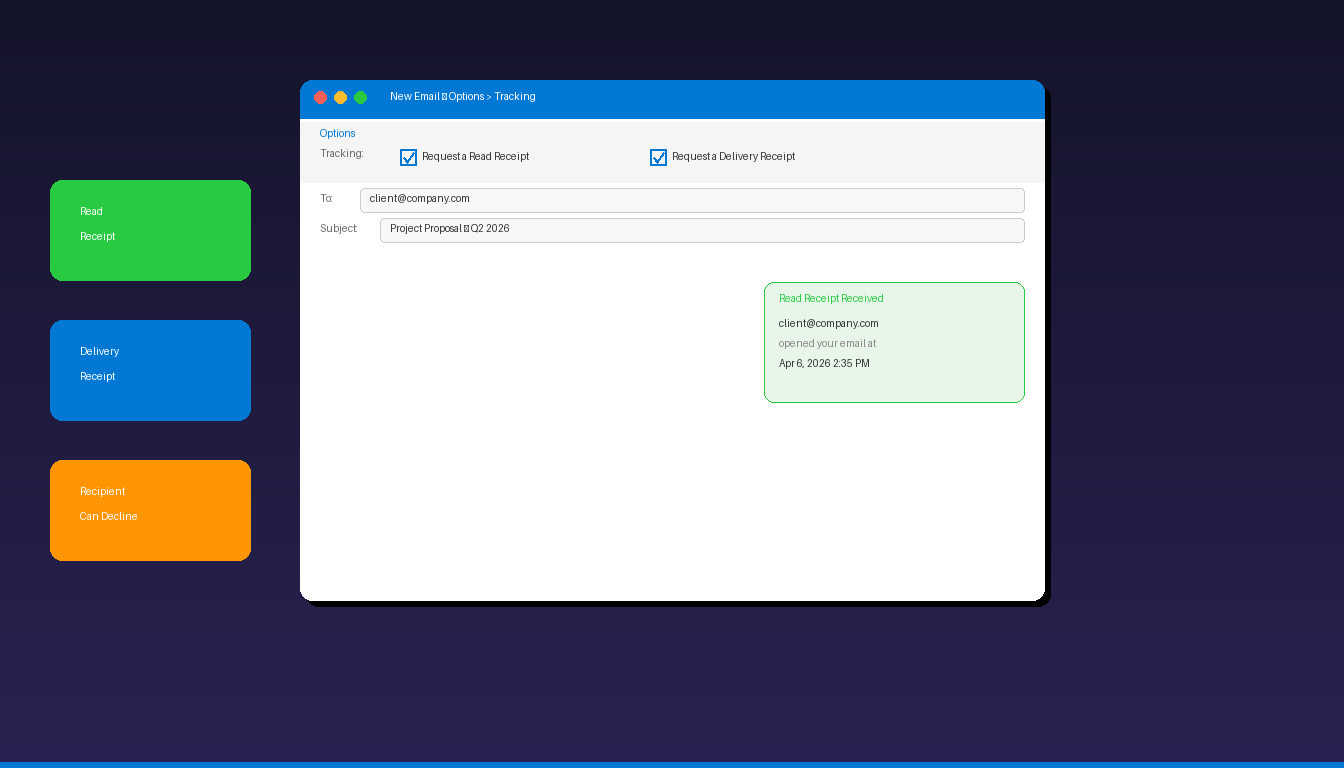
Read receipts in Microsoft Outlook notify you when a recipient opens your email — useful for tracking important messages, proposals, and time-sensitive communications. You can request read receipts on individual emails or set a global default for all outgoing messages. For other email tracking features, see our Outlook reminders setup guide.
Key Takeaways
- Request a read receipt on individual emails via the Options tab > Tracking > “Request a Read Receipt” when composing a message.
- Set a global default in classic Outlook under File > Options > Mail > Tracking to request read receipts on all outgoing emails automatically.
- Recipients can decline read receipts — they receive a prompt asking whether to send a notification, so read receipts are not guaranteed.
How Do I Request a Read Receipt on a Single Email?
While composing an email, go to the Options tab, click Tracking, and check “Request a Read Receipt” — the recipient receives a prompt to confirm when they open the message.
Classic Outlook Desktop
- Click New Email to compose a message.
- Click the Options tab in the compose window ribbon.
- In the Tracking group, check:
- Request a Read Receipt — notifies when the email is opened
- Request a Delivery Receipt — notifies when the email reaches the inbox
- Complete your email and click Send.
If you do not see the Tracking options, click More Options (small arrow in the bottom-right of the Options group) to expand the tracking settings.
New Outlook for Windows
- Click New Mail to compose a message.
- Click the Options tab (or three dots menu > Tracking).
- Check Request a Read Receipt.
- Send the email.
Note: The new Outlook does not support global read receipt defaults — you must enable tracking per email.
Outlook on the Web
- Compose a new email at outlook.office.com.
- Click the three dots (More options) in the compose toolbar.
- Select Message options.
- Check Request a read receipt and/or Request a delivery receipt.
- Click Save and send the email.
How Do I Set Read Receipts as Default for All Emails?
In classic Outlook, go to File > Options > Mail, scroll to the Tracking section, and check “Read receipt confirming the recipient viewed the message” — all future emails will request read receipts automatically.
- Click File > Options.
- Select Mail from the left sidebar.
- Scroll to the Tracking section.
- Under For all messages sent, request:
- Check Delivery receipt confirming the message was delivered to the recipient’s e-mail server
- Check Read receipt confirming the recipient viewed the message
- Click OK.
Global Default Availability
| Outlook Version | Global Read Receipt Default? |
|---|---|
| Classic Outlook desktop | Yes (File > Options > Mail > Tracking) |
| New Outlook for Windows | No (per-email only) |
| Outlook on the Web | No (per-email only) |
| Outlook Mobile | No |
According to Microsoft Support, the global default is only available in classic Outlook desktop. New Outlook and web versions require manual tracking per email.
What Is the Difference Between Read and Delivery Receipts?
A delivery receipt confirms the email reached the recipient’s inbox — a read receipt confirms the recipient actually opened the email. Both are independent and can be requested separately.
| Feature | Delivery Receipt | Read Receipt |
|---|---|---|
| What it confirms | Email reached inbox | Email was opened |
| When triggered | Upon inbox delivery | When recipient opens the email |
| Recipient action needed | No (automatic) | Yes (recipient must accept) |
| Can be declined | No | Yes |
| Reliability | High (server-level) | Low (recipient can decline) |
| Works across providers | Varies (Exchange = reliable) | Varies (many providers block) |
| Best for | Confirming email arrived | Knowing if email was read |
Delivery receipts are more reliable because they are generated by the mail server without recipient involvement. Read receipts depend on the recipient’s email client and settings — many users configure Outlook to automatically decline all read receipt requests.
How Do I Handle Incoming Read Receipt Requests?
Configure how Outlook responds when someone requests a read receipt from you — always send, never send, or ask each time.
Classic Outlook
- Go to File > Options > Mail.
- Scroll to Tracking.
- Under For any message received that includes a read receipt request:
- Always send a read receipt — automatic, no prompt
- Never send a read receipt — silently ignores all requests
- Ask each time whether to send a read receipt — prompts per email
Outlook on the Web
- Go to Settings (gear icon) > Mail > Message handling.
- Under Read receipts, choose:
- Ask me before sending a response
- Always send a response
- Never send a response
Most business professionals set this to “Ask each time” — it allows you to decide based on the sender and context without automatically sharing your email reading habits.
What Are the Limitations of Outlook Read Receipts?
Read receipts are not reliable for guaranteed email tracking — recipients can decline them, many email providers ignore them, and they only work when the recipient uses a compatible email client.
| Limitation | Impact |
|---|---|
| Recipients can decline | No notification even if email is opened |
| Gmail ignores read receipts | Gmail users never see the request |
| Mobile apps may not support | Some mobile clients skip read receipt prompts |
| Blocked by organizations | IT admins can disable read receipts org-wide |
| Only first open | Does not track re-opens or forwards |
| No time tracking | Shows when opened, not how long it was read |
| Privacy concerns | Some recipients view requests as intrusive |
Alternatives to Read Receipts
For more reliable email tracking:
- Follow-up flags: Flag emails for follow-up with reminders — see our reminders setup guide
- Third-party tracking: Tools like Yesware, Mailtrack, or HubSpot embed invisible tracking pixels (more reliable but raise privacy considerations)
- Request a reply: Simply ask the recipient to confirm receipt in the email body
How Do Read Receipts Work With Different Email Providers?
Read receipt behavior varies by provider — Exchange-to-Exchange is the most reliable, while cross-provider tracking is inconsistent.
| Scenario | Read Receipt Works? |
|---|---|
| Outlook → Outlook (Exchange) | Yes (most reliable) |
| Outlook → Outlook.com | Yes (recipient can decline) |
| Outlook → Gmail | No (Gmail ignores requests) |
| Outlook → Yahoo/AOL | No (not supported) |
| Outlook → Apple Mail | Sometimes (depends on settings) |
| Outlook → Thunderbird | Yes (recipient prompted) |
Read receipts are most useful within organizations where both sender and recipient use Exchange-based Outlook. For external communications, they are unreliable and you should not depend on them for confirmation.
For setting up your Outlook email account, see our Outlook email setup guide. If you need Outlook with full read receipt support, Microsoft Office 2024 Professional Plus ($199.99) includes the classic Outlook desktop application with global tracking defaults.
Frequently Asked Questions
Can I request a read receipt without the recipient knowing?
No. When you request a read receipt, the recipient sees a prompt asking whether to send a notification back. There is no hidden or silent read receipt in Outlook. Third-party email tracking tools use invisible tracking pixels for silent tracking, but these raise privacy concerns and may be blocked by email security software.
Why am I not receiving read receipts?
The recipient either declined the read receipt, their email client does not support read receipts (Gmail, Yahoo), or their organization has disabled read receipts via policy. Delivery receipts are more reliable — if you receive a delivery receipt but no read receipt, the email arrived but may not have been opened.
Do read receipts work on Outlook mobile?
Outlook mobile can send read receipts when requested by others, but you cannot request read receipts when composing emails on the Outlook mobile app. To request tracking, compose the email in classic Outlook desktop or Outlook on the web.
Should I enable read receipts for all emails?
No. Requesting read receipts on every email is generally considered intrusive and unprofessional. Use them selectively for important messages, proposals, deadline-sensitive communications, or when you need confirmation that a specific person received critical information.


