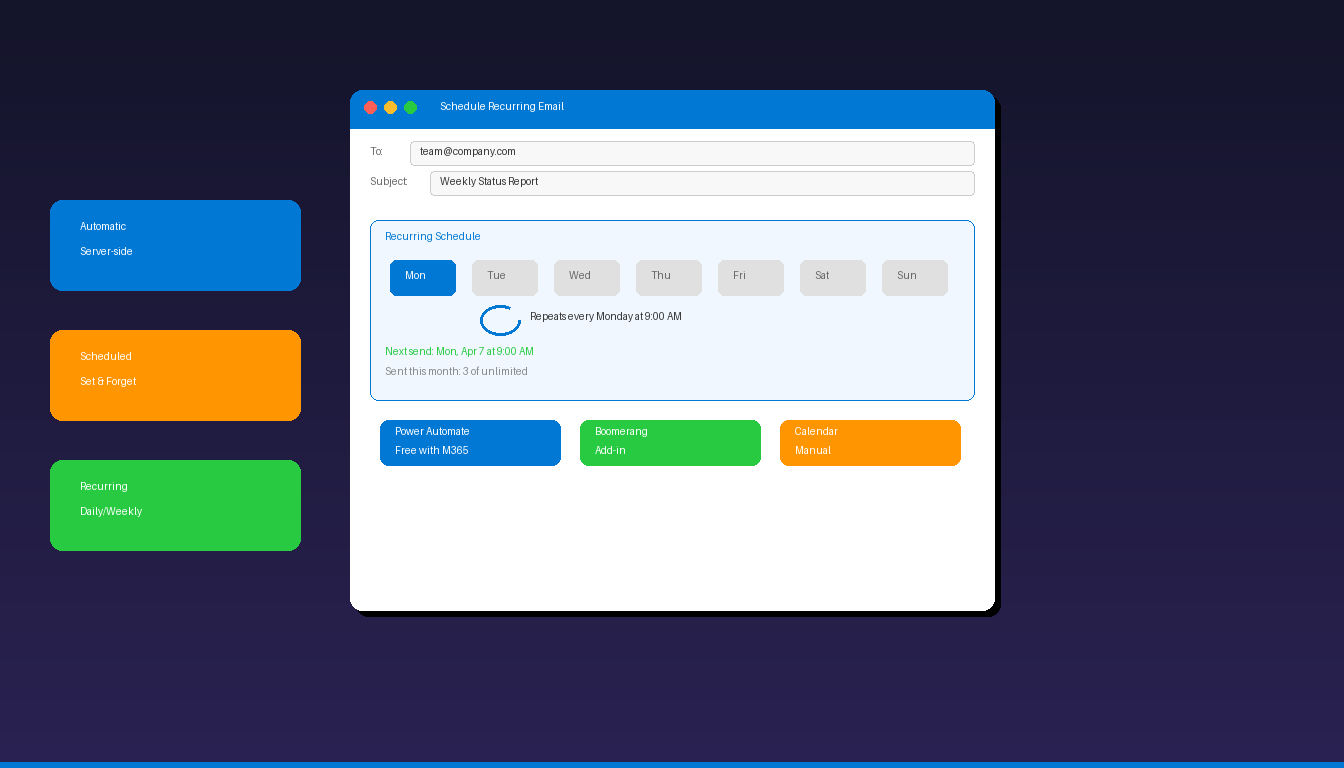
Microsoft Outlook does not have a built-in feature to automatically send the same email on a recurring schedule. However, you can achieve recurring emails using Microsoft Power Automate (free with Microsoft 365), third-party add-ins like Boomerang, or manual workarounds using calendar reminders. For automating your inbox in other ways, see our guide to Outlook rules.
Key Takeaways
- Outlook has no native recurring email send feature — you need Power Automate, a third-party add-in, or a manual workaround.
- Microsoft Power Automate (free with Microsoft 365) can send scheduled recurring emails automatically without any add-ins.
- The calendar reminder method is the simplest workaround — create a recurring appointment with your draft email, then send it manually when reminded.
How Do I Send Recurring Emails With Power Automate?
Create a scheduled cloud flow in Microsoft Power Automate that sends an email at a set interval — daily, weekly, or monthly — without needing Outlook open or any third-party add-in.
Step 1: Open Power Automate
- Go to make.powerautomate.com and sign in with your Microsoft 365 account.
- Click Create in the left sidebar.
- Select Scheduled cloud flow.
Step 2: Set the Schedule
- Enter a Flow name (e.g., “Weekly Team Status Email”).
- Set the Start date and time.
- Choose Repeat every: 1 week (or daily, monthly as needed).
- Click Create.
Step 3: Add the Email Action
- Click New step.
- Search for “Send an email (V2)” and select the Office 365 Outlook action.
- Fill in the fields:
- To: Recipient email addresses
- Subject: Your email subject line
- Body: Your email content (supports HTML formatting)
- Click Save.
Step 4: Test and Activate
- Click Test in the top-right corner.
- Select Manually and click Test.
- Verify the email arrives in the recipient’s inbox.
- The flow now runs automatically on your set schedule.
Power Automate is included free with Microsoft 365 Business, Enterprise, and Education plans. Flows run server-side, so they send emails even when your computer is off and Outlook is closed.
How Do I Use Boomerang to Send Recurring Emails?
Install the Boomerang for Outlook add-in, compose your email, click Send Later, and select Schedule Recurring Message to set the frequency — Boomerang handles the rest automatically.
- Install Boomerang for Outlook from boomerangoutlook.com or the Microsoft add-in store.
- Open Outlook and click New Email.
- Compose your email with recipients, subject, and body.
- Click Send Later in the ribbon (added by Boomerang).
- Select Schedule recurring message.
- Configure the schedule:
- Frequency: Daily, weekly, monthly, or custom
- Day/time: When to send each occurrence
- End date: Optional (or run indefinitely)
- Click Schedule.
Boomerang saves the recurring message in a Boomerang-Recurring subfolder and sends it automatically at each scheduled time. The add-in works without Outlook being open or an internet connection at send time — it queues messages and sends when connectivity is available.
Boomerang Pricing
| Plan | Price | Recurring Emails |
|---|---|---|
| Free | $0 | 10 message credits/month |
| Personal | $4.99/mo | Unlimited |
| Professional | $14.99/mo | Unlimited + analytics |
How Do I Use Calendar Reminders for Recurring Emails?
Create a recurring calendar appointment with your email draft in the notes — Outlook reminds you at the scheduled time, and you manually send the email from the saved draft.
Step 1: Create the Recurring Appointment
- Open Outlook Calendar.
- Click New Appointment.
- Enter the Subject (e.g., “Send Weekly Status Report”).
- In the Notes/Body, write the full email content you want to send, including the recipient addresses.
- Click Recurrence in the ribbon.
- Set the pattern:
- Weekly: every Monday at 9:00 AM
- Monthly: first day of each month
- Custom: any interval you need
- Set the Reminder to 15 minutes before.
- Click Save & Close.
Step 2: Send When Reminded
- When the reminder pops up, open the appointment.
- Copy the email content from the notes.
- Click New Email, paste the content, add recipients, and click Send.
This method requires manual action each time but works with any version of Outlook and does not require add-ins, Power Automate, or Microsoft 365. For more on reminders, see our Outlook reminders setup guide.
How Do I Schedule a One-Time Email in Outlook?
Use Delay Delivery to schedule a single email to send at a specific date and time — this is built into Outlook and does not require any add-ins.
Classic Outlook
- Compose your email with recipients, subject, and body.
- Click Options tab > Delay Delivery (or More Options > Properties).
- Check Do not deliver before and set the date and time.
- Click Close, then click Send.
The email moves to your Outbox and sends automatically at the scheduled time. Note: classic Outlook must be running for the email to send at the scheduled time.
New Outlook / Outlook on the Web
- Compose your email.
- Click the dropdown arrow next to the Send button.
- Select Schedule send.
- Choose a suggested time or click Custom time to set your own.
- Click Send.
Server-side scheduling in new Outlook/web sends even when your app is closed.
Which Method Should I Use for Recurring Emails?
Choose based on your Outlook version, budget, and whether you need fully automatic sending or are fine with manual sends triggered by reminders.
| Method | Automatic? | Cost | Outlook Open Required? | Best For |
|---|---|---|---|---|
| Power Automate | Yes | Free (with M365) | No | M365 users, business workflows |
| Boomerang | Yes | Free-$14.99/mo | No | Simple recurring, personal use |
| Calendar Reminder | No (manual) | Free | Yes (for reminder) | Any Outlook version, no add-ins |
| Delay Delivery | One-time only | Free | Yes (classic) / No (web) | Single scheduled send |
| Outlook Rules | Reactive only | Free | Yes | Auto-forward/reply to incoming |
Recommendations
- Microsoft 365 users: Use Power Automate — it is free, server-side, and fully automatic.
- Personal/free Outlook: Use Boomerang free tier (10 messages/month) or calendar reminders.
- One-time scheduled send: Use Delay Delivery (built-in, no add-ins needed).
- Auto-reply to incoming: Use Outlook rules with a template.
Can I Send Recurring Emails With Outlook Rules?
Outlook rules cannot send emails proactively on a schedule — they only trigger in response to incoming messages, so they work for auto-replies and forwarding but not for recurring outbound emails.
What rules can do: – Auto-forward specific incoming emails to another address – Auto-reply to emails from certain senders using a saved template – Move, flag, or categorize incoming emails automatically
What rules cannot do: – Send a new email on a schedule without an incoming trigger – Repeat the same outgoing email at set intervals
For auto-replies when you are away, use Outlook automatic replies (out of office) instead of rules. If you need Outlook with full scheduling and rule capabilities, Microsoft Office 2024 Professional Plus ($199.99) includes the classic Outlook desktop application.
Frequently Asked Questions
Can Outlook send the same email automatically every week?
Not natively. Outlook does not have a built-in recurring email feature. Use Microsoft Power Automate (free with Microsoft 365) to create a scheduled flow that sends the same email weekly, or install the Boomerang add-in for a simpler setup. Both methods work without Outlook being open.
Does Delay Delivery work for recurring emails?
No. Delay Delivery only schedules a single email to send at a future date and time. You cannot set it to repeat. For recurring sends, use Power Automate or Boomerang. For one-time scheduling, Delay Delivery is the simplest built-in option.
Do I need Microsoft 365 to use Power Automate?
Yes. Power Automate’s “Send an email (V2)” action requires a Microsoft 365 account with an Exchange Online mailbox. Free Outlook.com accounts have limited Power Automate access. If you do not have Microsoft 365, use Boomerang’s free tier or the calendar reminder method.
Will recurring emails sent through Power Automate show in my Sent folder?
Yes. Emails sent through Power Automate using the Office 365 Outlook connector appear in your Sent Items folder, just like manually sent emails. Recipients see the email as coming from your regular email address.


