Windows 11 Performance Settings: Optimize Your PC for Speed
Windows 11 includes dozens of settings that affect system speed — from visual effects and…
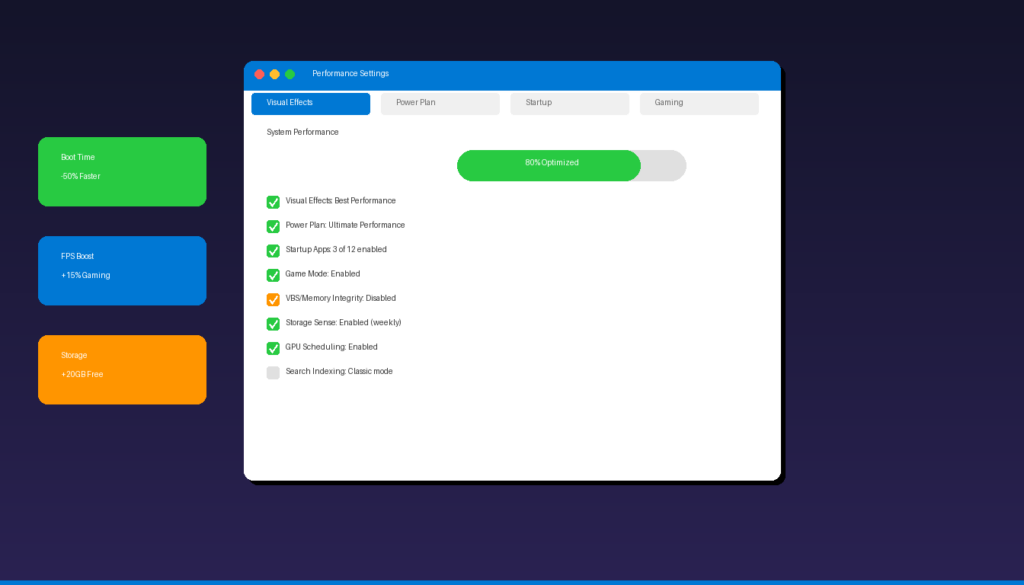
Windows 11 includes dozens of settings that affect system speed — from visual effects and power plans to startup apps and background services. Adjusting these settings can reduce boot times by 30-50%, improve application responsiveness, and boost gaming frame rates by up to 15%. For a complete overview of all Windows 11 settings, see our Windows 11 settings guide.
Key Takeaways
- Disabling unnecessary visual effects in Performance Options immediately improves responsiveness on older hardware and systems with limited RAM.
- Switching to the High Performance or hidden Ultimate Performance power plan prevents CPU throttling and keeps components running at peak speeds.
- Managing startup apps (Settings > Apps > Startup) is the single most impactful optimization — systems with excessive startup apps see 30-50% slower boot times.
How Do I Disable Visual Effects in Windows 11?
Search for “Adjust the appearance and performance of Windows” in the Start menu, select “Adjust for best performance” to disable all animations and transparency effects, then re-enable only the ones you want.
- Press Windows key and type “Adjust the appearance and performance of Windows”.
- Click the result to open Performance Options.
- On the Visual Effects tab, select Adjust for best performance to disable all effects.
- Optionally re-enable specific effects you prefer:
- Show thumbnails instead of icons — useful for photo folders
- Smooth edges of screen fonts — improves text readability
- Click Apply > OK.
Visual Effects Impact
| Effect | Performance Impact | Recommendation |
|---|---|---|
| Animate windows when minimizing | Low | Disable |
| Fade or slide menus into view | Low | Disable |
| Show shadows under windows | Medium | Disable |
| Transparency effects | Medium-High | Disable |
| Smooth-scroll list boxes | Low | Keep enabled |
| Show thumbnails | Medium (RAM) | Keep enabled |
| Smooth edges of fonts | Low | Keep enabled |
You can also disable transparency separately: go to Settings > Personalization > Colors and toggle Transparency effects to off. According to Microsoft Support, Windows does significant processing to render transparency effects, and disabling them frees up GPU resources.
How Do I Change the Power Plan in Windows 11?
Go to Settings > System > Power & battery and set Power mode to Best performance — for maximum speed, enable the hidden Ultimate Performance plan through PowerShell.
Standard Power Modes
- Open Settings > System > Power & battery.
- Under Power mode, select Best performance.
| Power Mode | CPU Behavior | Best For |
|---|---|---|
| Best power efficiency | Throttles CPU aggressively | Laptops on battery |
| Balanced | Adjusts based on demand | General use |
| Best performance | Minimal throttling | Desktop work, gaming |
Enable Ultimate Performance (Hidden)
The Ultimate Performance plan eliminates all CPU throttling and power-saving features — ideal for desktop PCs and workstations.
- Open PowerShell as Administrator.
- Run:
powercfg -duplicatescheme e9a42b02-d5df-448d-aa00-03f14749eb61 - Open Control Panel > Power Options.
- Select Ultimate Performance.
Warning: Do not use Ultimate Performance on laptops running on battery — it drains the battery significantly faster. Use it only when plugged into power.
How Do I Manage Startup Apps in Windows 11?
Open Settings > Apps > Startup and disable apps you do not need at boot — this is the single most effective optimization for reducing boot times and freeing up RAM.
- Open Settings > Apps > Startup.
- Review the list of apps and their Startup impact rating (High, Medium, Low).
- Toggle off any apps you do not need immediately at startup.
Common Apps to Disable at Startup
| App | Default State | Safe to Disable? |
|---|---|---|
| Microsoft Teams | Enabled | Yes (open manually when needed) |
| OneDrive | Enabled | Yes if not using cloud sync |
| Skype | Enabled | Yes |
| Spotify | Enabled | Yes |
| Adobe Creative Cloud | Enabled | Yes |
| Discord | Enabled | Yes |
| Cortana | Enabled | Yes |
| Microsoft Edge | Enabled | Yes (still accessible) |
Do not disable: Windows Security, audio drivers, display drivers, or your antivirus software.
You can also manage startup apps through Task Manager (Ctrl+Shift+Esc > Startup tab) for a more detailed view including startup time impact in milliseconds.
How Do I Optimize Windows 11 for Gaming?
Enable Game Mode, disable VBS/Memory Integrity, turn on Hardware-Accelerated GPU Scheduling, and switch to Ultimate Performance power plan for up to 15% more FPS.
1. Enable Game Mode
- Go to Settings > Gaming > Game Mode.
- Toggle Game Mode to On.
Game Mode prioritizes gaming processes, prevents Windows Update from restarting during gameplay, and reduces background activity.
2. Disable VBS / Memory Integrity
Virtualization-Based Security can reduce gaming FPS by 5-15%:
- Open Windows Security.
- Click Device Security > Core isolation details.
- Toggle Memory integrity to Off.
- Restart your PC.
Note: This reduces security protection. Only disable if gaming performance is a priority and you trust all software on your system.
3. Enable Hardware-Accelerated GPU Scheduling
- Go to Settings > System > Display > Graphics.
- Click Change default graphics settings.
- Toggle Hardware-accelerated GPU scheduling to On.
- Restart your PC.
4. Update GPU Drivers
- NVIDIA: Download from nvidia.com/drivers
- AMD: Download from amd.com/support
- Intel: Download from intel.com/download-center
Gaming Settings Summary
| Setting | Impact | How to Enable |
|---|---|---|
| Game Mode | Low-Medium | Settings > Gaming > Game Mode |
| Disable VBS | High (5-15% FPS) | Windows Security > Core isolation |
| GPU Scheduling | Low-Medium | Settings > Display > Graphics |
| Ultimate Performance | Medium | PowerShell command |
| Updated GPU drivers | High | Manufacturer website |
| Disable startup apps | Medium (more RAM) | Settings > Apps > Startup |
How Do I Use Storage Sense to Free Up Space?
Enable Storage Sense to automatically delete temporary files, empty the Recycle Bin, and remove old downloads — reclaiming 10-20 GB of disk space on systems that have not been cleaned recently.
- Go to Settings > System > Storage.
- Toggle Storage Sense to On.
- Click Storage Sense to configure:
- Run Storage Sense: Every week or every month
- Delete files in Recycle Bin older than: 30 days
- Delete files in Downloads older than: 30 days (or Never)
- Delete temporary files: Enabled
Manual Cleanup
For a one-time deep clean:
- Open Settings > System > Storage.
- Click Temporary files.
- Check the categories you want to remove (Windows Update Cleanup, Delivery Optimization Files, Temporary files).
- Click Remove files.
SSD performance improves as free space increases — keeping at least 10-20% of your SSD free ensures the drive can perform wear leveling and garbage collection efficiently. Never defragment an SSD; Windows automatically runs TRIM optimization instead.
How Do I Optimize Background Services in Windows 11?
Disable non-essential background services and limit telemetry to reduce CPU usage, RAM consumption, and network traffic during normal operation.
Disable Unnecessary Services
Press Windows + R, type services.msc, and press Enter. Right-click each service and select Properties to change startup type:
| Service | Default | Recommendation | Savings |
|---|---|---|---|
| Connected User Experiences and Telemetry | Automatic | Disabled | 100-300 MB network/day |
| SysMain (Superfetch) | Automatic | Disabled (if SSD) | Reduced disk IOPS |
| Windows Search | Automatic | Manual | RAM + disk |
| Print Spooler | Automatic | Disabled (if no printer) | RAM |
| Fax | Manual | Disabled | Minimal |
Do not disable: Windows Audio, Windows Firewall, DCOM Server Process Launcher, or RPC services.
Limit Search Indexing
- Open Settings > Privacy & security > Searching Windows.
- Select Classic indexing (only indexes Desktop, Documents, and Start menu instead of the entire drive).
For more Windows 11 optimization, see our Windows 11 power settings guide for battery and power management. If you need a Windows license, Windows 11 Pro ($99.99) includes all performance features including Hyper-V and Group Policy Editor.
Frequently Asked Questions
Does Windows 11 run slower than Windows 10?
Windows 11 has higher minimum hardware requirements (TPM 2.0, Secure Boot, 4 GB RAM) but runs at similar speeds on supported hardware. Features like VBS and Memory Integrity are enabled by default in Windows 11, which can reduce performance by 5-15% compared to Windows 10. Disabling VBS restores the performance gap for gaming workloads.
How much RAM does Windows 11 need for best performance?
Windows 11 requires a minimum of 4 GB RAM but performs best with 16 GB or more. For gaming, 16-32 GB is recommended. Microsoft is actively reducing the baseline memory footprint of Windows 11 in 2026 updates, which will improve performance on systems with 8 GB RAM.
Should I disable all visual effects in Windows 11?
Only if your system has limited resources (4-8 GB RAM, older CPU, integrated graphics). On modern hardware with 16+ GB RAM and a dedicated GPU, visual effects have minimal impact on performance. Keep “Smooth edges of screen fonts” and “Show thumbnails” enabled for the best user experience.
Is Ultimate Performance power plan safe to use?
Yes, on desktop PCs. Ultimate Performance eliminates all power-saving features, keeping the CPU, GPU, and other components running at maximum speed. On laptops, only use it when plugged in — it drains the battery very quickly. It does not overclock or push hardware beyond specifications.

by Editorial Team
Updated on April 5, 2026

by Editorial Team
Updated on April 5, 2026
ON THIS PAGE