Windows 11 Settings: Complete Guide to Every Settings Page
The Settings app is the command center for Microsoft Windows 11. Every preference — from…
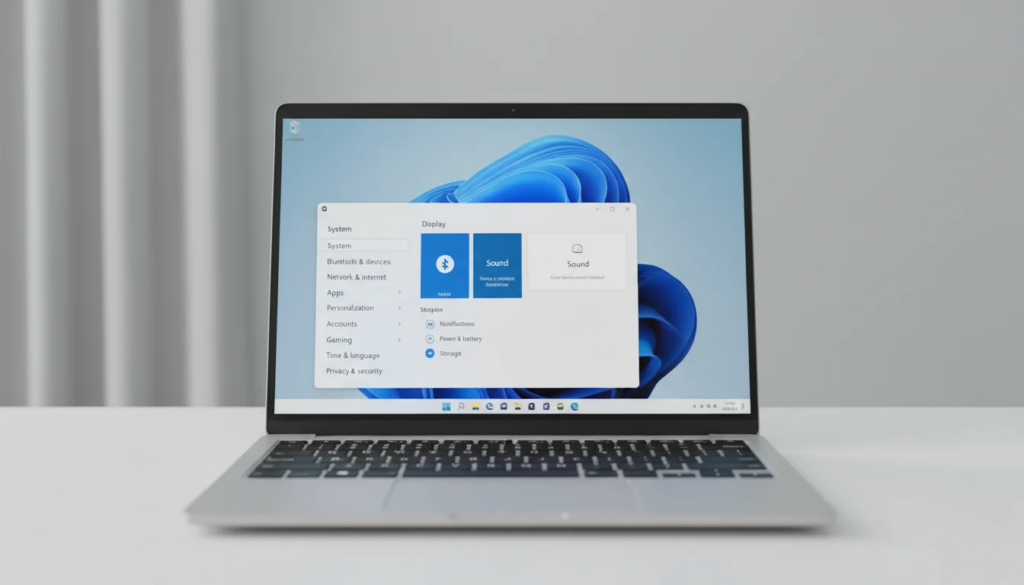
The Settings app is the command center for Microsoft Windows 11. Every preference — from display resolution and privacy controls to language packs and Windows Update — lives inside this single, unified hub. Whether you just set up a new PC or have been running Windows 11 for months, knowing your way around all 11 Settings categories saves time and prevents frustration.
This guide covers every Settings page, explains what each one does, and shows you exactly which settings to change first.
Key Takeaways
- Win + I is the fastest way to open Windows 11 Settings from anywhere on the desktop.
- Windows 11 Settings has 11 top-level categories, replacing the fragmented Control Panel experience from older Windows versions.
- Changing a handful of defaults in System, Privacy & Security, and Windows Update makes a significant difference in performance, privacy, and reliability on day one.
How Do I Open Settings in Windows 11?
Press Win + I to open Windows 11 Settings instantly — this keyboard shortcut works from any screen or app.
There are five reliable methods:
| Method | Steps |
|---|---|
| Keyboard shortcut | Press Win + I |
| Start menu | Click Start → select the Settings gear icon (pinned by default) |
| Right-click Start | Right-click the Start button → Settings |
| Taskbar search | Click the search icon → type Settings → press Enter |
| Win + X menu | Press Win + X → select Settings |
The Win + I shortcut is the method most Windows power users rely on because it works regardless of what application is open. If Settings fails to launch, see our guide on how to fix Settings not opening in Windows 11.
What Are the Main Settings Categories in Windows 11?
Windows 11 Settings organizes every configuration option into 11 top-level categories, each with multiple sub-pages.
| Category | What It Controls |
|---|---|
| System | Display, sound, notifications, power, storage, activation, recovery |
| Bluetooth & devices | Bluetooth, printers, cameras, mouse, touchpad, USB |
| Network & internet | Wi-Fi, Ethernet, VPN, mobile hotspot, proxy |
| Personalization | Wallpaper, colors, themes, lock screen, taskbar, Start menu |
| Apps | Installed apps, default apps, startup programs, optional features |
| Accounts | Your profile, email accounts, sign-in options, family settings |
| Time & language | Date/time, language packs, regional format, typing, speech |
| Gaming | Game Bar, capture settings, Game Mode |
| Accessibility | Vision, hearing, and interaction aids — text size, Narrator, Magnifier |
| Privacy & security | Windows Security, app permissions, diagnostics, activity history |
| Windows Update | Updates, update history, advanced options, Insider Program |
Microsoft documents the full structure of these categories at support.microsoft.com.
System Settings
Settings → System is the most frequently visited category for everyday users. It contains core hardware and OS controls.
Display
Navigate to Settings → System → Display to adjust screen resolution, refresh rate, brightness, Night Light, and HDR output. If you use multiple monitors, this page lets you rearrange them, set a primary display, and configure per-monitor scaling.
- Scale: Increase percentage for high-DPI (4K) screens to make text and icons readable.
- Refresh rate: Set to your monitor’s maximum (e.g., 144 Hz) under Advanced display.
- Night Light: Reduces blue light on a schedule — helpful for evening use.
Sound
Settings → System → Sound controls output device selection, input (microphone) settings, volume mixer per-app, and audio troubleshooting. Use Volume mixer to independently adjust system sounds, music apps, and communication apps.
Notifications
Settings → System → Notifications is where you turn off the banner notifications that interrupt your workflow. You can disable notifications globally or toggle them per-app — browser, mail, and calendar are common candidates.
Focus
Settings → System → Focus (formerly Focus Assist) suppresses notifications during defined windows. Set automatic rules for when you’re working, gaming, or during screen duplication.
Power & Battery
Settings → System → Power & battery controls screen timeout, sleep delay, and power mode (Best power efficiency / Balanced / Best performance). Laptop users should also check Battery saver to limit background activity when charge drops below a threshold.
Storage
Settings → System → Storage shows how your drive space is used and offers Storage Sense — an automated cleanup tool that removes temporary files and empties the recycle bin on a schedule.
Activation
Settings → System → Activation displays your Windows 11 license status, edition (Home or Pro), and activation state. If your copy is not activated, this page lets you enter or change your product key. Need a genuine key? You can purchase a genuine Windows 11 Pro key and find full instructions in our guide on how to activate Windows 11.
Recovery
Settings → System → Recovery provides access to Reset this PC (keeps files or removes everything), Advanced startup (boot into recovery environment), and the Go back option (available for a limited window after a major update).
Personalization Settings
Settings → Personalization controls how Windows 11 looks and feels.
Background
Choose a static wallpaper, a slideshow from a folder, or Windows Spotlight (daily Bing images). Right-click any image file and select Set as desktop background as a shortcut.
Colors
Set accent color for window borders, Start, and taskbar. Toggle Dark mode here under Choose your mode — this switches the entire OS and most apps to a dark interface. Transparency effects and animation effects can be disabled to improve performance on lower-end hardware.
Themes
A Theme bundles a background, colors, sounds, and cursor into a single profile. Windows 11 ships with several built-in themes; more are available in the Microsoft Store.
Lock Screen
Settings → Personalization → Lock screen controls what appears before you sign in — background image, app status (weather, mail count), and the Show lock screen background picture on the sign-in screen toggle.
Start Menu
Settings → Personalization → Start lets you choose how many pinned apps appear (more pins vs. more recommendations), toggle recently added apps, recently opened items, and most-used apps. You can also add folders (Documents, Downloads, etc.) to appear next to the Power button.
Taskbar
Settings → Personalization → Taskbar controls which system icons appear in the corner (clock, network, volume), whether Task View and Widgets buttons are visible, and taskbar behavior like auto-hide and badge counts.
Fonts
Settings → Personalization → Fonts shows all installed typefaces and lets you drag-and-drop new font files to install them.
Network & Internet Settings
Settings → Network & internet manages all connectivity.
- Wi-Fi: Connect to networks, forget saved networks, configure metered connection (limits background data).
- Ethernet: View connection properties, set as metered, configure IP manually.
- VPN: Add and manage VPN connections (built-in Windows VPN or third-party profiles).
- Mobile hotspot: Share your PC’s internet connection over Wi-Fi or Bluetooth.
- Airplane mode: Disables all wireless radios — Wi-Fi, Bluetooth, cellular.
- Proxy: Manual or automatic proxy configuration for corporate environments.
- Advanced network settings: View all adapters, access Network and Sharing Center, Hardware and Connection Properties.
Privacy & Security Settings
Settings → Privacy & security is one of the most important areas for controlling what data Windows 11 collects and which apps can access your hardware.
Windows Security
Opens the Windows Security dashboard (Microsoft Defender) with real-time protection status for Virus & threat protection, Firewall & network protection, App & browser control, and Device security.
App Permissions
Scroll down to the App permissions section for granular controls over:
| Permission | What It Controls |
|---|---|
| Location | Which apps can see your GPS/network location |
| Camera | Apps that can activate your webcam |
| Microphone | Apps with microphone access |
| Notifications | Apps that can push alerts |
| Account info | Apps that can read your name, photo, account info |
| Contacts, Calendar, Call history | Access to personal data stores |
| Documents, Pictures, Videos | File system folder access |
| Background apps | Apps running when not in focus |
A useful habit: open each permission category and revoke access for any app you do not actively use with that feature.
General
Settings → Privacy & security → General includes four toggles that control advertising ID (for personalized ads), language-list access for websites, app launch tracking, and suggested content in Settings. Most privacy-conscious users turn all four off.
Diagnostics & Feedback
Set diagnostic data to Required (minimum) rather than Optional to limit telemetry sent to Microsoft. You can also delete existing diagnostic data from this page.
Find My Device
Enables location tracking for the device — useful if the PC is lost or stolen, requires a Microsoft account with location services enabled.
What Settings Should I Change First on Windows 11?
On a fresh Windows 11 installation, these are the highest-impact changes with exact navigation paths:
- Dark mode — Settings → Personalization → Colors → Choose your mode → Dark
- Disable advertising ID — Settings → Privacy & security → General → toggle off “Let apps show me personalized ads”
- Set diagnostic data to Required — Settings → Privacy & security → Diagnostics & feedback → Diagnostic data → Required only
- Enable Storage Sense — Settings → System → Storage → Storage Sense → toggle On, set to run every week
- Set power mode to Balanced or Best performance — Settings → System → Power & battery → Power mode
- Turn off unnecessary startup apps — Settings → Apps → Startup → disable apps you don’t need at login
- Check Windows Update — Settings → Windows Update → Check for updates — install all pending updates before doing anything else
- Review app camera and microphone permissions — Settings → Privacy & security → Camera / Microphone → revoke access for unfamiliar apps
- Configure notification preferences — Settings → System → Notifications → turn off per-app notifications that interrupt work
- Verify activation status — Settings → System → Activation — confirm Windows is activated to avoid feature restrictions
Where Is the Control Panel in Windows 11?
The Control Panel still exists in Windows 11 but is no longer prominently featured — Microsoft has migrated most functions into the modern Settings app.
To access Control Panel:
- Press Win + R, type
control, press Enter - Search “Control Panel” in taskbar search
- Navigate to Settings → Apps → Optional features — it is not listed here, but searching taskbar remains the quickest route
What remains in Control Panel vs. Settings:
| Still in Control Panel | Moved to Settings |
|---|---|
| Advanced folder options | Display, sound, network |
| Device Manager (also in Win+X) | Bluetooth, printers |
| Credential Manager | Sign-in options, accounts |
| System (legacy view) | About, activation, recovery |
| Administrative Tools | Most moved or removed |
| Internet Options | Partially (Edge settings handle most) |
For everyday tasks, Settings covers everything. Control Panel is mainly useful for legacy enterprise tools, Credential Manager, and advanced folder options that Microsoft has not yet migrated.
Frequently Asked Questions
Can I reset Windows 11 Settings to default?
Individual settings do not have a single master reset button. For display and sound, each sub-page has a Reset link. For a full reset, use Settings → System → Recovery → Reset this PC, which reinstalls Windows 11 and optionally keeps your personal files.
How do I search within Settings?
Click the search bar at the top of the Settings window and type any keyword — for example “notifications,” “resolution,” or “startup.” Windows 11 searches all settings pages in real time and shows direct links to the relevant page.
Does Windows 11 Home have different settings than Pro?
Yes. Windows 11 Pro adds several settings not available in Home: Group Policy settings (via gpedit.msc), BitLocker encryption (Settings → Privacy & security), Remote Desktop (Settings → System → Remote Desktop), and Hyper-V virtualization. The Settings app itself reflects these differences — Pro users see sections that simply do not appear in Home.
How do I pin specific settings to Start?
Open Settings and navigate to any sub-page (for example, Settings → System → Display). Click the three-dot menu (⋯) in the top-right corner of that page and select Pin to Start . The shortcut appears as a tile in your Start menu for one-click access.

by Editorial Team
Updated on April 5, 2026

by Editorial Team
Updated on April 5, 2026
ON THIS PAGE