How to Create Charts and Graphs in Excel (Tutorial)
Data in a spreadsheet tells a story — but most people miss it. Numbers in…
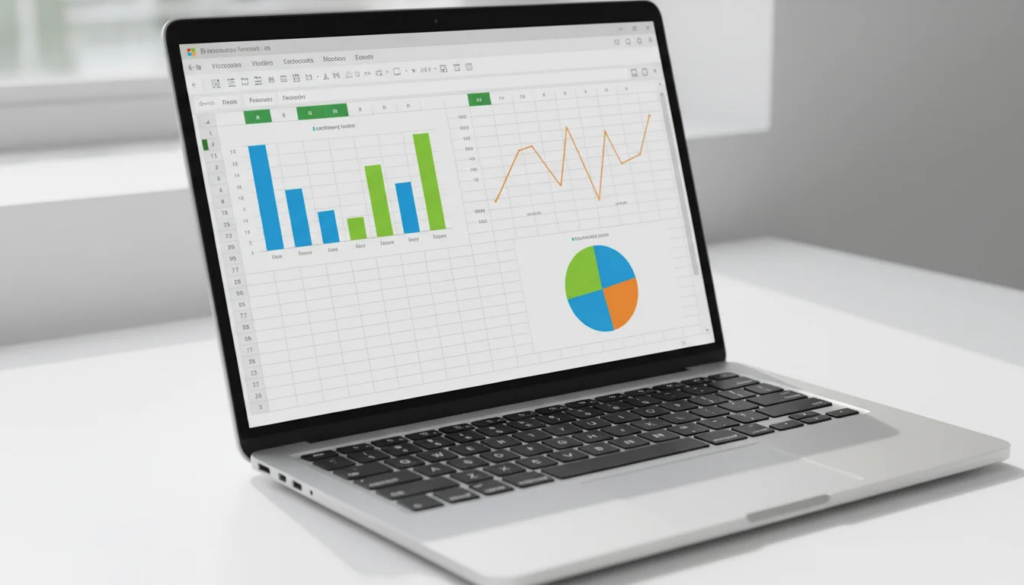
Data in a spreadsheet tells a story — but most people miss it. Numbers in rows and columns require effort to interpret. A well-built chart delivers the same insight in seconds. Microsoft Excel gives you over 17 chart types and a full customization toolkit to turn raw data into visuals that communicate clearly.
Whether you’re presenting sales results, tracking project progress, or analyzing survey responses, this excel charts and graphs tutorial walks you through everything from inserting your first chart to adding trendlines and avoiding common mistakes. If you’re just getting started with the application, our Excel tutorial for beginners is a solid foundation before diving in.
Key Takeaways
- Insert any chart in three clicks: select your data, go to Insert → Charts, and choose a chart type or let Excel recommend one.
- Chart Design and Format tabs appear automatically when a chart is selected — all customization options live there.
- Sparklines let you embed mini charts inside individual cells for fast row-by-row trend visualization.
How Do I Create a Chart in Excel?
Select your data range, go to the Insert tab, and click a chart type in the Charts group. Excel inserts the chart immediately onto your worksheet.
Here is the full step-by-step process:
Step 1 — Prepare your data
Organize your data in a table with clear column headers. Labels in the first row or column become axis labels and legend entries automatically. Avoid blank rows or merged cells inside the range — these cause incomplete or broken charts.
Step 2 — Select the data range
Click the first cell in your data, hold Shift, and click the last cell to highlight the entire range. Include headers. If your data is non-contiguous, hold Ctrl while selecting each block.
Step 3 — Open the Insert tab
Click the Insert tab in the Excel ribbon. The Charts group is in the center of the ribbon.
Step 4 — Choose a chart type
You have two options here:
- Manual selection: Click a chart icon directly (Column, Line, Pie, Bar, etc.) to see a dropdown of subtypes. Click the subtype you want and Excel inserts it.
- Recommended Charts: Click Insert → Recommended Charts. Excel analyzes your data and suggests the most appropriate chart types. This is the fastest route when you’re unsure what works best.
Step 5 — Quick Analysis shortcut
Select your data range, then press Ctrl+Q to open the Quick Analysis toolbar. Click the Charts tab. Excel previews recommended chart types as you hover — click one to insert it.
Step 6 — Position and resize
After insertion, drag the chart to reposition it. Drag the corner handles to resize. To move a chart to its own dedicated sheet, select the chart, then go to Chart Design → Move Chart and choose “New sheet.”
The entire process takes under a minute once your data is ready.
What Type of Chart Should I Use for My Data?
The right chart type depends on what relationship you’re showing — comparison, trend, proportion, or distribution.
Use this table to match your data to the best chart type:
| Chart Type | Best For | Example Use Case |
|---|---|---|
| Column | Comparing values across categories | Monthly sales by product line |
| Bar | Same as column but horizontal; better for long category names | Survey responses by department |
| Line | Showing trends over time | Website traffic over 12 months |
| Pie | Showing proportions of a whole (5 or fewer categories) | Budget allocation by department |
| Area | Trends over time with emphasis on volume | Cumulative revenue growth |
| Scatter (XY) | Showing correlation between two numeric variables | Ad spend vs. conversion rate |
| Histogram | Distribution of a single variable | Frequency of customer order sizes |
| Waterfall | Showing sequential additions and subtractions | Cash flow from opening to closing balance |
| Funnel | Drop-off through stages of a process | Sales pipeline stage conversion |
| Combo | Comparing two data series with different scales | Revenue (columns) vs. profit margin % (line) |
General rules:
- Use Column or Bar for most comparisons — they’re the most universally understood.
- Use Line for any time-series data.
- Avoid Pie charts with more than five slices — the segments become too small to read accurately.
- Use Scatter when you want to reveal a relationship or correlation, not just a ranking.
Microsoft Excel supports 17+ chart types in total, including Map, Stock, Surface, Radar, Treemap, Sunburst, and Box & Whisker. According to Microsoft’s official chart documentation, each type is designed for a specific kind of data relationship.
How Do I Customize a Chart in Excel?
Click the chart to select it, then use the Chart Design and Format tabs that appear in the ribbon to customize every visual element.
Chart Design tab
The Chart Design tab controls the overall structure and style of your chart:
- Add Chart Element — Add or remove individual elements: Chart Title, Axis Titles, Legend, Data Labels, Gridlines, Trendline, and Error Bars. Click each element to configure placement and appearance.
- Quick Layout — Apply a preset arrangement of chart elements with one click.
- Change Colors — Switch between color palettes to match your brand or presentation theme.
- Chart Styles — Apply a visual style (flat, shadowed, 3D effect) from the gallery.
- Change Chart Type — Switch to a different chart type without deleting the chart. Go to Chart Design → Change Chart Type and select a new type.
- Move Chart — Relocate the chart to a different worksheet or a dedicated chart sheet.
Format tab
The Format tab controls individual element styling:
- Select any chart element (title, axis, data series, legend) from the Current Selection dropdown, then click Format Selection to open the format pane.
- Change fill color, border, font, size, and effects for any selected element.
- Use Shape Styles and WordArt Styles for decorative changes to text and shapes.
Editing chart titles and axis labels
Double-click the chart title or axis title to enter editing mode and type directly. If no title appears, add it via Chart Design → Add Chart Element → Chart Title (or Axis Titles).
Adjusting the legend
Click the legend and drag to reposition it. Right-click for formatting options. To remove it: Chart Design → Add Chart Element → Legend → None.
Adding data labels
Data labels show exact values on each data point. Add them via Chart Design → Add Chart Element → Data Labels. Choose placement (center, inside end, outside end, etc.) from the submenu.
How to Add a Trendline to an Excel Chart
Right-click any data series bar or point in the chart, select Add Trendline from the context menu, and choose the trendline type from the Format Trendline pane.
Trendlines are available on non-stacked 2D charts: Bar, Column, Line, Area, Scatter, and Bubble.
Trendline types:
| Type | Use When |
|---|---|
| Linear | Data has a steady increase or decrease |
| Exponential | Data rises or falls at an increasing rate |
| Logarithmic | Data changes quickly then levels off |
| Polynomial | Data fluctuates with multiple ups and downs |
| Power | Data that increases at a specific rate (must be positive) |
| Moving Average | Smoothing out short-term fluctuations to show the underlying trend |
Options in the Format Trendline pane:
- Forward/Backward — Extend the trendline beyond your actual data to forecast future values or look back at past projections.
- Display Equation on chart — Shows the mathematical formula for the trendline.
- Display R-squared value — Shows how well the trendline fits your data (1.0 = perfect fit).
To remove a trendline, click it and press Delete, or right-click and select Delete.
What Are Sparklines in Excel?
Sparklines are miniature charts that fit inside a single cell, giving you a fast visual summary of a data row or column without taking up chart space on your worksheet.
To insert sparklines:
- Select the cell where you want the sparkline to appear.
- Go to Insert → Sparklines.
- Choose a sparkline type: Line, Column, or Win/Loss.
- In the dialog, set the Data Range (the row or column of data to visualize).
- Confirm the Location Range (the cell or cells for output) and click OK.
The three sparkline types:
- Line — Shows trends over time. Best for continuous data like monthly temperatures or daily traffic.
- Column — Shows relative magnitude. Best for comparing values across periods.
- Win/Loss — Binary: shows only whether each value is positive or negative. Used for game results, profit/loss indicators, or pass/fail tracking.
Sparkline customization:
When a sparkline is selected, the Sparkline tab appears in the ribbon. From there you can:
- Change the sparkline type.
- Highlight specific points (high, low, first, last, negative).
- Change the color of the sparkline and markers.
- Adjust the vertical axis scale.
Sparklines update automatically when the source data changes. They are ideal for dashboards and summary sheets where space is limited.
How to Create a Pivot Chart
A Pivot Chart is a chart linked directly to a PivotTable. It updates dynamically as you filter or rearrange the PivotTable.
To create one:
- Click anywhere inside an existing PivotTable.
- Go to Insert → PivotChart.
- Choose your chart type and click OK.
The Pivot Chart inherits the PivotTable’s field structure. You can filter data using the field buttons directly on the chart, or via the PivotTable itself.
For a full walkthrough of building PivotTables before creating a chart, see our pivot table tutorial.
Common Chart Mistakes and How to Fix Them
Even experienced users make these errors. Here are the five most common and how to correct them:
| Mistake | Why It’s a Problem | Fix |
|---|---|---|
| Choosing the wrong chart type | Misleads the audience or obscures the key insight | Use the chart type table above; use Recommended Charts if unsure |
| Too many data series in one chart | Creates visual clutter, hard to read | Split into multiple charts or use a Combo chart with a secondary axis |
| Missing axis titles or chart title | Viewer can’t understand what is being measured | Add via Chart Design → Add Chart Element → Axis Titles / Chart Title |
| Inconsistent scale on Y-axis starting above zero | Makes small differences look huge | Right-click the axis → Format Axis → set Minimum to 0 |
| Pie chart with too many slices | Thin slices are illegible | Limit to 5 categories max; group smaller values into an “Other” slice |
A quick review of these five points before you finalize any chart will save you from sending out a visual that confuses rather than clarifies.
Need the full Microsoft Excel suite? All charts and advanced features covered in this tutorial are available in every edition of Microsoft Office. If you’re still deciding which version to get, our Office 2024 lifetime license guide compares options — Office 2024 Pro Plus is available for $199.99 and Office 2021 Pro Plus for $64.99, both as genuine one-time purchases with no subscription required.
Frequently Asked Questions
Can I create a chart from data on multiple sheets?
Yes. Use a 3D reference or consolidate the data into one sheet first. Alternatively, create separate charts per sheet and paste them into a summary sheet. For more complex multi-sheet charting, Power Query can combine the data before charting.
How do I save a chart as an image?
Right-click the chart border (not inside it) and select Save as Picture . Choose your format (PNG, JPEG, GIF, BMP, or SVG) and save location. You can also copy the chart (Ctrl+C) and paste it directly into Word, PowerPoint, or an image editor.
Can I animate charts in Excel?
Excel does not support native chart animation within the spreadsheet. However, if you paste or embed an Excel chart into PowerPoint, you can apply PowerPoint’s animation effects to it for presentations.
How many data points can an Excel chart display?
Excel supports up to 32,000 data points per data series in most chart types, and up to 255 data series per chart. For Scatter and Bubble charts, the limit is 4,000 data points per series. In practice, charts with more than a few hundred points become difficult to read — consider aggregating or summarizing your data before charting.

by Editorial Team
Updated on April 5, 2026

by Editorial Team
Updated on April 5, 2026
ON THIS PAGE