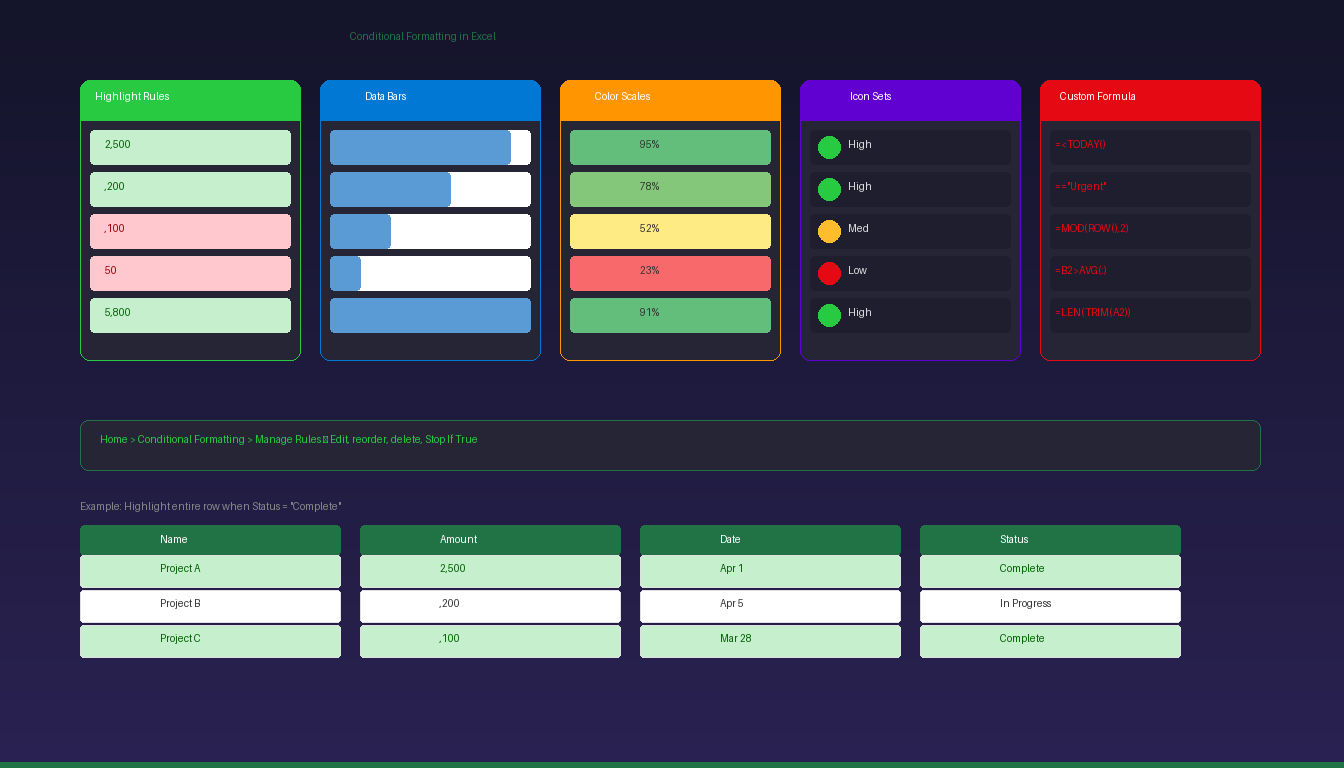
Conditional formatting in Excel automatically changes cell colors, adds data bars, or displays icons based on rules you define — making patterns, outliers, and trends visible at a glance without manual formatting. Once set up, the formatting updates automatically when data changes. For more Excel skills, see our intermediate Excel tutorial.
Key Takeaways
- Access conditional formatting via Home > Conditional Formatting — choose from Highlight Cell Rules, Top/Bottom Rules, Data Bars, Color Scales, or Icon Sets.
- Custom formula rules (
=formula) let you create complex conditions like highlighting entire rows based on multiple criteria. - Use Manage Rules (Home > Conditional Formatting > Manage Rules) to edit, reorder, or delete existing rules — rules higher in the list take priority.
How Do I Apply Basic Highlight Rules?
Select a range, go to Home > Conditional Formatting > Highlight Cell Rules, and choose a condition — cells matching the criteria are automatically highlighted with the color you select.
Built-In Highlight Rules
- Select the data range.
- Go to Home > Conditional Formatting > Highlight Cell Rules.
- Choose a rule:
| Rule | What It Highlights | Example |
|---|---|---|
| Greater Than | Values above a threshold | Sales > $10,000 |
| Less Than | Values below a threshold | Inventory < 50 |
| Between | Values within a range | Scores between 70-89 |
| Equal To | Exact matches | Status = “Overdue” |
| Text That Contains | Cells containing specific text | Name contains “Smith” |
| A Date Occurring | Dates in a time period | Due dates this week |
| Duplicate Values | Repeated or unique values | Find duplicate email addresses |
- Set the threshold value and formatting (fill color, text color).
- Click OK.
Top/Bottom Rules
Go to Conditional Formatting > Top/Bottom Rules:
| Rule | What It Highlights |
|---|---|
| Top 10 Items | Highest N values |
| Top 10% | Top percentage of values |
| Bottom 10 Items | Lowest N values |
| Bottom 10% | Bottom percentage of values |
| Above Average | Values above the range average |
| Below Average | Values below the range average |
These are ideal for quickly identifying best and worst performers in sales data, grades, or KPIs.
How Do I Use Data Bars, Color Scales, and Icon Sets?
These visual formats show relative values within cells — data bars act as mini bar charts, color scales create heatmaps, and icon sets add status indicators.
Data Bars
- Select the data range.
- Go to Conditional Formatting > Data Bars.
- Choose a Gradient Fill or Solid Fill color.
Each cell displays a horizontal bar proportional to its value — longer bars = larger values. Data bars work best for numerical columns where you want quick visual comparison.
Color Scales
- Select the range > Conditional Formatting > Color Scales.
- Choose a 2-color or 3-color scale (e.g., Green-Yellow-Red).
| Scale Type | Best For |
|---|---|
| Green-Red | Performance metrics (green = good, red = bad) |
| Blue-White-Red | Temperature or deviation from average |
| Green-Yellow-Red | Traffic light status visualization |
| White-Blue | Intensity/density heatmaps |
Color scales create instant heatmap visualizations — ideal for large data tables where individual values are hard to compare manually.
Icon Sets
- Select the range > Conditional Formatting > Icon Sets.
- Choose from arrows, flags, traffic lights, stars, or bars.
Icons appear inside each cell based on value thresholds. Default thresholds split values into equal segments, but you can customize them through Manage Rules.
According to Microsoft Support, icon sets work best with 3-5 categories — they lose effectiveness with too many data points at similar values.
How Do I Create Custom Formula Rules?
Use a formula rule to apply conditional formatting based on complex logic — the formula must return TRUE or FALSE, and you can reference other cells to format entire rows based on a single column’s value.
Create a Formula Rule
- Select the range to format.
- Go to Conditional Formatting > New Rule.
- Select Use a formula to determine which cells to format.
- Enter a formula that returns TRUE/FALSE.
- Click Format to set colors, borders, or font.
- Click OK.
Common Formula Examples
| Goal | Formula | What It Does |
|---|---|---|
| Highlight overdue | =$D2<TODAY() |
Formats if date in column D is past |
| Highlight entire row | =$E2="Urgent" |
Formats row if column E says “Urgent” |
| Alternate row shading | =MOD(ROW(),2)=0 |
Formats every other row |
| Highlight weekends | =WEEKDAY($A2,2)>5 |
Formats Saturday/Sunday dates |
| Above column average | =B2>AVERAGE($B:$B) |
Formats values above the column average |
| Non-blank cells | =LEN(TRIM($A2))>0 |
Formats only cells with content |
Key: Mixed References
When formatting entire rows based on one column, use $ before the column letter (e.g., $E2) to lock the column while letting the row adjust. Without the $, the formula shifts incorrectly when applied across multiple columns.
How Do I Manage and Edit Existing Rules?
Go to Home > Conditional Formatting > Manage Rules to view, edit, reorder, or delete all conditional formatting rules on the current selection or entire worksheet.
Open the Rules Manager
- Go to Home > Conditional Formatting > Manage Rules.
- Change Show formatting rules for to:
- Current Selection — rules on selected cells only
- This Worksheet — all rules on the sheet
Rules Manager Actions
| Action | How | Effect |
|---|---|---|
| Edit rule | Select rule > Edit Rule | Change conditions or formatting |
| Delete rule | Select rule > Delete Rule | Remove the formatting rule |
| Reorder | Use Up/Down arrows | Higher rules take priority |
| Stop If True | Check the checkbox | Prevents lower rules from applying |
| Change range | Edit “Applies to” field | Expand or shrink the formatted range |
Rule Priority
When multiple rules apply to the same cells, the rule highest in the list takes priority. Use “Stop If True” to prevent conflicting rules from overriding each other. For example: if Rule 1 highlights overdue items in red and Rule 2 highlights all items above $1,000 in green, an overdue item above $1,000 would be green (Rule 2 wins) unless Rule 1 has “Stop If True” checked.
How Do I Format Entire Rows Based on a Cell Value?
Select the entire data range (all columns), create a New Rule with a formula, and use a mixed reference ($column) to lock the condition column while formatting all columns in the row.
Step-by-Step
Example: Highlight the entire row when Status (column E) = “Complete”
- Select the entire data range: A2:F100.
- Go to Conditional Formatting > New Rule > Use a formula.
- Enter:
=$E2="Complete" - Click Format > Fill > choose green.
- Click OK twice.
Every row where column E contains “Complete” is highlighted green across all columns A through F. The $E locks to column E while 2 adjusts for each row.
What Are Conditional Formatting Best Practices?
Use conditional formatting purposefully — too many rules create visual clutter and slow down large workbooks.
| Do | Avoid |
|---|---|
| Use 2-3 rules per range | More than 5 rules on one range |
| Use consistent colors | Different color meanings per sheet |
| Green = good, Red = bad | Reversed color conventions |
| Apply to Excel Tables | Formatting static ranges (miss new data) |
| Use formulas for complex logic | Nesting multiple simple rules |
| Name your ranges | Applying rules to entire columns (A:A) — slows workbook |
| Document your rules | Leaving undocumented rules for others to decode |
For building dashboards with conditional formatting, see our Excel dashboard tutorial. For more Excel data analysis, see our Excel formulas tutorial. If you need Excel with full conditional formatting, Microsoft Office 2024 Professional Plus ($199.99) includes the complete Excel desktop application.
Frequently Asked Questions
Can I apply multiple conditional formatting rules to the same cells?
Yes. Excel supports unlimited rules on the same range. Rules are evaluated in priority order (top to bottom in Manage Rules). Higher-priority rules are applied first, and “Stop If True” prevents lower rules from overriding. Use Manage Rules to reorder priorities if formatting conflicts occur.
Does conditional formatting slow down Excel?
Yes, with excessive rules on large datasets. Formatting rules are recalculated every time a cell changes. To minimize impact: apply rules to specific ranges (not entire columns), limit to 3-5 rules per range, use Excel Tables for auto-scoping, and avoid volatile functions like INDIRECT in formula rules.
Can I copy conditional formatting to other cells?
Yes. Select a cell with conditional formatting, click Home > Format Painter, then click or drag across the target cells. The formatting rules transfer to the new range. You can also use Paste Special > Formats to paste only the formatting without the cell values.
How do I remove all conditional formatting from a sheet?
Go to Home > Conditional Formatting > Clear Rules > Clear Rules from Entire Sheet. This removes all conditional formatting rules from every cell on the active worksheet without affecting cell values or manual formatting.


