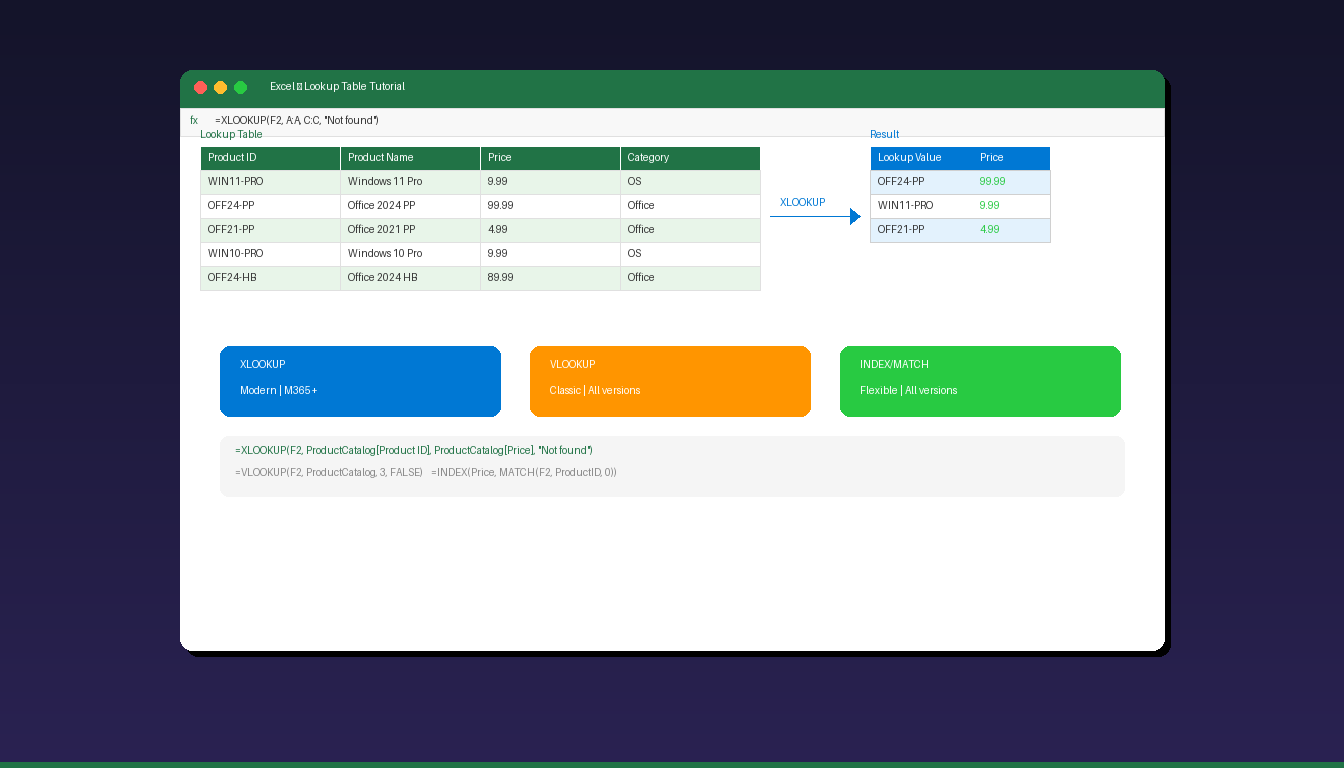
A lookup table in Excel is a structured reference sheet that stores data you frequently need — like product prices, employee IDs, or tax rates — so you can pull values automatically using formulas instead of typing them manually. The three main lookup methods are XLOOKUP (modern), VLOOKUP (classic), and INDEX/MATCH (flexible). If you are new to Excel, start with our Excel tutorial for beginners first.
Key Takeaways
- A lookup table is a structured data range with a unique identifier in the first column and related values in adjacent columns — convert it to an Excel Table (Ctrl+T) for automatic expansion.
- XLOOKUP is the recommended lookup function for Microsoft 365 and Excel 2021+ — it replaces VLOOKUP with simpler syntax, left-right lookups, and built-in error handling.
- VLOOKUP still works in all Excel versions but only looks right, breaks when columns are inserted, and requires a column index number.
How Do I Create a Lookup Table in Excel?
Set up a separate sheet or range with a unique identifier column and related data columns, then convert it to an Excel Table for automatic expansion and easier formula references.
Step 1: Structure Your Lookup Data
Create a range with clear headers and one unique value per row:
| Product ID | Product Name | Price | Category |
|---|---|---|---|
| WIN11-PRO | Windows 11 Pro | $99.99 | Operating System |
| OFF24-PP | Office 2024 Professional Plus | $199.99 | Office Suite |
| OFF21-PP | Office 2021 Professional Plus | $64.99 | Office Suite |
| WIN10-PRO | Windows 10 Pro | $59.99 | Operating System |
Step 2: Convert to an Excel Table
- Click anywhere in the data range.
- Press Ctrl+T.
- Confirm the range and check My table has headers.
- Click OK.
- In the Table Design tab, give the table a name (e.g., “ProductCatalog”).
Excel Tables automatically expand when you add new rows, so your lookup formulas always include the latest data without manual range adjustments.
Step 3: Use Named Ranges (Optional)
For even cleaner formulas, name individual columns:
- Select the Product ID column (without header).
- Click in the Name Box (left of formula bar).
- Type
ProductIDsand press Enter. - Repeat for other columns (
ProductNames,Prices).
How Do I Use XLOOKUP With a Lookup Table?
XLOOKUP searches a column for a value and returns the corresponding value from any other column — use it with the syntax =XLOOKUP(lookup_value, lookup_array, return_array).
Basic XLOOKUP
To look up a product price by Product ID:
=XLOOKUP(A2, ProductCatalog[Product ID], ProductCatalog[Price])
This searches for the value in A2 within the Product ID column and returns the matching price. If no match is found, XLOOKUP returns #N/A by default.
XLOOKUP With Error Handling
=XLOOKUP(A2, ProductCatalog[Product ID], ProductCatalog[Price], "Not found")
The fourth argument replaces #N/A with “Not found” — no need for IFERROR() wrappers.
XLOOKUP Returning Multiple Columns
=XLOOKUP(A2, ProductCatalog[Product ID], ProductCatalog[Product Name]:ProductCatalog[Category])
This returns Product Name, Price, and Category in one formula — the result spills across multiple cells.
XLOOKUP Key Features
| Feature | Description |
|---|---|
| Default search | Exact match (no need to specify) |
| Direction | Searches any direction (left, right) |
| If not found | Built-in error handling argument |
| Multiple returns | Returns multiple columns in one formula |
| Approximate match | Optional: -1 (exact or next smaller), 1 (exact or next larger) |
| Search mode | First-to-last (default), last-to-first, binary search |
According to Microsoft Support, XLOOKUP is available in Microsoft 365 and Excel 2021 or later. It is not available in Excel 2019 or earlier.
How Do I Use VLOOKUP With a Lookup Table?
VLOOKUP searches the first column of a range and returns a value from a specified column number — use the syntax =VLOOKUP(lookup_value, table_array, col_index_num, FALSE).
Basic VLOOKUP
=VLOOKUP(A2, ProductCatalog, 3, FALSE)
This searches for A2 in the first column of ProductCatalog and returns the value from column 3 (Price). FALSE specifies an exact match.
VLOOKUP Limitations
| Limitation | Impact | Workaround |
|---|---|---|
| Right-only lookup | Cannot return values from columns to the left | Use XLOOKUP or INDEX/MATCH |
| Column index breaks | Inserting/deleting columns changes the index number | Use MATCH for dynamic index |
| Single return | Returns one value per formula | Use separate formulas per column |
| No built-in error handling | Returns #N/A on no match | Wrap with IFERROR() |
| First match only | Returns first match in unsorted data | Sort data or use XLOOKUP |
For a detailed VLOOKUP guide with more examples, see our Excel VLOOKUP tutorial.
How Do I Use INDEX/MATCH With a Lookup Table?
INDEX/MATCH combines two functions — MATCH finds the row position, INDEX returns the value at that position — making it more flexible than VLOOKUP and compatible with all Excel versions.
Basic INDEX/MATCH
=INDEX(ProductCatalog[Price], MATCH(A2, ProductCatalog[Product ID], 0))
MATCH(A2, ProductCatalog[Product ID], 0)— finds which row A2 appears in (0 = exact match)INDEX(ProductCatalog[Price], ...)— returns the Price from that row
Left Lookup With INDEX/MATCH
Unlike VLOOKUP, INDEX/MATCH can look up values to the left:
=INDEX(ProductCatalog[Product ID], MATCH("Office 2024 Professional Plus", ProductCatalog[Product Name], 0))
This finds the Product ID for a given Product Name — impossible with VLOOKUP since Product ID is to the left of Product Name.
Two-Way Lookup
Look up a value based on both row and column criteria:
=INDEX(DataRange, MATCH(row_value, RowHeaders, 0), MATCH(col_value, ColHeaders, 0))
This is useful for cross-reference tables like tax rate lookups where you need to match both income bracket and filing status.
Which Lookup Method Should I Use?
Use XLOOKUP for new workbooks on Microsoft 365 or Excel 2021+, INDEX/MATCH for backward compatibility or complex lookups, and VLOOKUP only for maintaining existing workbooks.
| Feature | XLOOKUP | VLOOKUP | INDEX/MATCH |
|---|---|---|---|
| Availability | M365, Excel 2021+ | All versions | All versions |
| Syntax simplicity | Simple (3 args) | Moderate (4 args) | Complex (nested) |
| Look left | Yes | No | Yes |
| Column insert safe | Yes | No (index breaks) | Yes |
| Error handling | Built-in argument | Needs IFERROR() | Needs IFERROR() |
| Multiple returns | Yes (spill) | No | No |
| Approximate match | Optional argument | TRUE/FALSE | 1/0/-1 |
| Performance | Fast | Fast | Fast |
| Best for | New workbooks (M365) | Legacy compatibility | Complex/flexible lookups |
Decision Flow
- Using Microsoft 365 or Excel 2021+? → Use XLOOKUP
- Need backward compatibility with Excel 2019 or earlier? → Use INDEX/MATCH
- Maintaining an existing workbook with VLOOKUP? → Keep VLOOKUP (no need to rewrite)
- Need a left lookup or dynamic column reference? → Use XLOOKUP or INDEX/MATCH
How Do I Handle Common Lookup Errors?
The most common lookup errors are #N/A (no match found), #REF (invalid reference), and #VALUE (wrong data type) — each has specific causes and fixes.
| Error | Cause | Fix |
|---|---|---|
| #N/A | Lookup value not found in table | Check spelling, extra spaces (use TRIM), data type mismatch |
| #REF! | Column index exceeds table width (VLOOKUP) | Reduce col_index_num or use XLOOKUP |
| #VALUE! | Wrong argument type | Verify lookup_value matches the data type in lookup column |
| #SPILL! | XLOOKUP spill range blocked | Clear cells in the spill area |
| Wrong result | Approximate match returning wrong value | Use FALSE (VLOOKUP) or 0 (MATCH) for exact match |
| Extra spaces | Hidden spaces cause mismatch | Use =TRIM() on lookup value and/or lookup column |
Wrap With Error Handling
VLOOKUP/INDEX-MATCH:
=IFERROR(VLOOKUP(A2, ProductCatalog, 3, FALSE), "Not found")
XLOOKUP (built-in):
=XLOOKUP(A2, ProductCatalog[Product ID], ProductCatalog[Price], "Not found")
For more Excel formulas and functions, see our Excel pivot table tutorial. If you need Excel with XLOOKUP support, Microsoft Office 2024 Professional Plus ($199.99) includes Excel 2024 with all modern functions including XLOOKUP, LAMBDA, and dynamic arrays.
Frequently Asked Questions
Can I use XLOOKUP in Excel 2019?
No. XLOOKUP is only available in Microsoft 365 and Excel 2021 or later. For Excel 2019, use INDEX/MATCH as the recommended alternative — it offers the same flexibility as XLOOKUP (left lookups, dynamic references) and works in all Excel versions.
What is the difference between a lookup table and a regular range?
A lookup table is any structured data range used as a reference for formulas. Converting it to an Excel Table (Ctrl+T) adds benefits: automatic expansion when new rows are added, structured references in formulas (e.g., ProductCatalog[Price]), and automatic formatting. Regular ranges work but require manual updates when data grows.
Can I look up data from another workbook?
Yes. Reference the other workbook in your formula: =XLOOKUP(A2, [OtherBook.xlsx]Sheet1!A:A, [OtherBook.xlsx]Sheet1!C:C) . The source workbook must be open unless you use a full file path. For large external data sources, consider Power Query instead of lookup formulas.
How do I make VLOOKUP case-sensitive?
VLOOKUP is case-insensitive by default. For case-sensitive lookups, use INDEX/MATCH with EXACT: =INDEX(ReturnRange, MATCH(TRUE, EXACT(LookupValue, LookupRange), 0)) entered as an array formula (Ctrl+Shift+Enter in older Excel, or dynamic array in M365).


