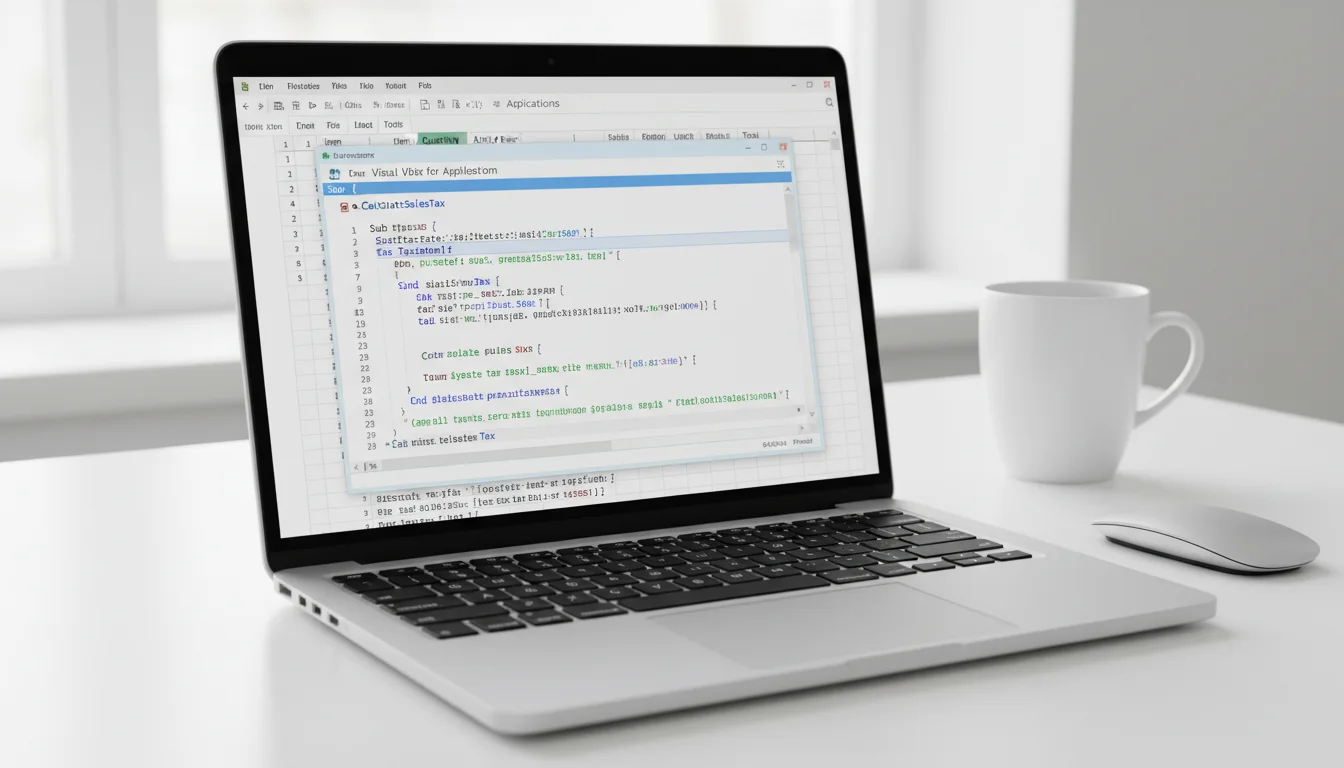
If you spend hours every week formatting reports, cleaning data, or repeating the same sequence of clicks in Microsoft Excel, macros are the feature that will change how you work. A macro records your actions and replays them instantly — turning a 15-minute manual task into a single keystroke. Whether you are new to automation or looking to go deeper with code, this Excel tutorial for beginners covers everything you need to get started with Excel macros and Visual Basic for Applications (VBA).
Key Takeaways
- Macros record your actions and replay them on demand — no coding required to get started.
- VBA is the language behind every macro — the Macro Recorder writes it automatically, and you can edit or extend it manually.
- Save your file as .xlsm — the macro-enabled format — or your macros will be lost when you close the workbook.
What Is a Macro in Excel?
A macro in Microsoft Excel is a saved sequence of commands and actions that you can replay automatically. Macros eliminate repetitive work by executing tasks — formatting cells, sorting data, generating reports — in seconds rather than minutes.
Microsoft Excel macros are stored as Visual Basic for Applications (VBA) code inside your workbook. You do not need to write any code to create basic macros; the built-in Macro Recorder writes the VBA for you as you perform actions. Once recorded, you can run the same sequence as many times as needed.
Common macro use cases:
- Applying consistent formatting to monthly reports
- Deleting blank rows from imported datasets
- Exporting sheets as PDF files with a single click
- Populating templates with data from another sheet
- Sending automated email notifications via Outlook
According to Microsoft, macros are one of the most widely used productivity features in Microsoft Excel, particularly among finance, operations, and data teams. (support.microsoft.com)
How Do I Enable the Developer Tab?
The Developer tab is not visible in Microsoft Excel by default. You must enable it once before you can record or manage macros.
Steps to enable the Developer tab:
- Open Microsoft Excel and click File in the top-left corner.
- Click Options at the bottom of the left panel.
- In the Excel Options dialog, click Customize Ribbon in the left sidebar.
- In the right column under “Main Tabs,” check the box next to Developer.
- Click OK.
The Developer tab now appears in the Excel ribbon between the View tab and any add-in tabs. You will use it for every macro task covered in this tutorial.
How Do I Record a Macro in Excel?
Recording a macro in Microsoft Excel captures every action you perform — cell selections, formatting, data entry — and saves them as replayable VBA code automatically.
Steps to record a macro:
- Click the Developer tab in the ribbon.
- Click Record Macro. A dialog box appears.
- Enter a descriptive name for your macro (no spaces — use underscores, e.g.,
Format_Monthly_Report). - Optionally, assign a shortcut key (e.g., Ctrl+Shift+F) so you can trigger the macro from the keyboard.
- In the “Store macro in” dropdown, select This Workbook to keep the macro with the current file.
- Add an optional description, then click OK.
- Perform all the actions you want to record.
- When finished, click Developer → Stop Recording.
Practical Example: Formatting a Report
Say you receive a raw data export every Monday and need to apply the same formatting. Here is what to record:
- Start recording with the name
Format_Report. - Select row 1 (the header row) and apply Bold formatting.
- Set column widths: select all columns → right-click → Column Width → enter
15. - Add borders: select the data range → Home → Borders → All Borders.
- Freeze the top row: View → Freeze Panes → Freeze Top Row.
- Stop recording.
Every Monday, paste your new data and press your assigned shortcut. The macro applies all formatting in under a second.
How Do I Run a Macro in Excel?
You can run a saved macro in Microsoft Excel using three different methods depending on your preference.
Method 1 — Macros Dialog
- Click Developer → Macros (or press Alt+F8).
- Select your macro from the list.
- Click Run.
Method 2 — Keyboard Shortcut
If you assigned a shortcut key during recording, press it at any time. For example, pressing Ctrl+Shift+F triggers the Format_Report macro immediately.
Method 3 — Button on the Sheet
You can attach a macro to a button for non-technical users:
- Click Developer → Insert → Button (Form Control).
- Draw the button on the sheet.
- In the “Assign Macro” dialog, select your macro and click OK.
- Label the button (e.g., “Format Report”).
Clicking the button runs the macro — no ribbon navigation needed.
What Is VBA and How Is It Related to Macros?
Visual Basic for Applications (VBA) is the programming language built into Microsoft Excel (and other Microsoft Office applications). Every macro you record is automatically written as VBA code behind the scenes.
The relationship is straightforward: macros are the output, VBA is the language. When you record a macro, Excel writes VBA. When you open the VBA Editor (press Alt+F11), you can read, edit, and extend that code.
VBA gives you capabilities beyond what the Macro Recorder can capture:
- Conditional logic (
If...Then...Else) - Loops to process thousands of rows automatically
- User input via dialog boxes (
InputBox,MsgBox) - Interaction with other Office applications (Outlook, Word)
- Error handling to prevent crashes
Basic VBA structure:
Sub MacroName()
    ' Your code goes here
End Sub
Every VBA macro begins with Sub followed by the macro name and parentheses, and ends with End Sub. The code between these two lines is what executes when the macro runs.
To open the VBA Editor at any time, press Alt+F11. You will see the Project Explorer on the left (listing all open workbooks and their modules) and the code window on the right.
Your First VBA Macro
Writing a macro from scratch in VBA gives you full control over the logic. Here is a complete, working example that formats a report header row.
Goal: Bold the header row, set background color to light blue, and auto-fit all columns.
Sub FormatReport()
    ' Select the header row
    Rows(1).Select

    ' Apply bold formatting
    Selection.Font.Bold = True

    ' Set background color (light blue = RGB 173, 216, 230)
    Selection.Interior.Color = RGB(173, 216, 230)

    ' Auto-fit all columns for readability
    Cells.EntireColumn.AutoFit

    ' Confirm completion
    MsgBox "Report formatted successfully!", vbInformation
End Sub
How to add this macro to your workbook:
- Press Alt+F11 to open the VBA Editor.
- In the Project Explorer, right-click your workbook name → Insert → Module.
- Paste the code above into the module window.
- Press F5 or click the green Run button to execute.
- Close the VBA Editor and return to your sheet.
You can modify any line to suit your needs — change the color, target a different row, or remove the message box.
Are Excel Macros Safe?
Microsoft Excel macros are safe when they come from trusted sources. However, because VBA can interact with your file system, network, and other applications, malicious macros in files from unknown sources do pose a security risk.
Microsoft Excel’s default macro security setting is: “Disable all macros with notification” — meaning Excel blocks macros and shows a yellow security bar asking you whether to enable them. This is the recommended setting for most users.
To review or change macro security settings:
- Click File → Options.
- Click Trust Center in the left panel.
- Click Trust Center Settings.
- Click Macro Settings in the left panel.
- Select your preferred option:
- Disable all macros with notification (recommended default)
- Disable all macros without notification (most restrictive)
- Enable all macros (not recommended — use only in controlled environments)
Critical: Save as .xlsm
Standard .xlsx files cannot store macros. If you save a workbook with macros as .xlsx, Excel will warn you and all VBA code will be removed. Always save macro-enabled workbooks in the Excel Macro-Enabled Workbook (.xlsm) format:
- Press Ctrl+Shift+S or click File → Save As.
- In the “Save as type” dropdown, select Excel Macro-Enabled Workbook (*.xlsm).
- Click Save.
Common Macro Examples
The following ready-to-use VBA macros address the most frequent automation requests. Copy any snippet into a new module via Alt+F11 → Insert → Module.
1. Delete All Blank Rows
Sub DeleteBlankRows()
    Dim lastRow As Long
    Dim i As Long
    lastRow = Cells(Rows.Count, 1).End(xlUp).Row

    For i = lastRow To 1 Step -1
        If WorksheetFunction.CountA(Rows(i)) = 0 Then
            Rows(i).Delete
        End If
    Next i

    MsgBox "Blank rows deleted.", vbInformation
End Sub
2. Save Active Sheet as PDF
Sub SaveAsPDF()
    Dim filePath As String
    filePath = Environ("USERPROFILE") & "\Desktop\" & _
               ActiveSheet.Name & "_" & Format(Now, "YYYYMMDD") & ".pdf"

    ActiveSheet.ExportAsFixedFormat Type:=xlTypePDF, Filename:=filePath
    MsgBox "PDF saved to Desktop: " & ActiveSheet.Name & ".pdf", vbInformation
End Sub
3. Auto-Format All Numeric Cells as Currency
Sub FormatCurrency()
    Dim cell As Range
    For Each cell In ActiveSheet.UsedRange
        If IsNumeric(cell.Value) And Not IsEmpty(cell.Value) Then
            cell.NumberFormat = "$#,##0.00"
        End If
    Next cell
End Sub
4. Copy Data to a New Sheet
Sub CopyToNewSheet()
    Dim newSheet As Worksheet
    Dim sheetName As String
    sheetName = "Report_" & Format(Now, "YYYYMMDD")

    ' Add new sheet with today's date name
    Set newSheet = ThisWorkbook.Sheets.Add(After:=ActiveSheet)
    newSheet.Name = sheetName

    ' Copy used range from active sheet to new sheet
    ActiveSheet.UsedRange.Copy Destination:=newSheet.Range("A1")
    MsgBox "Data copied to sheet: " & sheetName, vbInformation
End Sub
These examples cover the most common time-saving workflows. Once comfortable with VBA, you can combine multiple sub-routines into larger automation sequences — for example, a single macro that cleans data, formats the output, and exports a PDF in one click.
If you are also working with pivot tables as part of your reporting workflow, the pivot table tutorial covers how to automate pivot table refresh and layout changes with VBA.
To access the full suite of Microsoft Excel macro features, you need a version that includes the complete VBA environment. Both Office 2024 Pro Plus ($199.99) and Office 2021 Pro Plus ($64.99) include full VBA support. See the Office 2024 lifetime license guide for details on getting a one-time purchase license.
Frequently Asked Questions
Can I record a macro on Mac?
Yes. Microsoft Excel for Mac supports macro recording and VBA, though the Developer tab path differs slightly: go to Excel menu → Preferences → Ribbon & Toolbar → enable Developer. The VBA Editor opens with Opt+F11. Note that some Windows-specific VBA functions (such as Environ for file paths) behave differently on macOS.
Will macros work in Excel Online?
No. Microsoft Excel Online (the browser-based version) does not support VBA macros. Macros only run in the desktop version of Microsoft Excel for Windows or Mac. Excel Online can open .xlsm files, but macros are disabled and cannot be executed.
How do I share a workbook with macros?
Save the file as .xlsm and share it as you would any attachment — via email, OneDrive, or SharePoint. Recipients will see a security notification when they open the file asking whether to enable macros. They must click “Enable Content” for macros to run. If distributing widely, consider signing your VBA project with a digital certificate so recipients trust the source automatically.
Can macros run automatically when I open a workbook?
Yes. Create a subroutine named exactly Auto_Open or use the Workbook_Open event in the ThisWorkbook module. The Workbook_Open approach is preferred:


