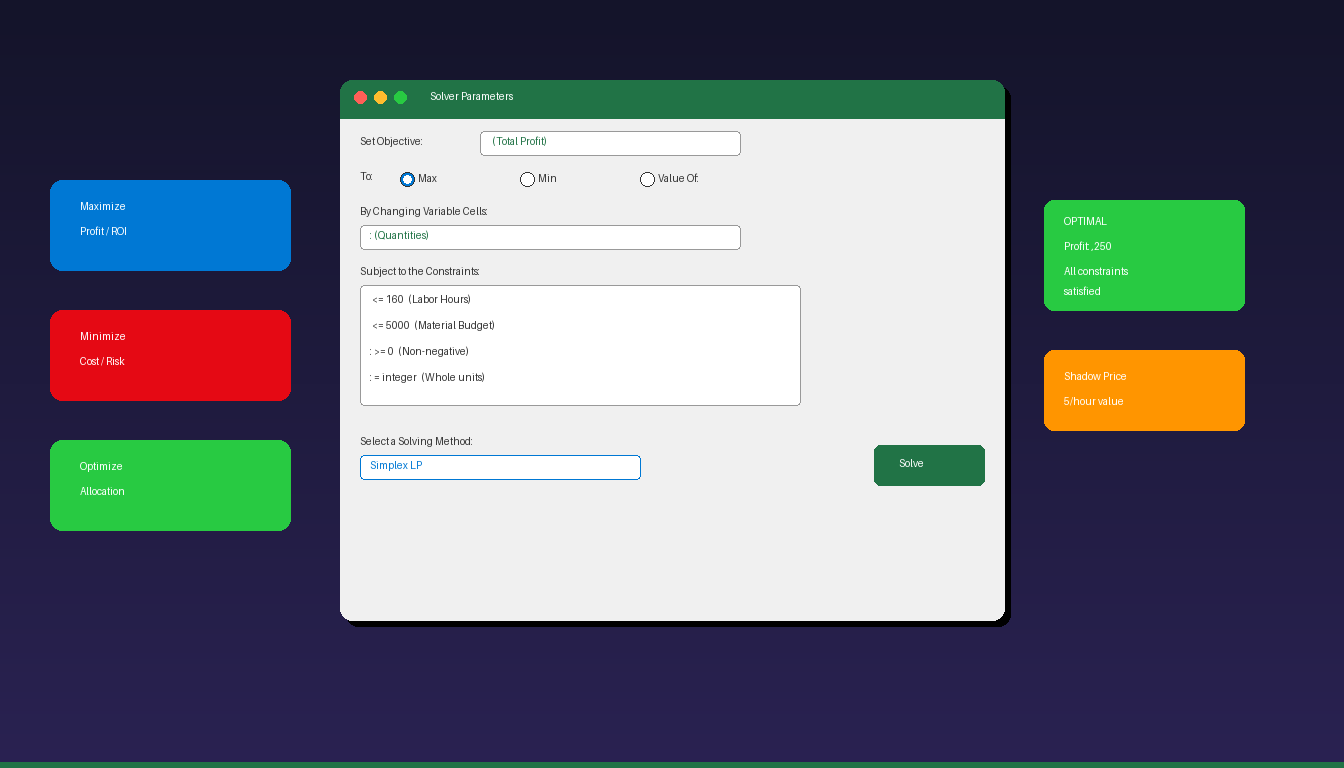
Excel Solver is a built-in add-in that finds the optimal value for a formula — maximum profit, minimum cost, or exact target — by adjusting variable cells while respecting constraints you define. It is used for production planning, budget allocation, scheduling, and any decision that involves finding the best combination of values. For foundational Excel skills, see our intermediate Excel tutorial.
Key Takeaways
- Solver is an Excel add-in that must be enabled first: File > Options > Add-ins > Manage Excel Add-ins > check Solver Add-in.
- Every Solver problem has three components: an objective cell (what to optimize), variable cells (what Solver changes), and constraints (limits on the variables).
- Use Simplex LP for linear problems (80% of use cases), GRG Nonlinear for curved relationships, and Evolutionary for complex non-smooth problems.
How Do I Enable Solver in Excel?
Go to File > Options > Add-ins, select Excel Add-ins in the Manage dropdown, click Go, check the Solver Add-in box, and click OK — Solver appears in the Data tab.
- Open Excel and click File > Options.
- Select Add-ins from the left sidebar.
- At the bottom, confirm Manage is set to Excel Add-ins and click Go.
- Check Solver Add-in.
- Click OK.
- Solver now appears in the Data tab > Analysis group.
Solver is included free with all versions of Excel (2016, 2019, 2021, 2024, and Microsoft 365). It does not require a separate download or purchase. According to Microsoft Support, if Solver Add-in is not in the list, you may need to repair your Office installation.
How Do I Set Up a Solver Problem?
Define three components: the objective cell (formula to optimize), the variable cells (values Solver adjusts), and constraints (rules the solution must follow).
The Three Components
| Component | What It Is | Example |
|---|---|---|
| Objective cell | A formula cell containing the value to maximize, minimize, or hit a target | Total Profit cell: =SUMPRODUCT(B2:B5, D2:D5) |
| Variable cells | Cells Solver changes to find the best solution | Production quantities: B2:B5 |
| Constraints | Rules that limit the variable values | Budget ≤ $10,000; Quantities ≥ 0; Hours ≤ 160 |
Practical Example: Maximize Profit
A company makes 4 products with different profit margins and resource requirements:
| Product | Profit/Unit | Hours/Unit | Material/Unit | Quantity (Variable) |
|---|---|---|---|---|
| Product A | $25 | 2 | $10 | ? |
| Product B | $30 | 3 | $12 | ? |
| Product C | $20 | 1.5 | $8 | ? |
| Product D | $40 | 4 | $15 | ? |
Objective: Maximize Total Profit = =SUMPRODUCT(ProfitPerUnit, Quantities)
Constraints: – Total hours ≤ 160 (available labor) – Total material cost ≤ $5,000 (budget) – Each quantity ≥ 0 (cannot produce negative units) – Each quantity = integer (whole units only)
How Do I Run Solver?
Click Data > Solver, set the objective cell, choose Max/Min/Value, select variable cells, add constraints, choose a solving method, and click Solve.
Step-by-Step
- Click Data > Solver.
- Set Objective: Click the cell containing your Total Profit formula.
- To: Select Max (maximize profit).
- By Changing Variable Cells: Select the Quantity cells (B2:B5).
- Subject to the Constraints: Click Add for each constraint:
- Total Hours cell ≤ 160
- Total Material Cost cell ≤ 5000
- Quantities ≥ 0
- Quantities = integer
- Select a Solving Method: Choose Simplex LP (for linear problems).
- Click Solve.
Interpret the Results
After solving, Solver displays a dialog:
| Result | Meaning |
|---|---|
| Solver found a solution | Optimal values found — all constraints satisfied |
| Solver could not find a feasible solution | Constraints are contradictory — relax a constraint |
| Solver stopped at iteration limit | Increase max iterations in Options |
| Objective does not converge | Problem may be unbounded — add more constraints |
Click Keep Solver Solution to accept the results, or Restore Original Values to revert. Optionally check Sensitivity and Answer reports for detailed analysis.
Which Solving Method Should I Use?
Choose Simplex LP for linear problems, GRG Nonlinear for smooth nonlinear problems, and Evolutionary for complex problems with non-smooth or discontinuous functions.
| Method | Best For | Speed | Guarantees Optimal? |
|---|---|---|---|
| Simplex LP | Linear problems (addition, multiplication only) | Fast | Yes |
| GRG Nonlinear | Smooth curves (exponentials, logarithms) | Medium | Local optimum only |
| Evolutionary | Non-smooth, discontinuous, or IF-based formulas | Slow | No (best found) |
How to Choose
- All formulas use only +, -, *, /, and SUM? → Simplex LP
- Formulas include powers, LOG, EXP, or smooth curves? → GRG Nonlinear
- Formulas include IF, VLOOKUP, or discontinuous functions? → Evolutionary
Simplex LP is the correct choice for approximately 80% of business optimization problems — budgeting, production planning, transportation, and scheduling are typically linear.
What Are Common Excel Solver Use Cases?
Solver applies to any business problem where you need to find the best combination of values within defined limits.
| Use Case | Objective | Variables | Key Constraints |
|---|---|---|---|
| Production planning | Maximize profit | Units to produce | Labor hours, material budget, demand |
| Budget allocation | Maximize ROI | Spend per channel | Total budget, min/max per channel |
| Staff scheduling | Minimize cost | Shift assignments | Coverage requirements, max hours |
| Transportation | Minimize shipping cost | Units per route | Warehouse capacity, store demand |
| Portfolio optimization | Maximize return | Investment allocation | Risk tolerance, total capital |
| Diet/nutrition | Minimize cost | Food quantities | Calorie/nutrient minimums |
Budget Allocation Example
Allocate $50,000 marketing budget across 4 channels to maximize leads:
- Objective: Maximize total leads (=SUMPRODUCT(SpendPerChannel, LeadsPerDollar))
- Variables: Spend on Email, Social, PPC, Content
- Constraints: Total spend = $50,000; Each channel ≥ $2,000; Each channel ≤ $25,000
How Do I Read the Solver Sensitivity Report?
The Sensitivity Report shows how much each constraint affects the optimal solution — the Shadow Price tells you the value of relaxing a constraint by one unit.
Key Fields
| Field | Location | Meaning |
|---|---|---|
| Final Value | Variable cells section | Optimal value for each variable |
| Reduced Cost | Variable cells section | How much profit must improve before this variable enters the solution |
| Shadow Price | Constraints section | Profit increase per unit of relaxed constraint |
| Constraint R.H. Side | Constraints section | Current constraint limit |
| Allowable Increase/Decrease | Both sections | Range where current solution remains optimal |
Practical Interpretation
If the labor hours constraint (≤ 160) has a Shadow Price of $15, it means each additional hour of labor would increase profit by $15. If hiring costs less than $15/hour, hiring more labor is profitable.
For more data analysis in Excel, see our Excel pivot table tutorial and Excel dashboard tutorial. If you need Excel with Solver, Microsoft Office 2024 Professional Plus ($199.99) includes the full Excel desktop application with Solver add-in.
Frequently Asked Questions
Is Excel Solver free?
Yes. Solver is included as a free add-in with all desktop versions of Excel (2016, 2019, 2021, 2024, and Microsoft 365). You only need to enable it once through File > Options > Add-ins. Solver is not available in Excel for the web or Excel mobile apps — it requires the desktop application.
Can Solver handle more than one objective?
No. Solver optimizes a single objective cell at a time. For multi-objective optimization, run Solver multiple times with different objectives, or combine objectives into a single weighted formula (e.g., =0.6*Profit + 0.4*CustomerSatisfaction ). Normalize the metrics to the same scale before combining.
Why does Solver say no feasible solution?
Your constraints are contradictory — there is no combination of variable values that satisfies all constraints simultaneously. Common causes: budget too tight for minimum requirements, conflicting min/max constraints, or integer constraints that eliminate all solutions. Relax one constraint at a time to find which one is too restrictive.
What is the maximum number of variables Solver can handle?
The standard Excel Solver handles up to 200 decision variable cells, 100 constraints (excluding bounds on variables), and 400 simple bounds. For larger problems, third-party Solver add-ins like OpenSolver (free) or Frontline Premium Solver support thousands of variables.