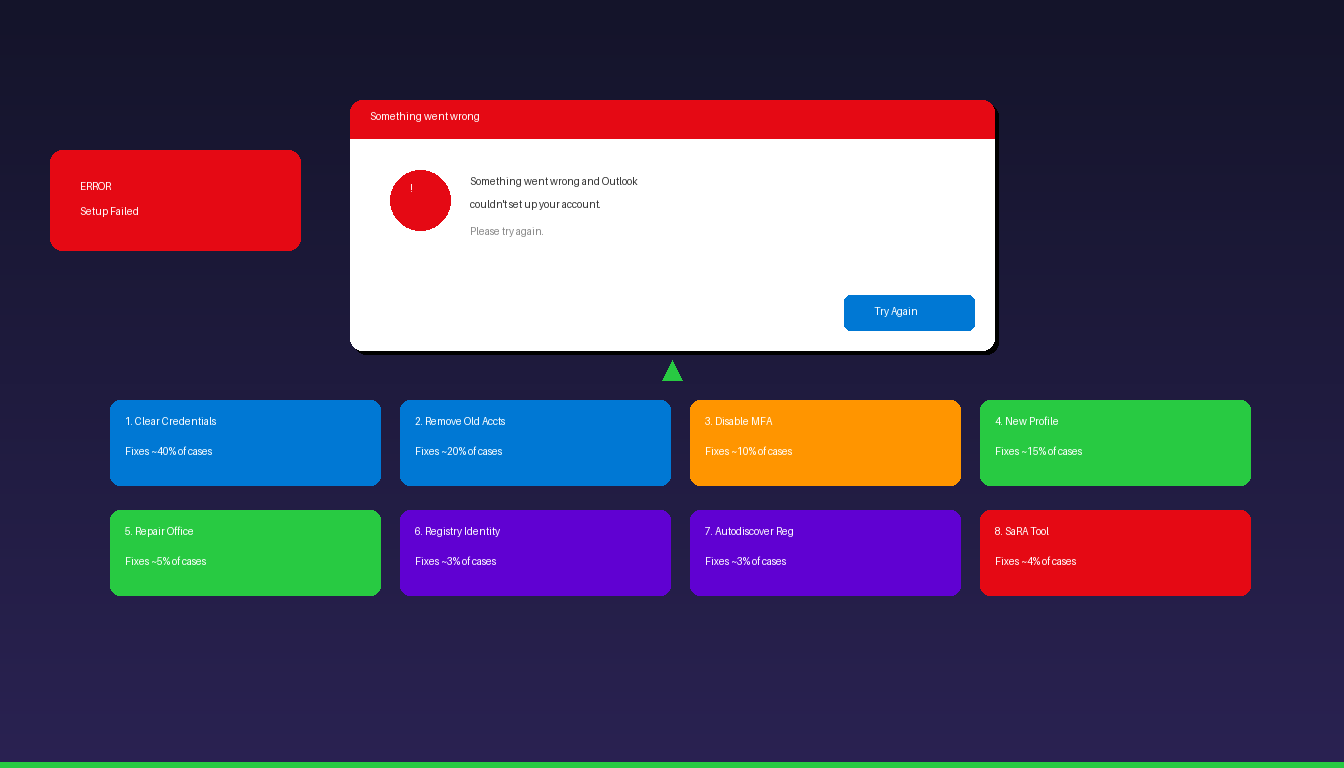
The “Something went wrong and Outlook couldn’t set up your account” error appears when Outlook’s Autodiscover process fails to configure your email account. This typically happens due to cached credentials from an old account, multi-factor authentication conflicts, or corrupted Outlook profiles. The fixes below are ordered from simplest to most advanced. For general setup guidance, see our Outlook email setup guide.
Key Takeaways
- The most common fix is clearing old cached credentials in Windows Credential Manager and removing stale accounts from Windows Settings > Accounts > Access work or school.
- If multi-factor authentication (MFA) was recently enabled, temporarily disable it during setup, complete the account configuration, then re-enable MFA.
- Creating a new Outlook profile (Control Panel > Mail > Show Profiles > Add) bypasses corrupted profile data that causes the error.
Fix 1: Clear Cached Credentials
Old or corrupted credentials stored in Windows Credential Manager block Outlook from authenticating with the correct account — removing them forces a fresh login.
- Close Outlook completely.
- Open Windows Credential Manager (search “Credential Manager” in Start menu).
- Click Windows Credentials.
- Look for entries containing:
outlook.office365.comMicrosoftOffice16- Your email domain (e.g.,
company.com) login.microsoftonline.com- Click each entry and click Remove.
- Restart Outlook and try adding the account again.
This is the most common fix — according to Microsoft Support, cached credentials from a previous account or password change frequently cause this error.
Fix 2: Remove Old Accounts From Windows
Stale work or school accounts registered in Windows Settings can interfere with Outlook’s Autodiscover process — disconnecting them resolves the conflict.
- Open Windows Settings (Windows + I).
- Go to Accounts > Access work or school.
- Look for any connected accounts, especially old or duplicate entries.
- Click each account and click Disconnect.
- Restart your computer.
- Open Outlook and try setting up the account again.
This fix is especially effective when you have switched organizations or changed your Microsoft 365 account.
Fix 3: Disable MFA Temporarily During Setup
Multi-factor authentication can interfere with Outlook’s initial account configuration — disable it during setup, then re-enable it after the account is configured.
- Sign in to myaccount.microsoft.com or your organization’s Azure AD portal.
- Go to Security info and temporarily disable your MFA method.
- Open Outlook and add the account.
- Once the account is configured and syncing, re-enable MFA.
- Outlook may prompt you to re-authenticate with MFA — complete the prompt.
If you cannot disable MFA (organization policy), try generating an app password instead: 1. Go to mysignins.microsoft.com/security-info. 2. Click Add sign-in method > App password. 3. Use this app password in Outlook instead of your regular password.
Fix 4: Create a New Outlook Profile
A corrupted Outlook profile can cause persistent setup errors — creating a fresh profile bypasses all corrupted settings, cached data, and configuration files.
- Close Outlook.
- Open Control Panel > search for Mail > click Mail (Microsoft Outlook).
- Click Show Profiles.
- Click Add and enter a name (e.g., “New Profile”).
- Follow the setup wizard to add your email account.
- If the account configures successfully, select Always use this profile > choose “New Profile.”
- Click OK and open Outlook.
If the new profile works, you can delete the old corrupted profile from the same Show Profiles dialog.
Fix 5: Repair Microsoft Office
Corrupted Office installation files can cause Outlook to fail during account setup — running a repair restores missing or damaged files.
Quick Repair
- Open Control Panel > Programs and Features (or Settings > Apps > Installed apps).
- Find Microsoft 365 Apps (or Microsoft Office).
- Click Modify (or right-click > Modify).
- Select Quick Repair and click Repair.
- Wait for the repair to complete and restart Outlook.
Online Repair (If Quick Repair Fails)
- Repeat steps 1-3 above.
- Select Online Repair instead of Quick Repair.
- Click Repair — this downloads fresh Office files from Microsoft servers.
- The process takes 15-30 minutes and requires an internet connection.
- Restart your computer after the repair completes.
Online Repair resolves most Outlook issues that Quick Repair cannot fix, including corrupted DLL files, registry entries, and configuration data.
Fix 6: Delete the Identity Registry Key
Cached identity data in the Windows Registry can cause Outlook to use outdated authentication tokens — deleting the Identity key forces a fresh authentication.
Warning: Editing the registry incorrectly can cause system problems. Back up the registry before making changes.
- Close Outlook.
- Press Windows + R, type
regedit, and press Enter. - Navigate to:
HKEY_CURRENT_USER\Software\Microsoft\Office\16.0\Common\Identity - Right-click the Identity folder and select Export (creates a backup).
- Right-click the Identity folder and select Delete.
- Close Registry Editor and restart Outlook.
- Try adding the account again — Outlook will create fresh identity data.
Fix 7: Modify Autodiscover Registry Settings
Autodiscover is the process Outlook uses to detect email server settings automatically. If it fails at a specific step, you can skip problematic Autodiscover methods using registry keys.
- Press Windows + R, type
regedit, press Enter. - Navigate to:
HKEY_CURRENT_USER\Software\Microsoft\Office\16.0\Outlook\AutoDiscover - If the AutoDiscover key does not exist, right-click Outlook > New > Key > name it
AutoDiscover. - Inside AutoDiscover, create these DWORD (32-bit) values, all set to 1:
| Value Name | Data | What It Skips |
|---|---|---|
| ExcludeLastKnownGoodUrl | 1 | Last cached Autodiscover URL |
| ExcludeHttpsRootDomain | 1 | Root domain HTTPS lookup |
| ExcludeSrvRecord | 1 | DNS SRV record lookup |
| ExcludeHttpsAutoDiscoverDomain | 1 | Autodiscover subdomain lookup |
- Close Registry Editor and restart Outlook.
- Try adding the account again.
This fix resolves cases where a third-party web server at your domain’s root URL interferes with Outlook’s Autodiscover process.
Fix 8: Use the Microsoft Support and Recovery Assistant (SaRA)
SaRA is a free diagnostic tool from Microsoft that automatically detects and fixes Outlook configuration problems.
- Download SaRA from aka.ms/SaRA.
- Install and run the tool.
- Select Outlook > Outlook keeps asking for my password or I can’t set up my account.
- Follow the guided troubleshooting steps.
- SaRA will identify the specific issue and apply fixes automatically.
SaRA is recommended by Microsoft Learn as the definitive troubleshooting tool when manual fixes do not resolve the error.
Quick Troubleshooting Checklist
Before trying the fixes above, verify these basic requirements:
| Check | How |
|---|---|
| Account works on web | Sign in at outlook.office.com |
| Internet connection | Test by opening any website |
| Outlook is updated | File > Office Account > Update Options > Update Now |
| Correct email address | Verify spelling and domain |
| Password is correct | Test at the web login page |
| Firewall/antivirus | Temporarily disable and retry |
If the account works at outlook.office.com but not in Outlook desktop, the issue is local to Outlook — the fixes above will resolve it. If the account does not work on the web either, contact your email administrator.
For setting up specific email providers, see our guides for Gmail, Yahoo, and Comcast. If you need Outlook desktop, Microsoft Office 2024 Professional Plus ($199.99) includes the classic Outlook application.
Frequently Asked Questions
Why does Outlook say “Something went wrong” when adding my account?
The error occurs when Outlook’s Autodiscover process fails to detect your email server settings. Common causes include cached credentials from a previous account, multi-factor authentication conflicts, corrupted Outlook profiles, or a third-party web server at your domain interfering with Autodiscover. Start with Fix 1 (clear credentials) as it resolves the issue in most cases.
Does this error affect the new Outlook for Windows?
The “Something went wrong” error primarily affects classic Outlook desktop. The new Outlook for Windows uses a different account setup process (cloud-based) and is less prone to this specific error. If you encounter setup issues in new Outlook, try removing and re-adding the account, or switch to classic Outlook for more troubleshooting options.
Will I lose my emails if I create a new Outlook profile?
No, if your email is on Exchange or Microsoft 365. Creating a new profile re-downloads your email from the server — all emails, contacts, and calendar items are preserved on the server. If you use POP3, your emails are stored in a local .pst file tied to the old profile. Export the .pst file before deleting the old profile, then import it into the new profile.
Should I try all 8 fixes in order?
Start with Fix 1 (clear credentials) and Fix 2 (remove old accounts) — these resolve approximately 70% of cases. If those do not work, try Fix 4 (new profile). Only proceed to registry fixes (Fix 6 and 7) if the simpler solutions fail. Fix 8 (SaRA tool) can be used at any point as an automated alternative.