Microsoft Word Tutorial for Beginners: Complete 2026 Guide
Microsoft Word is the world’s most widely used word processor, trusted by over one billion…
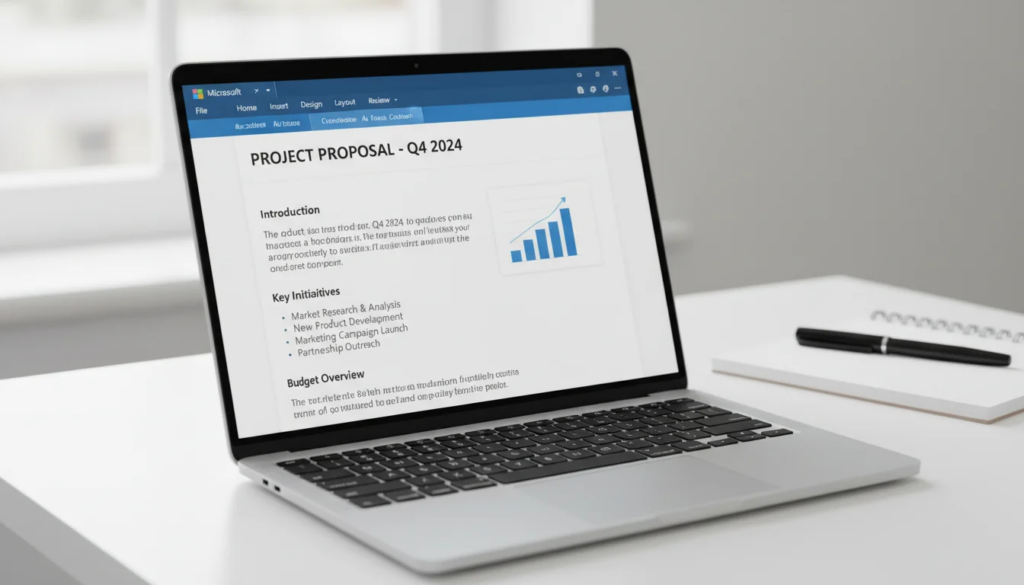
Microsoft Word is the world’s most widely used word processor, trusted by over one billion people across homes, schools, and businesses. Whether you need to write a resume, draft a report, or create a flyer, Microsoft Word gives you the tools to produce polished, professional documents. This complete beginner tutorial walks you through every essential feature — from opening your first document to sharing it with colleagues.
Key Takeaways
- Microsoft Word’s Ribbon organizes all tools into tabs (Home, Insert, Layout, Review) so every feature is a click away.
- Styles and templates let you format documents consistently and professionally without starting from scratch.
- Microsoft Word 2024 includes Copilot AI for drafting, rewriting, and summarizing content directly inside your document.
How Do I Get Started with Microsoft Word?
Open Microsoft Word, and you land on the Start screen where you can open recent files or create a new document. The main editing area is surrounded by the Ribbon at the top, which groups tools into labeled tabs.
Here is a quick tour of the interface:
- Ribbon tabs — Home, Insert, Design, Layout, References, Mailings, Review, View. Each tab shows a contextual set of tools.
- Quick Access Toolbar — a small bar above the Ribbon with commonly used commands like Save, Undo, and Redo.
- Ruler — the horizontal bar just below the Ribbon that controls indents and tab stops. Enable it via View → Ruler if it is hidden.
- Document canvas — the white page area where you type your content.
- Status bar — the strip at the very bottom of the window. It shows page number, word count, language, and zoom level at a glance.
- Scroll bar — on the right edge; drag it to move through longer documents quickly.
Spending five minutes exploring these areas before you start typing will save you hours of frustration later. According to Microsoft Support, the Ribbon is designed so that the most common tasks are always visible and within reach.
How to Create a New Document
Creating a new document in Microsoft Word takes seconds. Go to File → New to open the template gallery.
You have two starting points:
Blank Document — opens a clean white page with default margins, font (Calibri 11pt), and single spacing. This is the best option when you are writing from scratch and want full control over formatting.
Templates — Microsoft Word ships with hundreds of pre-designed templates for resumes, cover letters, reports, newsletters, invoices, flyers, and more. Type a keyword in the search bar (for example, “resume” or “invoice”) and press Enter to browse matching designs. Click any template thumbnail to preview it, then click Create to open it as an editable document.
To save a document you have customized as a reusable template of your own, go to File → Save As, change the file type to Word Template (.dotx), and save it to your Templates folder. Next time you go to File → New, your custom template will appear under the Personal tab.
How Do I Format Text in Microsoft Word?
Select any text first, then apply formatting from the Home tab. Microsoft Word’s formatting tools are organized into logical groups on the Ribbon.
Font formatting
- Font family and size — use the dropdown menus at the top-left of the Home tab. Click the font name box, type a name, and press Enter.
- Bold (Ctrl+B), Italic (Ctrl+I), Underline (Ctrl+U) — keyboard shortcuts work on selected text instantly.
- Font color and Highlight color — click the dropdown arrows on those buttons to pick a color.
- Clear All Formatting button (eraser icon) — strips formatting back to the Normal style.
Paragraph formatting
- Alignment — Left (Ctrl+L), Center (Ctrl+E), Right (Ctrl+R), Justify (Ctrl+J).
- Line spacing — click the Line and Paragraph Spacing button (four horizontal lines with arrows) on the Home tab, then choose 1.0, 1.5, 2.0, or Line Spacing Options for a custom value.
- Bullets and numbering — the two list buttons on the Home tab add bullet points or numbered lists. Use the dropdown arrow beside each to choose a style.
- Indents — drag the indent markers on the ruler, or use the Increase/Decrease Indent buttons on the Home tab.
Styles gallery
The Styles gallery on the Home tab is one of Microsoft Word’s most powerful features. Instead of manually setting font, size, color, and spacing every time, apply a named style — Normal, Heading 1, Heading 2, Heading 3, Title, Subtitle, Quote — and Microsoft Word applies a consistent set of formatting in one click. Styles also power the automatic Table of Contents under the References tab.
To modify a style, right-click it in the gallery and choose Modify. Any paragraph using that style updates automatically across the entire document.
What Are Word Templates and How Do I Use Them?
Templates are pre-built document designs that include layout, fonts, colors, and placeholder text. Open one via File → New and you skip all manual setup.
Browsing templates
The template gallery organizes designs into categories: Featured, Personal, Business, Education, and more. Use the search bar to find something specific. Microsoft maintains thousands of free templates at templates.office.com, and Word connects to this library directly from the File → New screen.
Using a template
- Go to File → New.
- Search or browse to find a design you like.
- Click the thumbnail, review the preview panel.
- Click Create — Microsoft Word opens a fully formatted copy you can edit freely.
- Replace placeholder text (shown in brackets or as grayed-out hints) with your own content.
Creating a custom template
Once you have designed a document exactly the way you want — with your preferred fonts, colors, logos, and section headings — save it as a template:
- Go to File → Save As.
- In the file type dropdown, select Word Template (*.dotx).
- Word automatically navigates to the Custom Office Templates folder. Save it there.
- To use it later, go to File → New → Personal tab.
Custom templates are especially useful for business documents you create repeatedly, such as meeting agendas, project briefs, or client proposals.
How Do I Insert Images and Tables?
Everything non-text goes in via the Insert tab. Microsoft Word’s Insert tab is divided into groups: Pages, Tables, Illustrations, Media, Links, Comments, Header & Footer, Text, and Symbols.
Inserting images
- Click Insert → Pictures to add an image from your computer. Browse to the file and click Insert.
- Online Pictures (Insert → Online Pictures) searches Bing Images and your OneDrive for royalty-filtered images.
- Icons (Insert → Icons) opens a library of flat vector icons organized by category — useful for reports and presentations.
- Once inserted, click the image to select it. The Picture Format tab appears on the Ribbon with tools for cropping, resizing, adding a border, and adjusting brightness or color. Use the Layout Options button (appears beside the image) to control text wrapping: In Line with Text, Square, Tight, Through, or Behind Text.
Inserting tables
- Click Insert → Table.
- Hover over the grid to pick the number of columns and rows visually, then click to insert.
- For larger tables, click Insert Table and enter exact dimensions.
- Type in any cell and press Tab to move to the next cell. Press Tab at the last cell to add a new row automatically.
- The Table Design and Table Layout tabs appear on the Ribbon when a table is selected. Use them to apply color styles, add or remove rows and columns, merge cells, and set cell padding.
Other Insert tab options
- Charts — insert a linked chart (bar, line, pie, etc.) that connects to a small Excel spreadsheet for your data.
- SmartArt — visual diagrams for processes, hierarchies, cycles, and relationships. Great for org charts and flowcharts.
- Shapes — lines, arrows, rectangles, callouts, and more. Combine shapes to build custom diagrams.
- Text Box — a free-floating text area you can position anywhere on the page, useful for sidebars and callouts.
How to Set Up Page Layout
Page layout controls how content sits on the physical page. All layout tools live under the Layout tab.
Margins
Go to Layout → Margins to choose a preset (Normal, Narrow, Wide, Mirrored) or click Custom Margins to enter exact values. The default Normal margin is 1 inch on all sides, which works for most documents.
Orientation
Layout → Orientation toggles between Portrait (tall) and Landscape (wide). Landscape is useful for wide tables or presentations printed on paper.
Page size
Layout → Size sets the paper size. The default is Letter (8.5 × 11 in) for North American users or A4 (210 × 297 mm) in most other regions. If you are designing for a specific print job, match the paper size here.
Columns
Layout → Columns splits the text area into two or more columns — common in newsletters, brochures, and academic papers. Apply columns to the whole document or just a selected section.
Page and section breaks
Layout → Breaks inserts structural breaks:
- Page Break — forces content to start on the next page (also Ctrl+Enter).
- Section Break (Next Page) — starts a new section on the next page, letting you apply different margins, orientation, or headers to each section.
- Continuous Section Break — starts a new section on the same page, useful for switching column count mid-document.
How to Use Headers, Footers, and Page Numbers
Headers and footers appear at the top and bottom of every page in a document. They are ideal for document titles, chapter names, dates, and page numbers.
Inserting a header or footer
Go to Insert → Header (or Footer) and choose from the built-in style gallery — Blank, Banded, Facet, Grid, and others. Microsoft Word enters the header/footer editing mode, dimming the main body. Type your content, then double-click the body area to return to normal editing, or click Close Header and Footer on the Ribbon.
Adding page numbers
Go to Insert → Page Number and choose a position: Top of Page, Bottom of Page, Page Margins, or Current Position. Select a style from the sub-gallery. To format numbering (Roman numerals, starting from a custom number), click Format Page Numbers in the same menu.
Different first page or odd/even pages
In the Header & Footer tab (visible when editing a header), check Different First Page to suppress the header on page 1 — standard practice for formal reports. Check Different Odd & Even Pages for book-style layouts.
How Do I Save and Share a Word Document?
Microsoft Word offers several ways to save and share, depending on whether you need a local file, a cloud copy, or a PDF.
Saving locally
- Ctrl+S — saves the current file instantly. If it is a new document, the Save As dialog opens.
- File → Save As — choose a location (This PC, OneDrive, or a network drive), a file name, and a format.
File formats
| Format | Extension | When to use |
|---|---|---|
| Word Document | .docx | Default; best for editing and sharing with other Word users |
| Final delivery; preserves layout on any device | ||
| Word 97-2003 | .doc | Legacy compatibility with older software |
| Rich Text Format | .rtf | Basic cross-platform compatibility |
| Plain Text | .txt | Content only, no formatting |
To export as PDF: File → Save As → change file type to PDF, or File → Export → Create PDF/XPS.
Auto-save to OneDrive
If you are signed in to a Microsoft account, the AutoSave toggle in the top-left corner saves your document to OneDrive continuously. This protects against data loss and enables real-time co-authoring — multiple people can edit the same document simultaneously, with each person’s cursor shown in a different color.
Sharing
Click the Share button (top-right corner) to invite others via email or generate a shareable link. Set permissions to Can Edit or Can View. Recipients receive an email with a link that opens the document in Microsoft Word or Word for the web — no installation required on their end.
Emailing directly
Go to File → Share → Email to attach the document as a .docx or PDF directly from Microsoft Word without opening your email client separately.
Essential Microsoft Word Keyboard Shortcuts
Keyboard shortcuts dramatically speed up document work. Here are the most important ones for Windows and Mac users.
| Action | Windows | Mac |
|---|---|---|
| New document | Ctrl+N | Cmd+N |
| Open document | Ctrl+O | Cmd+O |
| Save | Ctrl+S | Cmd+S |
| Save As | F12 | Cmd+Shift+S |
| Ctrl+P | Cmd+P | |
| Undo | Ctrl+Z | Cmd+Z |
| Redo | Ctrl+Y | Cmd+Y |
| Copy | Ctrl+C | Cmd+C |
| Cut | Ctrl+X | Cmd+X |
| Paste | Ctrl+V | Cmd+V |
| Select All | Ctrl+A | Cmd+A |
| Find | Ctrl+F | Cmd+F |
| Find & Replace | Ctrl+H | Cmd+H |
| Bold | Ctrl+B | Cmd+B |
| Italic | Ctrl+I | Cmd+I |
| Underline | Ctrl+U | Cmd+U |
| Page Break | Ctrl+Enter | Cmd+Return |
| Spelling & Grammar | F7 | F7 |
| Word Count | Ctrl+Shift+G | Cmd+Shift+G |
| Track Changes | Ctrl+Shift+E | Cmd+Shift+E |
Memorize the top row (Ctrl+N/O/S/P/Z/Y) and the formatting trio (Ctrl+B/I/U) first — those alone will save you significant time every day.
How to Get Microsoft Word
Microsoft Word is available as part of the Microsoft Office suite. You can purchase a one-time license — no ongoing subscription required — directly from The Software City at significantly lower prices than the Microsoft Store.
| Product | Price | Link |
|---|---|---|
| Office 2024 Professional Plus | $199.99 | Buy Office 2024 Pro Plus |
| Office 2024 Home & Business | $189.99 | Buy Office 2024 Home & Business |
| Office 2024 Home (Windows) | $139.99 | Buy Office 2024 Home |
| Office 2021 Professional Plus | $64.99 | Buy Office 2021 Pro Plus |
| Office 2021 Home & Student | $49.99 | Buy Office 2021 Home & Student |
Office 2024 Professional Plus includes Microsoft Word, Excel, PowerPoint, Outlook, Access, Publisher, and Teams — the full suite for professional use. Office 2024 Home & Business covers the core apps (Word, Excel, PowerPoint, Outlook, Teams) for personal and commercial use. Office 2024 Home is ideal for home users who want Word, Excel, and PowerPoint at the lowest price point.
If budget is the primary concern, Office 2021 Professional Plus at $64.99 is an outstanding value. It includes all the same core Word features covered in this tutorial — everything except the Copilot AI integration added in Office 2024.
For more on choosing the right edition, read our Office 2024 lifetime license guide or check our guide to affordable Microsoft Office keys.
Once purchased, you receive a product key. Enter it at setup.office.com, sign in with your Microsoft account, and install Microsoft Office on your PC. Microsoft Word will be available immediately after installation completes.
Frequently Asked Questions
Can I use Microsoft Word for free?
Yes. Microsoft offers Word for the web at office.com — a browser-based version that is free with a Microsoft account. It supports core editing, formatting, and cloud saving. However, the free version lacks advanced features like mail merge, advanced macro support, and offline access. For full functionality, a purchased license is required.
What is the difference between Word and Google Docs?
Both are word processors, but they differ in ownership, storage, and features. Microsoft Word stores files locally or on OneDrive and offers more advanced formatting, mail merge, and desktop performance. Google Docs stores everything in Google Drive and works entirely in the browser. For a detailed comparison, read our Google Docs vs Microsoft Word comparison .
How do I check word count in Microsoft Word?
The current word count is always visible in the status bar at the bottom-left of the screen. For a detailed breakdown (characters, paragraphs, lines), go to Review → Word Count . Selecting a portion of text before clicking Word Count shows the count for only the selected text.
Can I use Track Changes to collaborate?
Yes. Go to Review → Track Changes to turn it on. Every edit you make — insertions, deletions, formatting changes — is marked up in colored markup so reviewers can see exactly what changed. Collaborators can accept or reject each change individually or all at once via the Accept/Reject buttons on the Review tab.
Does Microsoft Word work on Mac?
Yes. Microsoft Word is fully available for macOS through Microsoft Office for Mac. The interface is nearly identical to the Windows version, and files are 100% compatible between platforms. Most keyboard shortcuts use Cmd instead of Ctrl. Microsoft Word also runs natively on Apple Silicon (M1/M2/M3) Macs for fast performance.

by Editorial Team
Updated on April 5, 2026

by Editorial Team
Updated on April 5, 2026
ON THIS PAGE