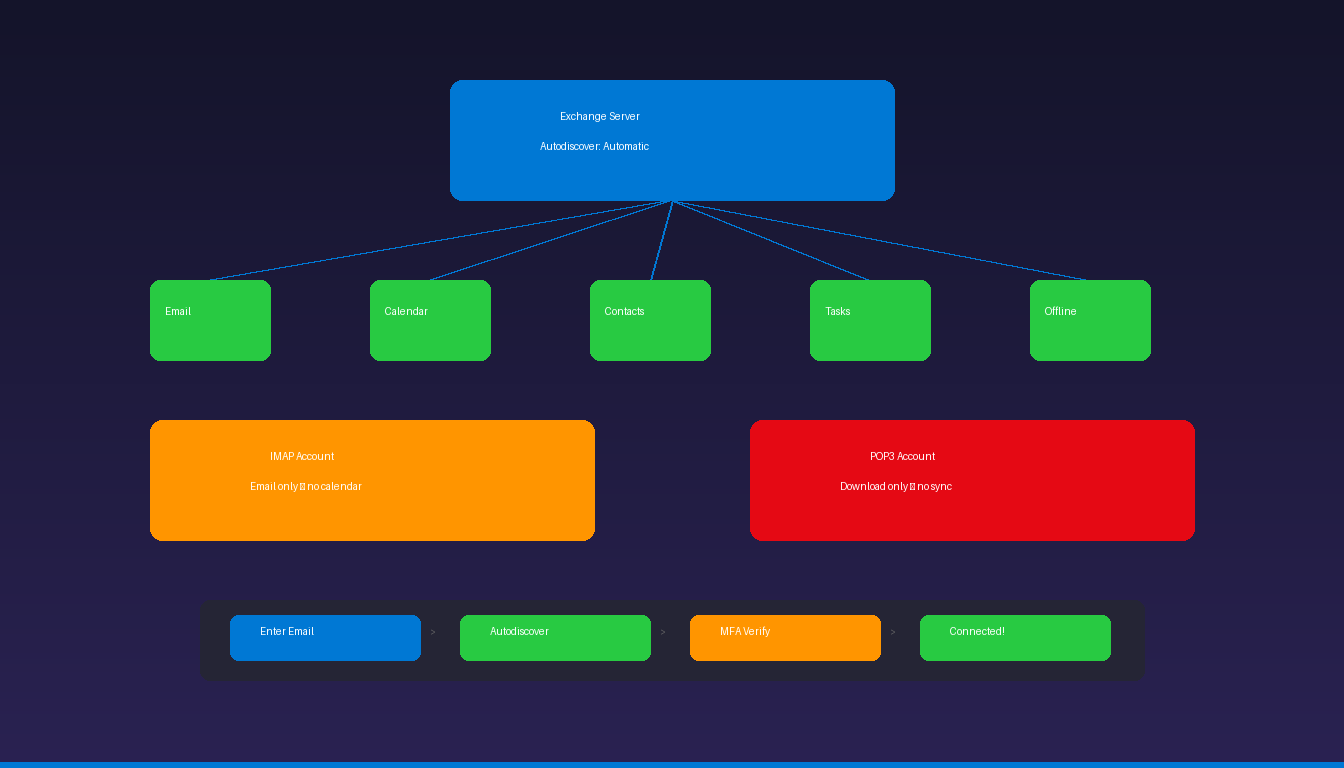
Microsoft Exchange Server provides the richest Outlook experience — full email, calendar, contacts, tasks, and offline access all synchronized automatically. Unlike IMAP accounts that require manual server configuration, Exchange uses Autodiscover to configure Outlook with just your email address and password. For general email setup, see our Outlook email setup guide.
Key Takeaways
- Exchange accounts configure automatically through Autodiscover — enter your email address and password, and Outlook detects all server settings without manual input.
- Microsoft 365 (Exchange Online) and on-premises Exchange Server both use Autodiscover, but the DNS records and server endpoints differ.
- Exchange provides full sync of email, calendar, contacts, and tasks — IMAP accounts only sync email.
How Do I Set Up Outlook With Exchange (Autodiscover)?
Enter your email address in Outlook’s Add Account dialog and click Connect — Autodiscover automatically detects your Exchange server settings and configures the account.
Microsoft 365 (Exchange Online)
- Open Outlook and click File > Add Account.
- Enter your Microsoft 365 email address (e.g., [email protected]).
- Click Connect.
- Enter your password when prompted.
- Complete multi-factor authentication (MFA) if required.
- Outlook configures the Exchange connection automatically.
- Click Done.
Autodiscover for Microsoft 365 uses autodiscover-s.outlook.com to detect settings. The process takes 30-60 seconds and configures email, calendar, contacts, and tasks simultaneously.
On-Premises Exchange Server
- Open Outlook and click File > Add Account.
- Enter your work email address.
- Click Connect.
- If prompted, enter your domain\username and password.
- Outlook locates the on-premises Exchange server through DNS Autodiscover records.
- Click Done.
For on-premises Exchange, your organization’s IT administrator must configure Autodiscover DNS records (CNAME or SRV) pointing to the Exchange server. Without these records, Autodiscover fails and Outlook cannot configure the account automatically.
What Does Exchange Provide That IMAP Does Not?
Exchange syncs email, calendar, contacts, tasks, and offline access — IMAP only syncs email, with no calendar or contact synchronization.
| Feature | Exchange | IMAP | POP3 |
|---|---|---|---|
| Email sync | Yes (all folders) | Yes (all folders) | Inbox only |
| Calendar sync | Yes | No | No |
| Contact sync | Yes | No | No |
| Task sync | Yes | No | No |
| Offline access | Full (cached mode) | Partial (cached headers) | Full (downloaded) |
| Shared mailboxes | Yes | No | No |
| Out of office | Server-side | Client-side only | No |
| Rules | Server-side + client | Client-side only | Client-side only |
| Setup method | Autodiscover (automatic) | Manual server settings | Manual server settings |
| Mobile sync | ActiveSync/EAS | IMAP | POP3 |
For IMAP configuration, see our provider-specific guides: Gmail, Yahoo, AOL. For POP3 settings, see our Outlook POP3 setup guide.
Why Is Exchange Autodiscover Failing?
The most common causes are missing DNS records, network blocks, or cached credentials from an old account — verify DNS first, then clear credentials.
Troubleshooting Checklist
| Issue | Fix |
|---|---|
| “Outlook can’t set up account” | Check Autodiscover DNS records with IT admin |
| Connects to wrong server | Clear cached credentials, delete old Outlook profile |
| MFA loop | Complete MFA in browser first, then retry Outlook |
| On-premises connects to M365 | Add ExcludeExplicitO365Endpoint registry key |
| Certificate warnings | Exchange SSL certificate may be expired or mismatched |
| Firewall blocking | Allow outbound HTTPS (443) to autodiscover endpoints |
| “Something went wrong” | See our Outlook error fix guide |
Test Autodiscover
Use Microsoft’s Remote Connectivity Analyzer:
- Go to testconnectivity.microsoft.com.
- Select Outlook Autodiscover.
- Enter your email address and credentials.
- Run the test — it shows which Autodiscover steps succeed or fail.
Registry Fix for Hybrid Environments
If Outlook connects to Microsoft 365 instead of your on-premises Exchange:
- Press Windows + R, type
regedit, press Enter. - Navigate to:
HKEY_CURRENT_USER\Software\Microsoft\Office\16.0\Outlook\AutoDiscover - Create DWORD (32-bit): ExcludeExplicitO365Endpoint = 1
- Restart Outlook.
How Do I Enable Cached Exchange Mode?
Cached Exchange Mode downloads a copy of your mailbox to your computer for faster access and offline work — it is enabled by default for Exchange accounts.
Verify or Enable
- Go to File > Account Settings > Account Settings.
- Double-click your Exchange account.
- Check Use Cached Exchange Mode if not already checked.
- Adjust the slider for how much email to cache:
- 1 month — minimal disk usage
- 3 months — good balance
- 12 months — most offline access
- All — complete mailbox cached locally
- Click Next > Done > restart Outlook.
| Cache Setting | Disk Usage | Offline Access | Best For |
|---|---|---|---|
| 1 month | Low (~500 MB) | Recent email only | Laptops with limited storage |
| 3 months | Medium (~1-2 GB) | Good coverage | Default recommendation |
| 12 months | High (~5-10 GB) | Extensive | Users needing frequent past email |
| All | Very high | Complete | Desktop with ample storage |
Cached mode creates an .ost file on your computer. This file can grow large — if Outlook becomes slow, reduce the cache period.
Can I Use Exchange With the New Outlook?
The new Outlook for Windows supports Microsoft 365 Exchange Online accounts but does not support on-premises Exchange Server or Hosted Exchange from third-party providers.
| Exchange Type | Classic Outlook | New Outlook |
|---|---|---|
| Microsoft 365 (Exchange Online) | Full support | Full support |
| Exchange Server 2019 | Full support | Not supported |
| Exchange Server 2016 | Full support | Not supported |
| Hosted Exchange (Rackspace, etc.) | Full support | Not supported |
If your organization uses on-premises Exchange, continue using classic Outlook desktop. The new Outlook is designed for cloud-first (Microsoft 365) environments.
If you need Outlook with full Exchange support including on-premises servers, Microsoft Office 2024 Professional Plus ($199.99) includes the classic Outlook application. For MFA setup with Exchange, see our Microsoft Authenticator guide.
Frequently Asked Questions
Do I need an Exchange server to use Outlook?
No. Outlook works with any email account type — Exchange, IMAP, POP3, Outlook.com, and Gmail. Exchange provides the richest experience (calendar, contacts, tasks sync) but is not required. You can use Outlook as a basic email client with any IMAP provider.
How do I know if I have an Exchange account?
In Outlook, go to File > Account Settings > Account Settings. Your account type is listed in the Type column. Exchange accounts show “Microsoft Exchange” or “Microsoft 365.” IMAP accounts show “IMAP/SMTP.” You can also ask your IT administrator.
Can I have both Exchange and IMAP accounts in Outlook?
Yes. Outlook supports multiple accounts of different types. You can have a Microsoft 365 Exchange account for work and an IMAP account (Gmail, Yahoo) for personal email in the same Outlook application. Each account appears in the sidebar with its own folder structure.
What is the difference between Exchange Online and Exchange Server?
Exchange Online is Microsoft’s cloud-hosted version included with Microsoft 365 subscriptions — Microsoft manages the servers. Exchange Server is the on-premises version that your organization installs and manages on its own hardware. Both provide the same Outlook features, but Exchange Online requires no infrastructure management and includes automatic updates.


