POP3 (Post Office Protocol 3) downloads emails from the server to your computer, giving you offline access to all messages. While IMAP is now the standard for multi-device email, POP3 remains useful for single-device setups, archiving, or when you need to save server storage space. For outgoing mail configuration, see our Outlook SMTP settings guide.
Key Takeaways
- POP3 uses port 995 with SSL/TLS encryption for secure email download — port 110 is unencrypted and should only be used if 995 is unavailable.
- POP3 downloads emails to your local computer and optionally removes them from the server — enable “Leave a copy on server” to prevent accidental email loss.
- IMAP is recommended over POP3 for most users because it syncs across devices — use POP3 only if you access email from a single computer or need offline access.
What Are the POP3 Settings for Outlook?
POP3 in Outlook uses port 995 with SSL/TLS for incoming mail — the exact server address depends on your email provider.
Common POP3 Server Settings
| Provider | POP3 Server | Port | Encryption |
|---|---|---|---|
| Outlook.com / Hotmail | outlook.office365.com | 995 | SSL/TLS |
| Gmail | pop.gmail.com | 995 | SSL/TLS |
| Yahoo | pop.mail.yahoo.com | 995 | SSL/TLS |
| AOL | pop.aol.com | 995 | SSL/TLS |
| Comcast | mail.comcast.net | 995 | SSL/TLS |
| AT&T | pop.att.yahoo.com | 995 | SSL/TLS |
| GoDaddy | pop.secureserver.net | 995 | SSL/TLS |
| Generic | Varies by provider | 995 | SSL/TLS |
All modern providers use port 995 with SSL. If your provider specifies port 110, this is the unencrypted legacy port — use it only if 995 does not work, and enable STARTTLS if available.
How Do I Set Up POP3 in Outlook?
Open Outlook, choose manual setup, select POP3 as the account type, enter your provider’s POP3 server on port 995, and configure the “Leave a copy on server” option.
Step-by-Step Setup
- Open Outlook and click File > Add Account.
- Enter your email address, click Advanced options, check Let me set up my account manually.
- Click Connect and select POP.
- Enter the incoming server settings:
- Server: Your provider’s POP3 server (see table above)
- Port: 995
- Encryption method: SSL/TLS
- Enter the outgoing server settings:
- Server: Your provider’s SMTP server
- Port: 587
- Encryption method: STARTTLS
- Enter your password (or app password if 2FA is enabled).
- Click Connect.
Configure “Leave a Copy on Server”
By default, POP3 may remove emails from the server after downloading. To keep copies:
- Go to File > Account Settings > Account Settings.
- Double-click your POP3 account.
- Click More Settings > Advanced tab.
- Check Leave a copy of messages on the server.
- Optionally set Remove from server after ___ days (e.g., 14 days).
- Check Remove from server when deleted from ‘Deleted Items’.
- Click OK.
Critical warning: Without “Leave a copy on server” enabled, POP3 downloads emails and deletes them from the server. If your computer’s hard drive fails, those emails are gone permanently. Always enable this option unless you intentionally want to clear server storage.
What Is the Difference Between POP3 and IMAP?
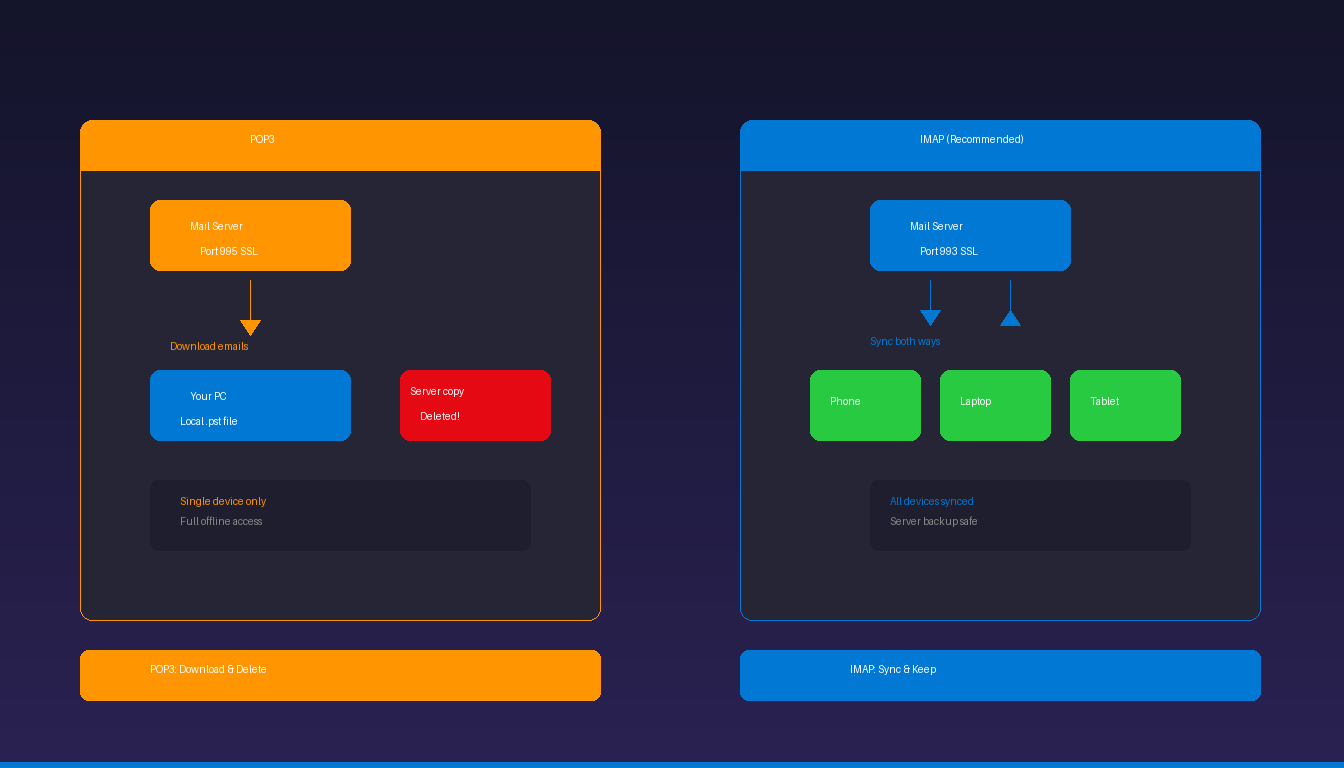
POP3 downloads emails to one device and optionally removes them from the server — IMAP keeps emails on the server and syncs across all devices in real time.
| Feature | POP3 | IMAP |
|---|---|---|
| How it works | Downloads to local device | Syncs with server |
| Email storage | Local computer | Server (and local cache) |
| Multi-device sync | No | Yes |
| Offline access | Full (all downloaded) | Partial (cached items) |
| Sent Items sync | No | Yes |
| Folder sync | No (Inbox only) | Yes (all folders) |
| Server storage | Frees space (if delete enabled) | Uses server space |
| Default port | 995 (SSL) | 993 (SSL) |
| Calendar/Contacts | No | No (requires Exchange) |
| Data loss risk | High (local storage only) | Low (server backup) |
| Best for | Single device, archiving | Multiple devices, teams |
When to Use POP3
- You access email from one computer only
- You need full offline access without internet
- Your email provider has limited server storage and you need to free space
- You want to archive emails locally as a backup
When to Use IMAP (Recommended for Most Users)
- You check email on multiple devices (phone, laptop, tablet)
- You want sent items and folders to sync everywhere
- You want server-side backup of all emails
- You share email access with a team
For IMAP setup guides by provider: Gmail, Comcast, Yahoo, AOL, AT&T, GoDaddy, Verizon.
How Do I Switch From POP3 to IMAP in Outlook?
You cannot convert a POP3 account to IMAP in Outlook — you must add a new IMAP account and migrate your downloaded emails.
Migration Steps
- Add the IMAP account: File > Add Account > enter email > let Outlook auto-detect IMAP settings (or configure manually).
- Keep the POP3 account active temporarily — do not remove it yet.
- Drag and drop emails: Select emails in the POP3 inbox, drag them to the IMAP inbox. This uploads them to the server.
- Migrate folders: Repeat for Sent Items, Drafts, and custom folders.
- Verify: Check webmail to confirm emails appear on the server.
- Remove the POP3 account: File > Account Settings > select POP3 account > Remove.
This process can take time for large mailboxes — migrating 10,000+ emails may take several hours depending on internet speed and server responsiveness.
Why Is My POP3 Email Not Working in Outlook?
The most common causes are incorrect port settings, disabled SSL, or authentication failures — verify port 995 with SSL and your correct password.
Troubleshooting Checklist
| Issue | Fix |
|---|---|
| Connection timeout | Verify port 995, enable SSL/TLS |
| Authentication failed | Check password, generate app password if 2FA enabled |
| Cannot receive new mail | Check POP3 is enabled in provider settings |
| Emails disappearing | Enable “Leave a copy on server” |
| Duplicate emails | Increase “Remove from server after” days |
| Port 110 blocked | Switch to port 995 with SSL |
| SMTP sending fails | See SMTP settings guide |
Enable POP3 at Your Provider
Some providers disable POP3 by default:
- Gmail: Settings > See all settings > Forwarding and POP/IMAP > Enable POP
- Outlook.com: Settings > Mail > Sync email > POP: Yes
- Yahoo: Account Security > Allow apps that use less secure sign in (or use app password)
How Do I Back Up POP3 Emails in Outlook?
POP3 emails are stored in a local .pst file — back up this file regularly to prevent data loss if your computer fails.
Find Your .pst File
- Go to File > Account Settings > Data Files tab.
- Note the file path of your POP3 data file (e.g.,
C:\Users\{username}\Documents\Outlook Files\{email}.pst).
Back Up the .pst File
- Close Outlook completely.
- Navigate to the .pst file location.
- Copy the .pst file to an external drive, cloud storage, or network backup location.
- Schedule regular backups (weekly or monthly) to protect against data loss.
For a complete guide to managing Outlook data files, see our Outlook archive setup guide. If you need Outlook with full POP3 and IMAP support, Microsoft Office 2024 Professional Plus ($199.99) includes the classic Outlook desktop application.
Frequently Asked Questions
Should I use POP3 or IMAP in Outlook?
Use IMAP for most situations — it syncs across devices, keeps emails safe on the server, and syncs sent items and folders. Use POP3 only if you access email from a single computer, need full offline access, or need to free server storage space. IMAP is the default recommendation from most email providers in 2026.
What port does POP3 use in Outlook?
POP3 uses port 995 with SSL/TLS encryption for secure connections. The legacy unencrypted port is 110, but it should be avoided for security reasons. Always configure port 995 with SSL/TLS enabled in Outlook’s advanced settings.
Will POP3 delete my emails from the server?
By default, POP3 may download emails and remove them from the server — this depends on your Outlook settings. Enable “Leave a copy of messages on the server” in Account Settings > More Settings > Advanced to prevent deletion. Without this option, emails exist only on your local computer.
Can I use POP3 with the new Outlook for Windows?
The new Outlook for Windows has limited POP3 support compared to classic Outlook. For full POP3 configuration with “Leave a copy on server” and advanced settings, use the classic Outlook desktop application. The new Outlook focuses on IMAP and Exchange-based accounts.