Outlook SMTP Settings: How to Configure Outgoing Mail
SMTP — Simple Mail Transfer Protocol — is the standard behind every outgoing email. When…
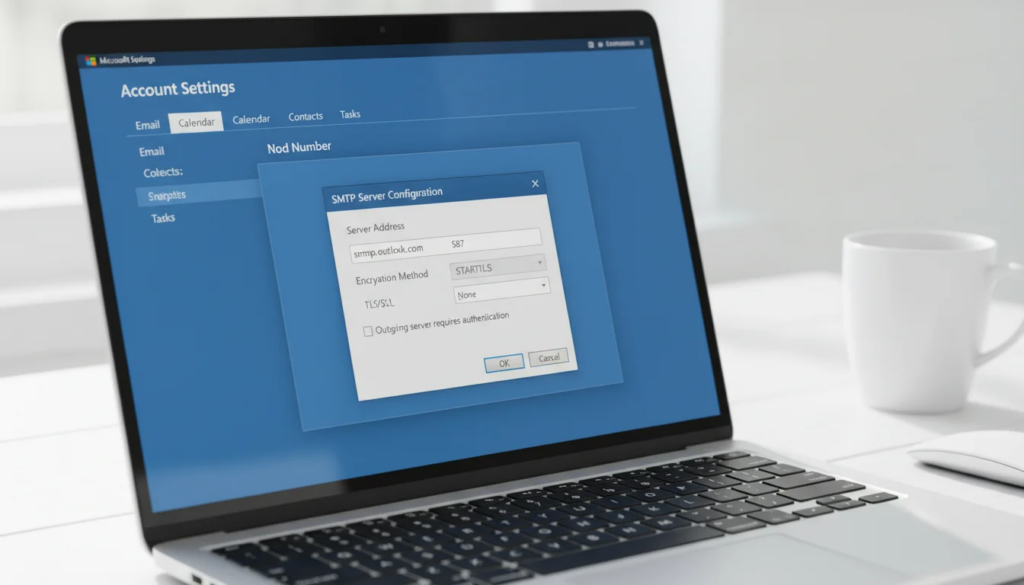
SMTP — Simple Mail Transfer Protocol — is the standard behind every outgoing email. When you send a message from Microsoft Outlook, your email client connects to an SMTP server, authenticates, and relays that message to the recipient’s mail provider. If any part of that configuration is wrong — server address, port number, or encryption type — Outlook cannot send mail at all.
Whether you are adding an Outlook.com account to a third-party app, configuring a new device, or troubleshooting outgoing mail failures, you need the exact server settings for your account type. This guide covers every configuration scenario: personal Outlook.com and Hotmail accounts, Microsoft 365 and Exchange Online business accounts, and the full step-by-step process for both Classic Outlook and New Outlook 2024.
Key Takeaways
- Outlook.com / Hotmail SMTP server:
smtp-mail.outlook.com, port 587, STARTTLS encryption - Microsoft 365 / Exchange Online SMTP server:
smtp.office365.com, port 587, STARTTLS encryption - Two-factor authentication users must generate an app password at account.microsoft.com before connecting third-party clients
What Are the Outlook SMTP Settings?
The correct Microsoft Outlook SMTP settings depend on your account type. Outlook.com personal accounts use smtp-mail.outlook.com on port 587. Microsoft 365 business accounts use smtp.office365.com on port 587. Both require STARTTLS encryption.
| Account Type | SMTP Server | Port | Encryption |
|---|---|---|---|
| Outlook.com | smtp-mail.outlook.com | 587 | STARTTLS |
| Hotmail.com | smtp-mail.outlook.com | 587 | STARTTLS |
| Live.com | smtp-mail.outlook.com | 587 | STARTTLS |
| Microsoft 365 | smtp.office365.com | 587 | STARTTLS |
| Exchange Online | smtp.office365.com | 587 | STARTTLS |
These settings apply when you are configuring Microsoft Outlook in a desktop email client, a mobile app, or integrating with a third-party service. Always use your full email address (for example, user@outlook.com) as the SMTP username — not just the part before the @ symbol.
According to Microsoft’s official documentation, these settings are kept consistent across all Microsoft account types that use the smtp-mail.outlook.com endpoint.
How Do I Configure SMTP in Outlook?
To configure SMTP in Microsoft Outlook, open Account Settings, select your email account, choose Change, then navigate to More Settings and the Outgoing Server tab to enter your SMTP credentials.
The steps differ slightly between Classic Outlook (the traditional desktop application) and the redesigned New Outlook 2024 interface. Follow the section that matches your version.
Classic Outlook (Outlook 2016, 2019, 2021, 2024 Classic)
- Open Microsoft Outlook.
- Click File in the top-left menu bar.
- Under Account Information, click Account Settings, then click Account Settings again in the dropdown.
- In the Email tab, select your account and click Change.
- The Change Account window opens. Click More Settings in the lower-right corner.
- Go to the Outgoing Server tab.
- Check My outgoing (SMTP) server requires authentication.
- Select Use same settings as my incoming mail server (recommended for most accounts).
- Switch to the Advanced tab.
- Set the Outgoing server (SMTP) port to
587. - In the Use the following type of encrypted connection dropdown, select STARTTLS.
- Click OK, then Next, then Finish.
New Outlook 2024
- Open New Outlook.
- Click the Settings gear icon (top-right corner).
- Select Accounts from the left sidebar.
- Click Add account or select your existing account and choose Manage.
- Scroll to Outgoing (SMTP) server and enter
smtp-mail.outlook.com(for personal accounts) orsmtp.office365.com(for Microsoft 365). - Set Port to
587. - Set Encryption to STARTTLS.
- Enter your full email address as the username.
- Enter your password (or app password if 2FA is enabled).
- Click Save.
If you also want to set up Gmail in Outlook, the process uses similar account settings but with different SMTP server addresses.
What Port Does Outlook Use for SMTP?
Microsoft Outlook uses port 587 for SMTP with STARTTLS encryption. This is the standard submission port for outgoing mail and is the only port Microsoft recommends for authenticated SMTP connections on Outlook.com and Microsoft 365.
Port 587 with STARTTLS is the modern standard for email submission. It opens an unencrypted connection on port 587, then upgrades it to a secure TLS connection before transmitting credentials or message content. This approach is supported by virtually all email clients and firewalls.
Port 465 uses SSL/TLS from the moment the connection opens (“implicit TLS”). Some older email clients and legacy services require port 465. Microsoft does not officially support port 465 for Outlook.com SMTP, though some users report it working. If you have a choice, port 587 with STARTTLS is the correct and supported option.
Port 25 is the original SMTP port used for server-to-server mail relay. Microsoft blocks port 25 for authenticated SMTP submission from consumer and business clients. Do not use port 25 when configuring Microsoft Outlook or any SMTP client connecting to Microsoft’s servers.
Do I Need an App Password for Outlook SMTP?
You need an app password for Outlook SMTP only if your Microsoft account has two-step verification (2FA) enabled and you are connecting a third-party email client that does not support modern OAuth authentication.
Microsoft Outlook desktop (when used with a Microsoft account directly) handles modern authentication automatically. However, older email clients, mobile apps, and third-party services that still use basic username/password authentication cannot complete the OAuth flow. In those cases, you must generate a dedicated app password.
How to Create an Outlook App Password
- Go to account.microsoft.com and sign in.
- Click Security in the top navigation.
- Under Advanced security options, find App passwords and click Create a new app password.
- Microsoft will generate a 16-character password. Copy it immediately — it will not be shown again.
- Use this app password in place of your regular account password when setting up SMTP in your email client.
Note: If your organization uses Microsoft 365, your IT administrator controls whether app passwords are permitted. Some organizations disable basic authentication entirely, requiring all clients to use modern authentication via OAuth 2.0. Contact your IT team if app passwords are unavailable.
What Is the Difference Between smtp-mail.outlook.com and smtp.office365.com?
smtp-mail.outlook.com is the SMTP endpoint for personal Microsoft accounts (Outlook.com, Hotmail, Live). smtp.office365.com is the endpoint for Microsoft 365 and Exchange Online business accounts. Using the wrong server for your account type will result in authentication failure.
| Property | smtp-mail.outlook.com | smtp.office365.com |
|---|---|---|
| Account type | Personal (Outlook.com, Hotmail, Live) | Business (Microsoft 365, Exchange Online) |
| Port | 587 | 587 |
| Encryption | STARTTLS | STARTTLS |
| Authentication | Microsoft account password or app password | Microsoft 365 credentials or app password |
| OAuth support | Yes (modern clients) | Yes (modern clients) |
| Basic auth | Limited (being phased out) | Controlled by tenant admin |
The practical distinction matters most when configuring a third-party app or service. A personal Outlook.com account will always fail authentication against smtp.office365.com because that server routes to organizational tenants, not consumer accounts. Similarly, a Microsoft 365 business account connecting to smtp-mail.outlook.com will receive authentication errors.
If you are unsure which account type you have: personal Microsoft accounts end in @outlook.com, @hotmail.com, or @live.com. Business accounts typically end in your company’s domain (e.g., @yourcompany.com) and are managed through the Microsoft 365 admin center.
Complete Outlook Server Settings Reference
The table below consolidates IMAP and SMTP settings for all major Microsoft account types alongside Gmail and Yahoo for comparison.
| Provider | Protocol | Server | Port | Encryption |
|---|---|---|---|---|
| Outlook.com | IMAP | imap-mail.outlook.com | 993 | SSL/TLS |
| Outlook.com | SMTP | smtp-mail.outlook.com | 587 | STARTTLS |
| Microsoft 365 | IMAP | outlook.office365.com | 993 | SSL/TLS |
| Microsoft 365 | SMTP | smtp.office365.com | 587 | STARTTLS |
| Gmail | IMAP | imap.gmail.com | 993 | SSL/TLS |
| Gmail | SMTP | smtp.gmail.com | 587 | STARTTLS |
| Gmail | SMTP (alt) | smtp.gmail.com | 465 | SSL/TLS |
| Yahoo Mail | IMAP | imap.mail.yahoo.com | 993 | SSL/TLS |
| Yahoo Mail | SMTP | smtp.mail.yahoo.com | 587 | STARTTLS |
For IMAP incoming mail, both Outlook.com and Microsoft 365 use port 993 with SSL/TLS encryption. The IMAP username, like the SMTP username, is always your full email address.
If you plan to work extensively with Microsoft Outlook, consider a perpetual license rather than a recurring subscription. Office 2024 Home & Business ($189.99) includes Microsoft Outlook for Mac, while Office 2021 Pro Plus is available for $64.99 — both offering lifetime use without monthly fees. You can also review our Office 2024 lifetime license guide for a detailed breakdown.
Why Is My Outlook SMTP Not Working?
Outgoing mail failures in Microsoft Outlook typically trace back to one of a handful of configuration or authentication issues. Use the table below to identify and resolve the most common problems.
| Error / Symptom | Likely Cause | Fix |
|---|---|---|
| “Cannot connect to outgoing mail server” | Wrong SMTP server address | Verify: smtp-mail.outlook.com (personal) or smtp.office365.com (M365) |
| “The server does not support the connection encryption type” | Wrong port or encryption setting | Set port to 587 and encryption to STARTTLS |
| “Authentication failed” or 535 error | Wrong password, or basic auth blocked | Generate an app password at account.microsoft.com; confirm 2FA is set up |
| “5.7.57 Client not authenticated” | Modern authentication required | Update Outlook to latest version; enable OAuth in account settings |
| Emails stuck in Outbox | Firewall or antivirus blocking port 587 | Temporarily disable antivirus; check router/firewall for outbound port 587 block |
| “Relay access denied” | Sending from unverified address | Ensure SMTP username matches the From address exactly |
Microsoft’s SMTP infrastructure began phasing out basic authentication (username + password without OAuth) starting in 2022. If your account was created recently or your organization enforces modern authentication policies, older email clients that rely on basic auth will fail. Upgrading to Microsoft Outlook 2021 or later resolves most modern authentication issues.
After resolving your SMTP configuration, you may also want to set up a signature in Outlook to complete your professional email setup.
Frequently Asked Questions
Can I use Outlook SMTP to send emails from a website or app?
Yes. Developers can use smtp-mail.outlook.com (port 587, STARTTLS) for Outlook.com accounts or smtp.office365.com for Microsoft 365 accounts to send transactional or automated email from applications. You must provide a valid Microsoft account username and password (or app password if 2FA is active). Microsoft imposes sending limits — Outlook.com accounts are capped at 300 messages per day. For high-volume sending, a dedicated email service provider (ESP) is more appropriate.
Does Outlook support port 25 for SMTP?
No. Microsoft blocks port 25 for client-authenticated SMTP submissions on both Outlook.com and Microsoft 365. Port 25 is reserved for server-to-server relay (MTA communication) and is not available for end-user email client configuration. Always use port 587 with STARTTLS for authenticated outgoing mail.
Can I use Outlook SMTP with Gmail?
You cannot use Outlook’s SMTP server to send Gmail messages — each provider’s SMTP server only handles mail for accounts on that provider. However, you can add a Gmail account inside Microsoft Outlook and use Gmail’s own SMTP settings ( smtp.gmail.com , port 587, STARTTLS) to send Gmail messages through the Outlook interface.
Is SMTP authentication required for Outlook?
Yes. Microsoft Outlook’s SMTP servers require authentication for all outgoing mail. You must provide your full email address as the username and either your account password or an app password (if two-step verification is enabled). Unauthenticated SMTP relay is not available to end users on Outlook.com or Microsoft 365 standard plans.

by Editorial Team
Updated on April 5, 2026

by Editorial Team
Updated on April 5, 2026
ON THIS PAGE