PowerPoint Tutorial for Beginners: Create Presentations Step by Step
Microsoft PowerPoint is the world’s most widely used presentation software, trusted by students, professionals, and…
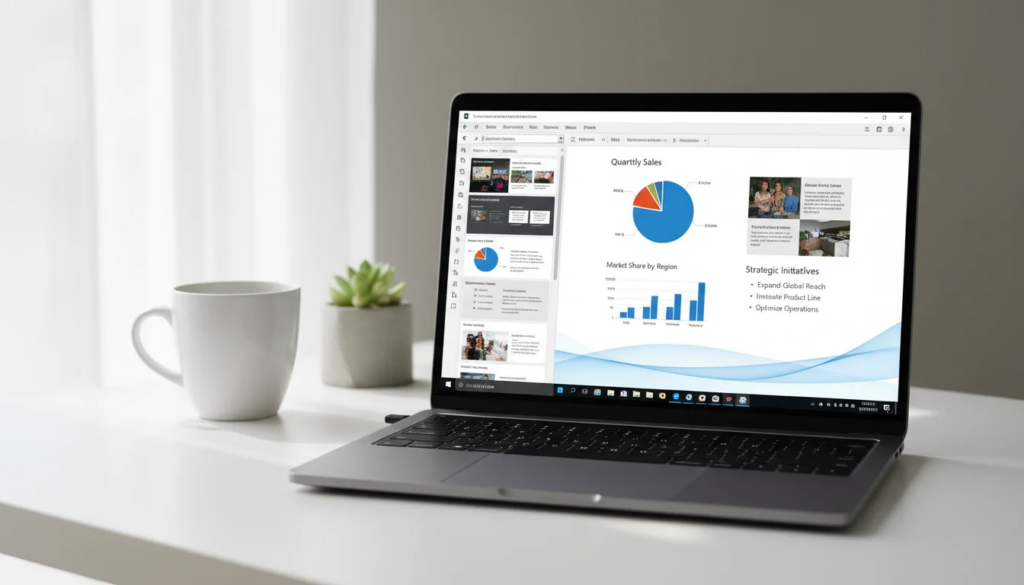
Microsoft PowerPoint is the world’s most widely used presentation software, trusted by students, professionals, and businesses across more than 190 countries. Whether you’re putting together a school project, pitching to investors, or training a team, PowerPoint gives you the tools to communicate ideas clearly through slides, visuals, and multimedia.
This tutorial covers everything a beginner needs to know — from navigating the interface to saving and sharing a finished presentation.
Key Takeaways
- Microsoft PowerPoint organizes your content into slides you can design, animate, and present to any audience.
- You can start with a blank presentation or choose from hundreds of built-in templates to save time.
- PowerPoint supports text, images, charts, video, animations, and transitions — all controllable from a single ribbon interface.
What Are the Basics of PowerPoint for Beginners?
Microsoft PowerPoint is built around three core areas: the Ribbon, the Slide Panel, and the Notes Pane. Understanding these three areas gets you up and running in minutes.
The Ribbon runs across the top of the screen and organizes every command into tabs — Home, Insert, Design, Transitions, Animations, Slide Show, Review, and View. Each tab groups related tools so you always know where to look.
The Slide Panel sits on the left side. It shows thumbnail previews of every slide in your presentation. Click any thumbnail to jump to that slide and edit it directly in the main editing canvas.
The Notes Pane appears at the bottom of the screen. Type speaker notes here — reminders, talking points, or statistics you want to reference during your presentation. Your audience never sees these notes; they appear only on your screen during Presenter View.
Additional basics worth knowing:
- Slide layouts — pre-defined arrangements of placeholders (title, content, image, etc.) accessible via the Home tab > Layout button
- Status bar — at the very bottom, shows slide count, current slide number, zoom level, and view mode
- View modes — Normal (editing), Slide Sorter (overview), Reading View, and Slide Show
How Do I Create a PowerPoint Presentation Step by Step?
Creating a presentation from scratch in Microsoft PowerPoint takes just a few minutes once you know the workflow.
-
Open Microsoft PowerPoint. On Windows, press the Windows key, type “PowerPoint,” and hit Enter. On Mac, find it in Applications or Launchpad.
-
Choose a starting point. PowerPoint opens a Start screen. Select “Blank Presentation” for full creative control, or browse the template gallery to find a design that fits your topic. Templates include pre-built slide layouts, color schemes, and fonts.
-
Add your title. The first slide is a Title Slide layout by default. Click the “Click to add title” placeholder and type your presentation title. Click the subtitle placeholder and add a subtitle, your name, or the date.
-
Add new slides. Go to the Home tab and click the dropdown arrow under “New Slide.” Choose a layout — Content, Two Content, Section Header, Picture with Caption, or Blank. Each layout provides pre-positioned placeholders so you don’t have to manually arrange text boxes.
-
Add content to each slide. Click any placeholder to start typing. Keep each slide focused on one idea. A good rule: no more than 6 bullet points per slide, and no more than 6 words per bullet.
-
Apply a design. Click the Design tab. Hover over any theme in the Themes gallery to preview it on your slides. Click to apply. Use Variants (next to the Themes gallery) to switch color and font combinations within the same theme.
-
Review your flow. Click View > Slide Sorter to see all slides at once. Drag slides to reorder them. Delete any slide by right-clicking it and selecting Delete Slide.
-
Save your work. Press Ctrl+S (Windows) or Cmd+S (Mac). Name your file and choose a location. PowerPoint saves in .pptx format by default.
How to Add and Format Text in PowerPoint
Text is the backbone of most presentations. Microsoft PowerPoint gives you precise control over how text looks and behaves.
Adding a text box: Go to Insert > Text Box, then click and drag on the slide to draw the box. Type your content inside. Use this when you need text outside of a placeholder.
Formatting text: Select the text you want to format, then use the Home tab. Key formatting options:
- Font — choose from any installed font; Inter, Calibri, and Arial are clean, readable choices
- Font size — title text typically 36–44pt; body text 18–24pt; captions 14–16pt
- Bold, Italic, Underline — Ctrl+B, Ctrl+I, Ctrl+U (Windows) / Cmd+B, Cmd+I, Cmd+U (Mac)
- Text color — click the “A” with a color bar in the Font group
- Alignment — left, center, right, or justified; most slide content reads best centered or left-aligned
- Line spacing — Home > Line Spacing dropdown; 1.5x spacing improves readability on projected slides
Text alignment within placeholders: Click the border of a text placeholder, then use the Align Text button (Home tab) to set vertical alignment to Top, Middle, or Bottom.
WordArt: For stylized title text, go to Insert > WordArt and select a preset style. Useful for covers and section headers, but use sparingly.
How to Insert Images, Shapes, and Media
The Insert tab puts all visual and media elements in one place.
Images
- Insert > Pictures > This Device — insert a photo from your computer
- Insert > Pictures > Online Pictures — search Bing for royalty-free images without leaving PowerPoint
- Insert > Pictures > Stock Images — PowerPoint 2019 and later include a built-in stock library
Resize any image by dragging its corner handles. Hold Shift while dragging to maintain the original aspect ratio. Right-click an image and choose “Format Picture” for brightness, contrast, and artistic effects.
Shapes
Insert > Shapes opens a gallery of lines, rectangles, circles, arrows, callouts, and more. Draw any shape by clicking and dragging on the slide. Hold Shift while drawing a rectangle to get a perfect square, or while drawing an oval to get a perfect circle.
Icons
Insert > Icons provides thousands of flat, scalable icons organized by category — business, technology, people, nature, and more. Icons are SVG-based, meaning they scale without pixelation and you can recolor them.
SmartArt
Insert > SmartArt converts a bullet list into a visual diagram — lists, processes, cycles, hierarchies, and relationships. Click a SmartArt graphic to open its text pane and type your content. PowerPoint auto-formats the layout.
Video and Audio
- Insert > Video > This Device — embed a local video file into your slide
- Insert > Video > Online Video — link to a YouTube video that plays inside your presentation (requires internet during the presentation)
- Insert > Audio > Audio on My PC — add background music or a narration clip
Embedded videos play directly on the slide during your presentation. Resize the video placeholder like any other object.
What Is the Difference Between a Theme and a Template?
Beginners often confuse themes and templates. They’re related but serve different purposes.
| Feature | Theme | Template |
|---|---|---|
| What it contains | Colors, fonts, background styles | Colors, fonts, backgrounds + pre-built slide layouts and sample content |
| How to apply | Design tab > Themes gallery | File > New > search templates |
| Best used for | Changing the look of an existing presentation | Starting a new presentation with structure already in place |
| Editable | Yes, via Slide Master | Yes, fully customizable |
| File format | .thmx | .potx |
In short: a theme controls visual styling; a template is a theme plus a pre-structured set of slides. When you start a new presentation and pick a design from the template gallery, you’re applying a template. When you change the look of slides you’ve already built, you’re applying a theme.
Both are accessible from the Design tab. To modify colors or fonts within a theme, click Variants > Colors or Variants > Fonts on the Design tab.
How Do I Add Animations and Transitions?
Animations and transitions make your presentation more dynamic. Use them purposefully — too many effects distract from your message.
Animations
Animations apply to individual objects on a slide (text boxes, images, shapes). Microsoft PowerPoint offers 4 types:
| Animation Type | What It Does | Common Examples |
|---|---|---|
| Entrance | Object appears on the slide | Fade, Fly In, Zoom |
| Emphasis | Object changes while on screen | Pulse, Spin, Grow/Shrink |
| Exit | Object disappears from the slide | Fade Out, Fly Out |
| Motion Paths | Object moves along a defined path | Lines, Arcs, Custom Path |
To add an animation: 1. Select the object you want to animate 2. Click the Animations tab 3. Click the animation you want from the gallery, or click “Add Animation” for more options 4. Use the Animation Pane (Animations > Animation Pane) to reorder, delay, or adjust the duration of each animation
Timing options: – Start: On Click (manual), With Previous (simultaneous), After Previous (auto-sequential) – Duration: How long the animation takes (in seconds) – Delay: How many seconds before it starts
Transitions
Transitions control how PowerPoint moves from one slide to the next. They apply to the slide itself, not individual objects.
- Select a slide in the Slide Panel
- Click the Transitions tab
- Choose a transition from the gallery (Fade, Push, Wipe, Morph, etc.)
- Set duration and whether to advance on click or after a set time
- Click “Apply To All” to use the same transition throughout the entire presentation
The Morph transition (available in Microsoft 365 and PowerPoint 2019+) creates smooth, cinematic movement between slides when objects share the same name. It is one of the most visually impressive features in modern PowerPoint.
How Do I Present a Slideshow?
When your slides are ready, Microsoft PowerPoint gives you several ways to run your presentation.
Start the slideshow: – Press F5 to start from the very first slide – Press Shift+F5 to start from the slide you are currently editing – Go to Slide Show tab > From Beginning or From Current Slide
Navigate during the presentation: – Next slide: click, press Space, press Enter, or press the right arrow key – Previous slide: press Backspace or the left arrow key – Jump to a specific slide: type the slide number and press Enter – End the show: press Escape
Presenter View
Presenter View is one of the most useful features for live presentations. When your computer is connected to a projector or second screen, enable it under Slide Show > Presenter View.
What you see (presenter screen): – Current slide (large) – Next slide preview – Speaker notes (large, readable text) – Slide timer – Annotation tools (pen, highlighter, laser pointer)
What the audience sees: your slides in full screen, nothing else.
To use speaker notes, type them in the Notes pane below each slide in Normal view (View > Notes to toggle the pane). During your presentation, they appear on your screen in Presenter View at a font size you can adjust on the fly.
How to Save and Share Your Presentation
Microsoft PowerPoint supports multiple save formats depending on how you plan to use or share your presentation.
Save formats:
| Format | Extension | Best For |
|---|---|---|
| PowerPoint Presentation | .pptx | Editing and sharing with other PowerPoint users |
| Sharing a non-editable version; consistent formatting across devices | ||
| PowerPoint Template | .potx | Saving as a reusable template |
| MP4 / WMV Video | .mp4 / .wmv | Sharing as a self-running video (includes animations and transitions) |
| PNG / JPEG | image files | Exporting individual slides as images |
To save as PDF: File > Export > Create PDF/XPS Document > Publish.
To export as video: File > Export > Create a Video. Choose resolution (Full HD 1080p recommended), set slide duration for automatic advance, and click Create Video. Rendering takes a few minutes depending on file size.
To share via OneDrive: 1. Click File > Share 2. Select “Save to Cloud” if not already saved to OneDrive 3. Click “Share” and enter email addresses, or copy a sharing link 4. Set permissions: “Can edit” or “Can view”
Recipients can open the file in PowerPoint for the web at no cost, or in the desktop app if they have Microsoft Office installed.
Essential PowerPoint Keyboard Shortcuts
These shortcuts work in Microsoft PowerPoint and save significant time during both creation and presentation.
| Action | Windows | Mac |
|---|---|---|
| Start slideshow (beginning) | F5 | Cmd+Shift+Return |
| Start slideshow (current slide) | Shift+F5 | Cmd+Return |
| End slideshow | Escape | Escape |
| New slide | Ctrl+M | Cmd+M |
| Duplicate slide | Ctrl+D | Cmd+D |
| Select all objects | Ctrl+A | Cmd+A |
| Group objects | Ctrl+G | Cmd+Option+G |
| Ungroup objects | Ctrl+Shift+G | Cmd+Option+Shift+G |
| Bold text | Ctrl+B | Cmd+B |
| Undo | Ctrl+Z | Cmd+Z |
| Save | Ctrl+S | Cmd+S |
| Open Find & Replace | Ctrl+H | Cmd+H |
During a live presentation, additional shortcuts help you stay in control:
| Action | Key |
|---|---|
| Black out screen | B |
| White out screen | W |
| Show all slides (grid) | G |
| Laser pointer (hold) | Ctrl + L (Windows) |
| Pen tool | Ctrl + P (Windows) |
| Erase annotations | E |
How to Get Microsoft PowerPoint
Microsoft PowerPoint is included in every edition of Microsoft Office. It is not available as a standalone perpetual license — you need an Office suite or a Microsoft 365 subscription to get it.
One-time purchase options (no subscription, own it forever):
| Product | Price | Link |
|---|---|---|
| Office 2024 Professional Plus | $199.99 | View product |
| Office 2024 Home & Business | $189.99 | View product |
| Office 2024 Home (Windows) | $139.99 | View product |
| Office 2021 Professional Plus | $64.99 | View product |
| Office 2021 Home & Student | $49.99 | View product |
All licenses from The Software City are genuine Microsoft license keys delivered digitally within 15-45 minutes. No subscription, no monthly fees — you own the software outright with a 180-day warranty.
Office 2024 is the latest perpetual release and includes PowerPoint 2024 with Copilot integration for AI-assisted slide generation and design suggestions.
For guidance on which edition fits your needs, see our Office 2024 lifetime license guide or browse affordable Microsoft Office keys to compare your options.
If you also work with spreadsheets, pair this tutorial with our Excel tutorial for beginners — Excel and PowerPoint work together seamlessly in every Office suite.
Frequently Asked Questions
Can I use PowerPoint for free?
Yes. Microsoft offers PowerPoint for the web at office.com — free with a Microsoft account. The web version supports core editing features but lacks advanced animations, Presenter View, and some export options. For full functionality, a paid Office suite is required.
What file format should I save my presentation in?
Save as .pptx for ongoing editing. Use .pdf when sharing a final version that others should not modify. Use .mp4 when distributing a self-running video version with animations included.
How many slides should a presentation have?
A common guideline is one slide per minute of speaking time. A 10-minute presentation typically works best with 10-15 slides. Prioritize clarity over quantity — fewer, well-designed slides outperform dense, overcrowded ones.
Can I convert a PowerPoint to a video?
Yes. Go to File > Export > Create a Video. Choose your resolution (1080p Full HD recommended), set how long each slide displays, and click Create Video. The export includes animations, transitions, and any narration you have recorded. Supported formats are .mp4 and .wmv. For more detail, see Microsoft’s official guidance on exporting to video .
Does PowerPoint work on Mac?
Yes. Microsoft PowerPoint is available natively for macOS and is included in Office 2024, Office 2021, and Microsoft 365. The Mac version supports nearly all features of the Windows version, including Presenter View, animations, transitions, and video export. Keyboard shortcuts use Cmd instead of Ctrl.

by Editorial Team
Updated on April 5, 2026

by Editorial Team
Updated on April 5, 2026
ON THIS PAGE