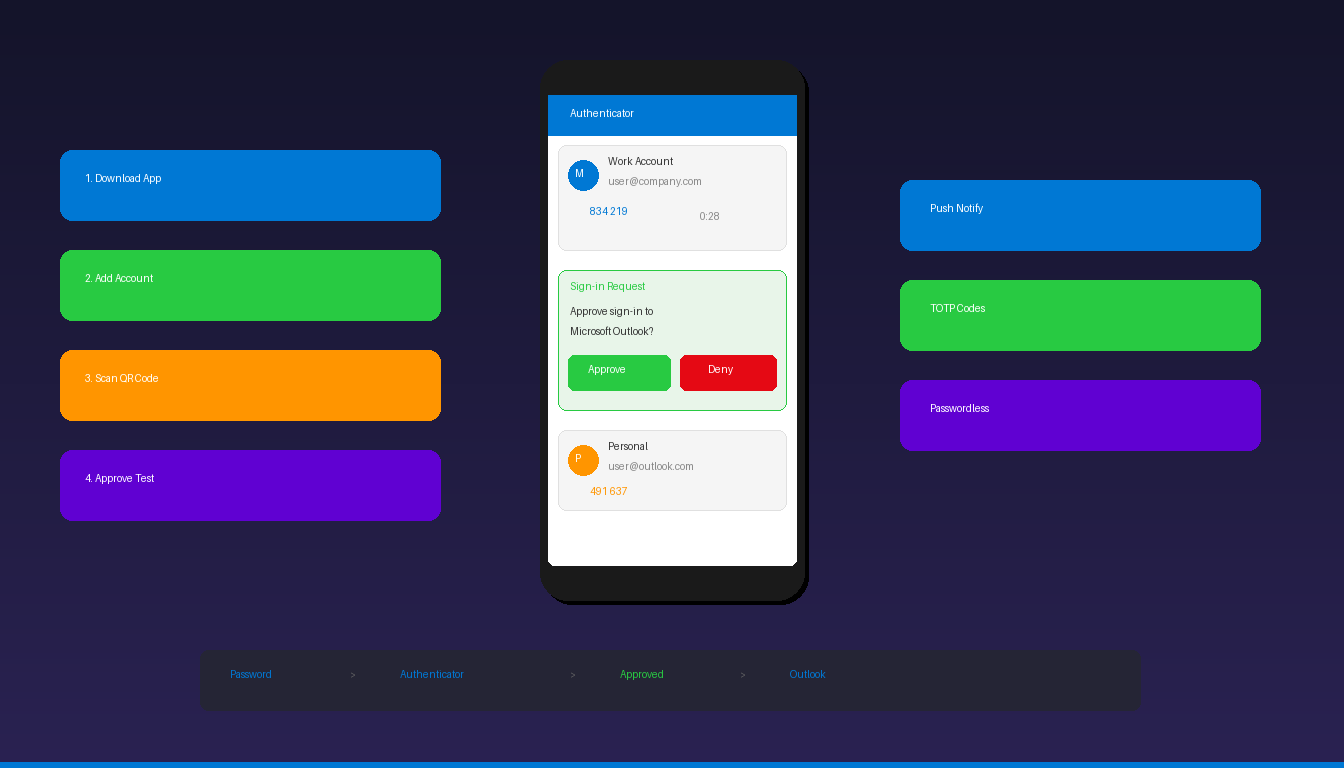
Microsoft Authenticator adds multi-factor authentication (MFA) to your Outlook account — after entering your password, you approve the sign-in from your phone for an extra layer of security. This is required by most organizations using Microsoft 365 and recommended for personal Microsoft accounts. For general Outlook setup, see our Outlook email setup guide.
Key Takeaways
- Download the free Microsoft Authenticator app from the App Store or Google Play, then add your account by scanning the QR code shown during MFA enrollment.
- For Microsoft 365 (work/school) accounts, your IT admin enables MFA — you set up the Authenticator app at mysignins.microsoft.com/security-info.
- For personal Microsoft accounts, enable two-step verification at account.microsoft.com/security and add the Authenticator app as your verification method.
How Do I Set Up Microsoft Authenticator for a Work Account?
Download the Authenticator app, go to mysignins.microsoft.com/security-info, click Add sign-in method, select Microsoft Authenticator, and scan the QR code with the app.
Step 1: Download the App
- Open the App Store (iPhone) or Google Play (Android).
- Search for Microsoft Authenticator.
- Install the app by Microsoft Corporation.
- Open the app and allow notifications when prompted.
Step 2: Enroll in MFA
- Open a browser and go to mysignins.microsoft.com/security-info.
- Sign in with your work or school Microsoft 365 account.
- Click Add sign-in method.
- Select Authenticator app and click Add.
- Follow the prompts — select Next until you see a QR code on screen.
Step 3: Scan the QR Code
- In the Authenticator app, tap + (add account).
- Select Work or school account.
- Tap Scan a QR code.
- Point your phone camera at the QR code on your computer screen.
- Your account is added automatically.
- Click Next on the computer — a test notification is sent to your phone.
- Approve the notification in the Authenticator app.
- Click Done.
According to Microsoft Support, the Authenticator app is the recommended MFA method because it works even without cell service — unlike SMS codes which require a phone signal.
How Do I Set Up Authenticator for a Personal Microsoft Account?
Enable two-step verification at account.microsoft.com, then add the Authenticator app as your verification method — this protects your Outlook.com, Hotmail, and Live.com accounts.
- Go to account.microsoft.com/security.
- Sign in with your personal Microsoft account.
- Click Advanced security options (or Two-step verification).
- Click Turn on under Two-step verification.
- Follow the prompts to add the Microsoft Authenticator app.
- Scan the QR code with the Authenticator app.
- Enter the verification code sent to the app.
- Save your recovery code in a secure location.
Once enabled, signing into Outlook.com, the Outlook desktop app, or Outlook mobile requires approval from the Authenticator app after entering your password.
How Does Authenticator Work With Outlook?
When you sign into Outlook, Microsoft sends a push notification to the Authenticator app — tap Approve to complete the sign-in, or enter a 6-digit TOTP code as an alternative.
Authentication Methods
| Method | How It Works | Speed | Requires Internet? |
|---|---|---|---|
| Push notification | Tap Approve/Deny on phone | Fastest | Yes (phone) |
| TOTP code | Enter 6-digit rotating code | Fast | No (works offline) |
| Passwordless | Approve + enter number shown | Fastest (no password) | Yes |
| SMS code | Enter code sent via text | Slower | Cell signal needed |
| Phone call | Answer and press # | Slowest | Cell signal needed |
Push notifications are the default and recommended method. TOTP codes work offline — useful when your phone has no internet but you need to sign in.
When Does Outlook Prompt for MFA?
| Scenario | MFA Prompted? |
|---|---|
| First sign-in on a new device | Yes |
| After password change | Yes |
| Every 90 days (default policy) | Yes |
| From a new location/IP | Sometimes (risk-based) |
| Each time opening Outlook desktop | No (token cached) |
| Outlook mobile (already signed in) | No (token cached) |
Once you approve MFA on a device, Outlook caches the authentication token. You do not need to approve every time you open Outlook — only on new devices, after password changes, or when the token expires (typically 90 days).
Do I Need an App Password for Outlook?
App passwords are needed only for older Outlook versions (2013 and earlier) that do not support modern authentication — Outlook 2016+ and Microsoft 365 support MFA natively without app passwords.
When App Passwords Are Required
| Outlook Version | Modern Auth Support | App Password Needed? |
|---|---|---|
| Microsoft 365 Outlook | Yes | No |
| Outlook 2024 | Yes | No |
| Outlook 2021 | Yes | No |
| Outlook 2019 | Yes | No |
| Outlook 2016 | Yes (with updates) | No |
| Outlook 2013 | Limited | Yes |
| Outlook 2010 | No | Yes |
Generate an App Password
If needed for an older Outlook version:
- Go to mysignins.microsoft.com/security-info (work) or account.microsoft.com/security (personal).
- Click Add sign-in method > App password.
- Name it (e.g., “Outlook Desktop”).
- Copy the generated password.
- Use this password in Outlook instead of your regular password.
What Is Authenticator Lite in Outlook Mobile?
Authenticator Lite is a built-in MFA feature in the Outlook mobile app — you can approve sign-in requests directly from Outlook without installing the separate Microsoft Authenticator app.
- Available in Outlook mobile for iOS and Android.
- Enabled by IT administrators through Microsoft Entra admin center.
- Shows the same approve/deny push notifications as the full Authenticator app.
- Does not replace the full app — lacks TOTP code generation and passwordless sign-in.
If your organization enables Authenticator Lite, you receive MFA prompts within the Outlook mobile app itself. For full MFA functionality (TOTP codes, multiple accounts, passwordless), use the dedicated Microsoft Authenticator app.
Why Is Outlook Asking for Authentication Repeatedly?
The most common causes are corrupted cached tokens, expired MFA sessions, or conditional access policy changes — clearing credentials and re-authenticating fixes most cases.
Troubleshooting
| Issue | Fix |
|---|---|
| Repeated MFA prompts | Clear tokens: File > Office Account > Sign Out > restart |
| “Your session has expired” | Sign in again — token expired per IT policy |
| Authenticator not receiving notifications | Check internet, allow notifications, reinstall app |
| Wrong account in Authenticator | Remove and re-add the account in the app |
| “Additional verification needed” loop | Clear Windows Credential Manager entries |
| App password stopped working | Generate a new app password — old ones may expire |
Reset the Authenticator App
If the Authenticator app stops working:
- Open the Authenticator app on your phone.
- Tap your account > tap the gear icon or three dots.
- Select Remove account.
- Go to mysignins.microsoft.com/security-info.
- Delete the old Authenticator entry.
- Click Add sign-in method > Authenticator app.
- Re-scan the QR code with the app.
For setting up other Outlook security features, see our guide on Outlook rules for organizing emails and email forwarding for managing your inbox. If you need Outlook with full MFA support, Microsoft Office 2024 Professional Plus ($199.99) includes the classic Outlook application with modern authentication.
Frequently Asked Questions
Is Microsoft Authenticator free?
Yes. Microsoft Authenticator is a free app available on iOS (App Store) and Android (Google Play). It works with any Microsoft account (personal, work, or school) and also supports non-Microsoft accounts (Google, Facebook, Amazon) as a general TOTP authenticator.
Can I use Microsoft Authenticator on multiple devices?
Yes, but each device must be registered separately. If you get a new phone, you need to transfer your Authenticator accounts — use the cloud backup feature (Authenticator > Settings > Cloud backup) to restore accounts on a new device. Without backup, you must re-enroll each account.
What happens if I lose my phone?
Use your recovery code (saved during MFA setup) to sign in without the Authenticator app. If you do not have the recovery code, contact your IT administrator (work accounts) or use the account recovery process at account.live.com/acsr (personal accounts). This is why saving the recovery code during setup is critical.
Can I use a different authenticator app instead of Microsoft Authenticator?
Yes, for TOTP code-based MFA. Any authenticator app (Google Authenticator, Authy, 1Password) that supports TOTP codes works with Microsoft accounts. However, push notifications and passwordless sign-in only work with the official Microsoft Authenticator app.


