Windows 11 collects diagnostic data, tracks your location, serves personalized ads, and monitors your activity history by default. You can disable most of these settings in a few minutes without affecting system performance or functionality. For a broader look at all Windows 11 configuration options, see our Windows 11 settings complete guide.
Key Takeaways
- Disable the Advertising ID under Settings > Privacy & security > General to stop personalized ads across apps.
- Switch diagnostic data to “Required only” under Diagnostics & feedback to minimize telemetry sent to Microsoft.
- Turn off Location services globally or control it per-app under Settings > Privacy & security > Location.
How Do I Disable the Advertising ID in Windows 11?
Go to Settings > Privacy & security > General and toggle off “Let apps show me personalized ads by using my advertising ID” — this stops Windows from tracking your app usage for targeted ads.
- Open Settings (Windows + I).
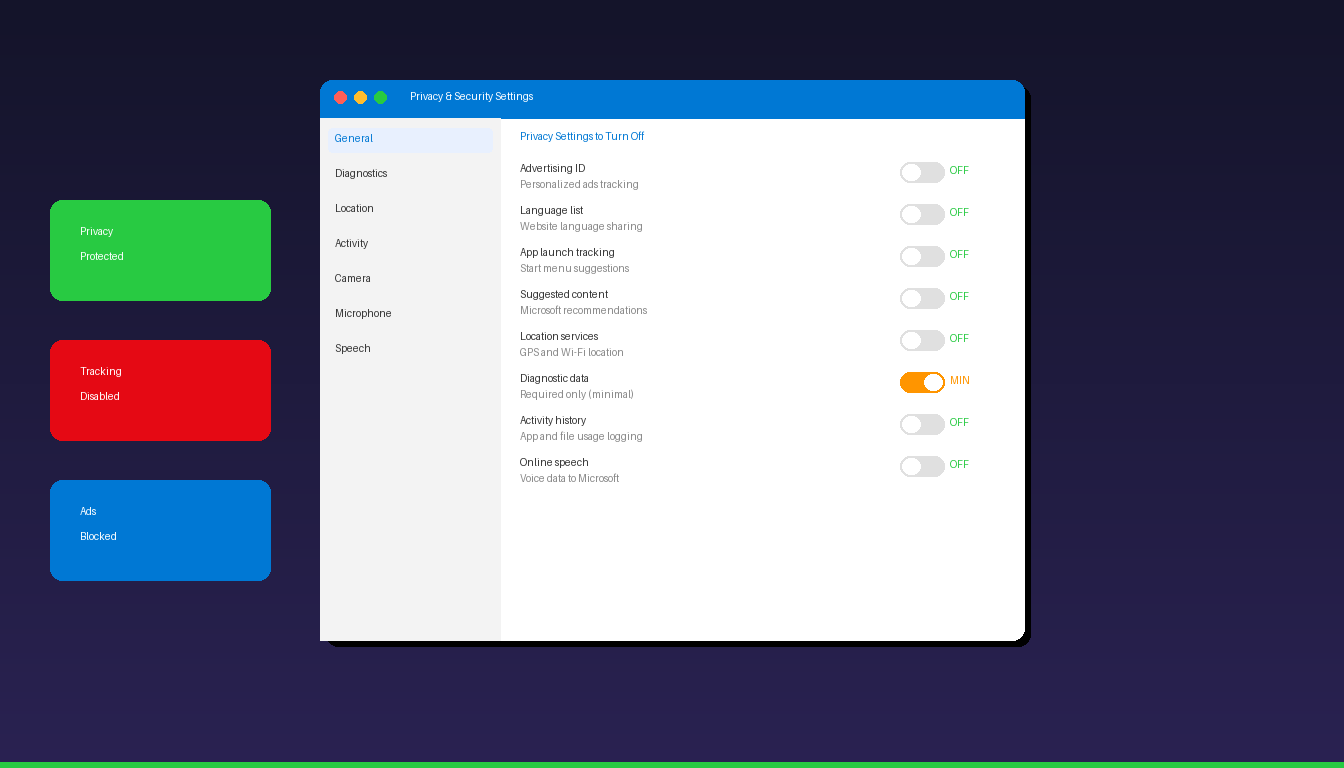
- Click Privacy & security > General.
- Toggle off these options:
- Let apps show me personalized ads by using my advertising ID — stops ad targeting
- Let websites show me locally relevant content by accessing my language list — stops language-based tracking
- Let Windows improve Start and search results by tracking app launches — stops app usage tracking
- Show me suggested content in the Settings app — removes Microsoft recommendations
| Setting | What It Does | Recommendation |
|---|---|---|
| Advertising ID | Tracks app usage for personalized ads | Turn off |
| Language list access | Shares language preferences with websites | Turn off |
| App launch tracking | Monitors which apps you open for Start suggestions | Turn off |
| Suggested content | Shows Microsoft product recommendations | Turn off |
Disabling these settings does not remove ads entirely from free Microsoft apps — it only stops them from being personalized based on your behavior.
How Do I Reduce Telemetry and Diagnostic Data?
Switch diagnostic data to “Required” under Settings > Privacy & security > Diagnostics & feedback to send only essential system data to Microsoft instead of detailed usage information.
- Open Settings > Privacy & security > Diagnostics & feedback.
- Under Diagnostic data, select Send required diagnostic data (not “Send optional diagnostic data”).
- Toggle off these additional options:
- Improve inking and typing — stops sending typing patterns to Microsoft
- Tailored experiences — stops Microsoft from using diagnostic data to personalize suggestions
- View diagnostic data — optional, for viewing what is sent
- Under Delete diagnostic data, click Delete to remove previously collected data.
What Data Does Microsoft Collect?
| Data Level | What Is Sent | Can Be Disabled? |
|---|---|---|
| Required | Device info, error reports, Windows Update status | No (Home/Pro) |
| Optional | App usage, browsing data, typing patterns, inking | Yes |
| Tailored experiences | Personalized tips and recommendations | Yes |
| Inking and typing | Typing and handwriting patterns | Yes |
Required diagnostic data cannot be fully disabled on Windows 11 Home or Pro editions. Windows 11 Enterprise and Education editions can reduce telemetry further using Group Policy (gpedit.msc > Computer Configuration > Administrative Templates > Windows Components > Data Collection and Preview Builds > Allow Diagnostic Data > set to “Diagnostic data off”).
How Do I Turn Off Location Tracking?
Go to Settings > Privacy & security > Location and toggle Location services off to prevent Windows and apps from accessing your physical location.
- Open Settings > Privacy & security > Location.
- Toggle Location services to Off for a global disable.
- Or keep Location services on but control per-app access:
- Scroll down to Let apps access your location
- Toggle off individual apps that do not need location (e.g., News, Photos, Camera)
- Keep location on for apps that genuinely need it (e.g., Maps, Weather)
Clear Location History
- On the same Location settings page, scroll to Location history.
- Click Clear to delete stored location data.
Windows stores up to 24 hours of location history by default. Clearing it and disabling location tracking prevents both Microsoft and third-party apps from building a location profile.
How Do I Disable Activity History?
Go to Settings > Privacy & security > Activity history and uncheck “Store my activity history on this device” to stop Windows from logging which apps, files, and websites you use.
- Open Settings > Privacy & security > Activity history.
- Uncheck Store my activity history on this device.
- Click Clear activity history > Clear to delete existing data.
Activity history was originally designed for the Timeline feature (now removed in Windows 11), but the data collection mechanism remains active by default. Disabling it prevents Windows from logging your app and document usage patterns.
How Do I Control Camera, Microphone, and App Permissions?
Review and restrict which apps can access your camera, microphone, contacts, calendar, and other sensitive data under Settings > Privacy & security.
Camera and Microphone
- Open Settings > Privacy & security > Camera (or Microphone).
- Toggle Camera access to on (global switch).
- Scroll down and toggle off individual apps that should not have access.
- Repeat for Microphone.
Key App Permissions to Review
| Permission | Location in Settings | Action |
|---|---|---|
| Camera | Privacy > Camera | Disable for non-essential apps |
| Microphone | Privacy > Microphone | Disable for non-essential apps |
| Contacts | Privacy > Contacts | Restrict to email/calendar apps only |
| Calendar | Privacy > Calendar | Restrict to productivity apps only |
| Privacy > Email | Restrict to Outlook/Mail only | |
| Call history | Privacy > Call history | Disable unless using phone link |
| Notifications | Privacy > Notifications | Review which apps send system-wide notifications |
| Background apps | Apps > Installed apps > per-app | Disable background for non-essential apps |
How Do I Disable Online Speech Recognition?
Go to Settings > Privacy & security > Speech and toggle off Online speech recognition to prevent Windows from sending your voice data to Microsoft cloud servers.
- Open Settings > Privacy & security > Speech.
- Toggle Online speech recognition to Off.
With online speech recognition disabled, voice features like Dictation still work using on-device recognition, but accuracy may decrease slightly for complex phrases. Cortana and some voice-to-text features require online recognition and will be limited.
How Do I Block Ads and Suggestions in Windows 11?
Disable notification ads, lock screen suggestions, and Start menu recommendations to remove Microsoft promotional content from the Windows interface.
Start Menu Suggestions
- Open Settings > Personalization > Start.
- Toggle off:
- Show recommendations for tips, shortcuts, new apps, and more
- Show recently added apps (optional)
Lock Screen Ads
- Open Settings > Personalization > Lock screen.
- Under Personalize your lock screen, change from Windows spotlight to Picture or Slideshow.
- Uncheck Get fun facts, tips, tricks, and more on your lock screen.
Notification Ads
- Open Settings > System > Notifications.
- Scroll down and uncheck:
- Offer suggestions on how I can set up my device
- Get tips and suggestions when using Windows
- Show the Windows welcome experience after updates
File Explorer Ads
- Open File Explorer.
- Click the three dots menu > Options.
- Go to the View tab.
- Uncheck Show sync provider notifications.
- Click Apply > OK.
For optimizing Windows 11 speed alongside privacy, see our Windows 11 performance settings guide. If you need Windows 11 with Group Policy Editor for advanced privacy controls, Windows 11 Pro ($99.99) includes Group Policy, BitLocker, and Hyper-V.
Frequently Asked Questions
Will disabling privacy settings break Windows 11?
No. Disabling advertising ID, location, activity history, and optional telemetry does not affect system stability, Windows Update, or core functionality. The only impact is slightly less personalized suggestions in Start, search results, and Microsoft apps. Required telemetry cannot be disabled on Home/Pro editions but covers only essential system data.
Can I fully disable telemetry on Windows 11?
On Windows 11 Home and Pro, you can reduce telemetry to “Required” but not eliminate it entirely. Windows 11 Enterprise and Education editions offer a “Diagnostic data off” option through Group Policy that sends minimal data. Third-party tools like O&O ShutUp10++ can disable additional telemetry endpoints, but Microsoft may re-enable settings after major updates.
Does Windows 11 track my browsing history?
Windows 11 itself does not track browser history — that is managed by your browser (Edge, Chrome, Firefox). However, if you use Microsoft Edge with sync enabled, browsing data syncs through your Microsoft account. Activity history (now disabled by default for new accounts) previously logged website visits. Disable both Edge sync and activity history for maximum browsing privacy.
Should I disable location for all apps?
Disable location globally if you do not use weather, maps, or location-based features. If you use Weather, Maps, or Find My Device, keep location enabled globally but disable it for individual apps that do not need it — such as News, Photos, and third-party apps.