The Quick Settings panel in Windows 11 provides one-click access to frequently used settings like Wi-Fi, Bluetooth, airplane mode, and screen brightness — without opening the full Settings app. Open it by clicking the network/volume/battery icons in the taskbar or pressing Win+A. For more Windows 11 customization, see our 15 Windows 11 settings to change guide.
Key Takeaways
- Open Quick Settings by clicking the Wi-Fi, volume, or battery icons in the system tray, or press the keyboard shortcut Win+A.
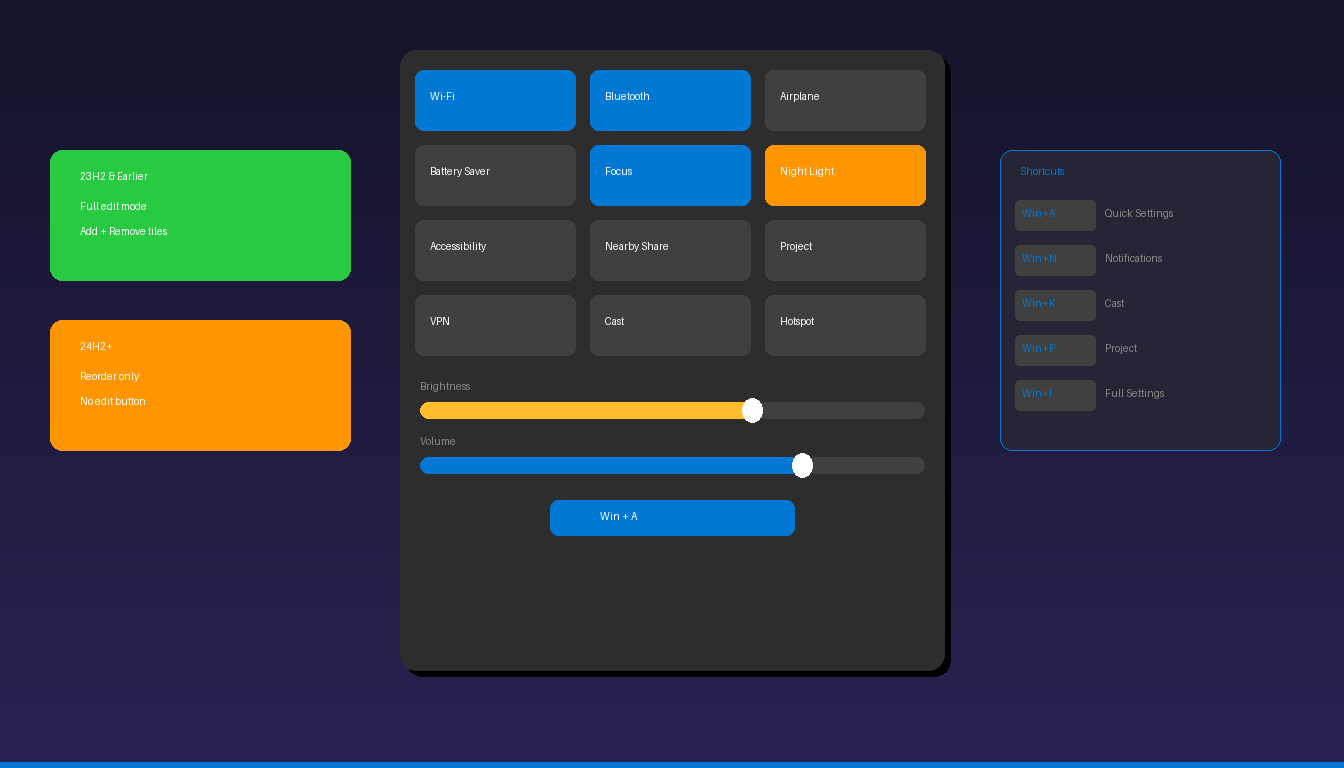
- In Windows 11 23H2 and earlier, click the pencil icon to add, remove, and reorder Quick Settings tiles. In 24H2+, you can only reorder tiles by dragging.
- Default tiles include Wi-Fi, Bluetooth, Airplane Mode, Battery Saver, Focus, Night Light, Accessibility, Nearby Sharing, Project, and VPN.
How Do I Open Quick Settings in Windows 11?
Click the Wi-Fi, speaker, or battery icon cluster in the bottom-right corner of the taskbar — or press Win+A — to open the Quick Settings flyout panel.
Three Ways to Open
| Method | How | Speed |
|---|---|---|
| Mouse click | Click the network/volume/battery area in the taskbar | Standard |
| Keyboard shortcut | Press Win+A | Fastest |
| Touch screen | Swipe up from the bottom-right corner | Tablet/touch |
The panel appears as a flyout above the taskbar showing toggle buttons and sliders. Click any tile to toggle that setting on or off. Click anywhere outside the panel to close it.
What Tiles Are Available in Quick Settings?
Quick Settings includes up to 15 toggle tiles depending on your hardware and Windows version — each tile controls a specific system setting with a single click.
| Tile | What It Does | When Visible |
|---|---|---|
| Wi-Fi | Connect/disconnect wireless networks | Always (if Wi-Fi adapter present) |
| Bluetooth | Enable/disable Bluetooth | Always (if adapter present) |
| Airplane Mode | Disable all wireless radios | Always |
| Battery Saver | Reduce background activity to save power | Laptops/tablets only |
| Focus | Suppress notifications | Always |
| Night Light | Reduce blue light emission | Always |
| Accessibility | Open accessibility shortcuts | Always |
| Nearby Sharing | Share files with nearby Windows devices | Always |
| Project | Choose display mode (PC only, Duplicate, Extend, Second screen) | Always |
| VPN | Connect to a configured VPN | If VPN is configured |
| Mobile Hotspot | Share internet via Wi-Fi hotspot | If supported |
| Cast | Mirror screen to external display | Always |
| Rotation Lock | Lock/unlock screen rotation | Tablets/2-in-1 only |
| Energy Recommendations | Power-saving suggestions | Windows 11 24H2+ |
Sliders (Always Present)
- Brightness: Adjust screen brightness (drag the sun icon slider)
- Volume: Adjust system volume (drag the speaker icon slider)
Click the arrow next to the Wi-Fi or Bluetooth tile to expand and see available networks or paired devices without opening Settings.
How Do I Customize Quick Settings (Windows 11 23H2 and Earlier)?
Click the pencil icon at the bottom of the Quick Settings panel to enter edit mode — add, remove, and reorder tiles by clicking + buttons or unpinning existing tiles.
Add or Remove Tiles
- Open Quick Settings (Win+A).
- Click the pencil icon (bottom of the panel).
- The panel enters edit mode — existing tiles show an unpin (X) button.
- Click X on any tile to remove it.
- Click + Add at the bottom to see available tiles not currently shown.
- Click a tile to add it.
- Click Done to save.
Reorder Tiles
In edit mode, drag and drop tiles to rearrange them. Place your most-used settings in the top row for immediate access.
How Do I Customize Quick Settings (Windows 11 24H2+)?
In Windows 11 version 24H2 and later, Microsoft removed the pencil edit button — you can only reorder tiles by dragging, but cannot add or remove individual tiles.
What Changed in 24H2
| Feature | 23H2 and Earlier | 24H2+ |
|---|---|---|
| Add tiles | Yes (+ Add button) | No |
| Remove tiles | Yes (unpin button) | No |
| Reorder tiles | Yes (drag in edit mode) | Yes (drag without edit mode) |
| Edit button (pencil) | Present | Removed |
| Brightness/Volume sliders | Present | Present |
| Expand Wi-Fi/Bluetooth | Yes | Yes |
Reorder Tiles in 24H2
- Open Quick Settings (Win+A).
- Click and hold any tile.
- Drag it to your preferred position.
- Release to drop it in place.
Move your most-used tiles to the top row. Less-used tiles pushed to the bottom are hidden in the scrollable area, effectively keeping the panel clean without removing them.
Workaround for Adding/Removing
If you need to control which tiles appear, the only option in 24H2 is through Group Policy (Windows 11 Pro/Enterprise):
- Open
gpedit.msc. - Navigate to: User Configuration > Administrative Templates > Start Menu and Taskbar.
- Look for Quick Settings-related policies.
- Enable or disable specific tiles through policy settings.
This is only available on Windows 11 Pro and Enterprise — Home edition users cannot modify the tile list in 24H2.
What Are Useful Quick Settings Keyboard Shortcuts?
Beyond Win+A, Windows 11 has specific shortcuts for common Quick Settings actions.
| Shortcut | Action |
|---|---|
| Win+A | Open/close Quick Settings |
| Win+N | Open Notification Center (adjacent panel) |
| Win+K | Open Cast to device |
| Win+P | Open Project (display mode) |
| Win+L | Lock screen |
| Win+I | Open full Settings app |
| Win+Shift+Q | Quick Assist (remote help) |
These shortcuts provide direct access to actions without opening Quick Settings first — useful for frequently toggled settings like Project (Win+P for presentations) and Cast (Win+K for wireless displays).
How Does Quick Settings Compare to Control Center (macOS)?
Windows 11 Quick Settings and macOS Control Center serve the same purpose — quick access to system toggles — with slight differences in customization and layout.
| Feature | Windows 11 Quick Settings | macOS Control Center |
|---|---|---|
| Open | Win+A or click taskbar icons | Click Control Center icon |
| Customize tiles | Limited (24H2 removed editing) | Add/remove in System Settings |
| Wi-Fi management | Expand to see networks | Expand to see networks |
| Bluetooth | Expand to see devices | Expand to see devices |
| Sliders | Volume + Brightness | Volume + Brightness + Display |
| Focus/DND | Focus tile | Focus tile |
| Music controls | Separate media flyout | Integrated in Control Center |
For optimizing Windows 11 beyond Quick Settings, see our Windows 11 performance settings guide and privacy settings guide. If you need Windows 11 Pro with Group Policy for advanced Quick Settings control, Windows 11 Pro ($99.99) includes Group Policy Editor, BitLocker, and Hyper-V.
Frequently Asked Questions
Why is the edit button missing from Quick Settings?
Microsoft removed the pencil edit button in Windows 11 version 24H2. You can no longer add or remove individual Quick Settings tiles through the panel interface. You can still reorder tiles by dragging them. This change affects all 24H2 users — the only workaround for adding/removing tiles is Group Policy on Pro/Enterprise editions.
Can I add custom shortcuts to Quick Settings?
No. Quick Settings only shows predefined system tiles — you cannot add shortcuts to apps, websites, or custom scripts. For custom shortcuts, pin items to the Start menu or create desktop shortcuts instead. The Quick Settings panel is designed exclusively for system-level toggles.
How do I check which Windows 11 version I have?
Press Win+R, type winver , and press Enter. A dialog shows your Windows 11 version (e.g., 23H2, 24H2) and build number. If your version is 23H2 or earlier, you have the full Quick Settings editing experience. If 24H2 or later, editing is limited to reordering only.
Why are some tiles missing from my Quick Settings?
Some tiles only appear when the required hardware is present — Battery Saver and Rotation Lock only show on laptops/tablets, Mobile Hotspot requires a compatible Wi-Fi adapter, and VPN only appears when a VPN connection is configured. On desktop PCs, you will see fewer tiles than on a laptop.