Raw data is rarely ready to use. It arrives from a dozen different sources — a colleague’s CSV, a company database, a web table — and it almost always needs cleaning before you can analyze it. Microsoft Excel’s Power Query solves exactly that problem. It is a built-in ETL (Extract, Transform, Load) tool that lets you connect to virtually any data source, reshape the data without touching the original file, and refresh everything with a single click whenever the source updates.
If you are working through our Excel tutorial for beginners, Power Query is the natural next step after you understand worksheets, formulas, and basic functions. This guide walks through everything: what Power Query is, how to use it step by step, which data sources it supports, and the transformations that will save you hours each week.
Key Takeaways
- Power Query is built into Excel 2016, Excel 2021, Excel 2024, and Microsoft 365 — no add-in required; access it from the Data tab.
- Every transformation is recorded as an Applied Step, so you can audit, edit, or delete any action without re-importing your data.
- Refreshing a query takes one click — right-click the table and choose Refresh, or use Data → Refresh All to update every connection at once.
What Is Power Query in Excel?
Power Query is Microsoft’s ETL engine embedded directly in Excel. It connects to a data source, lets you clean and reshape the data in a dedicated editor, and loads the result into your workbook as a table or into the Excel data model.
Power Query is available in Excel 2016, Excel 2019, Excel 2021, Excel 2024, and all Microsoft 365 subscriptions. In Excel 2010 and 2013 it was a separate free add-in called “Power Query”; from Excel 2016 onward it is built in under the name Get & Transform Data. You access it from the Data tab on the ribbon.
The key benefit over traditional copy-paste or manual formulas is reproducibility: every step you take is saved as a query. Next week, when your source file updates, you press Refresh and the entire process reruns automatically — no manual work.
How Do I Use Power Query Step by Step?
How Do I Use Power Query Step by Step?
Step 1: Connect to a Data Source
Open Excel and go to the Data tab on the ribbon.
Click Get Data (in the “Get & Transform Data” group).
Choose your source category — for example, From File → From Text/CSV to import a CSV file, or From Database → From SQL Server to query a database.
Browse to your file or enter the connection details, then click OK or Connect .
Excel shows a preview of the data. If the data looks correct, click Transform Data to open the Power Query Editor. (Clicking Load directly skips the editor and imports as-is.)
Step 2: Preview and Transform in the Power Query Editor
The Power Query Editor opens in a separate window with four key areas: Ribbon — transformation commands organized into tabs (Home, Transform, Add Column, View).
Queries pane (left) — lists all queries in this workbook.
Data preview (center) — shows a sample of your data.
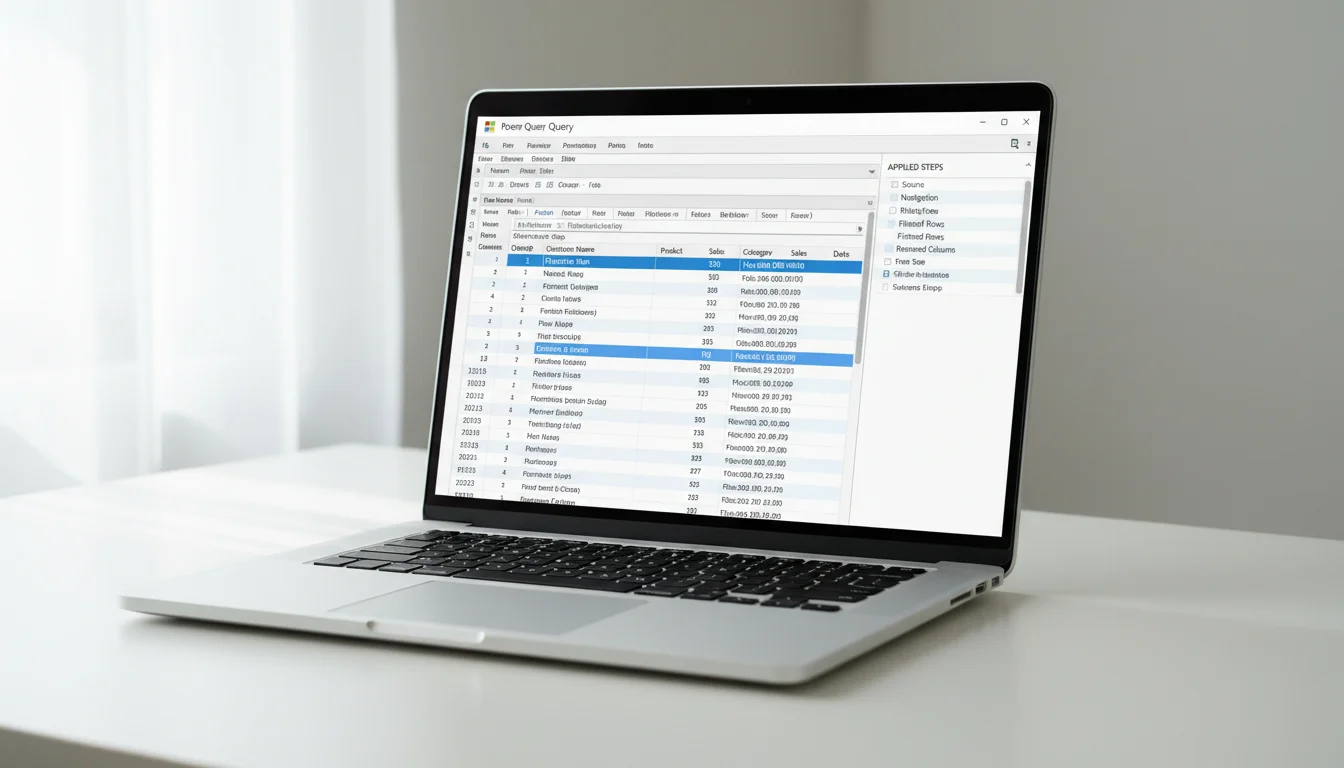
Applied Steps pane (right) — records every action you take in order. At this point your data is not yet in Excel. You are working on a preview, which keeps your source file untouched.
Step 3: Apply Transformations
Use the ribbon commands or right-click column headers to reshape your data. Common operations: Remove columns — right-click a column header → Remove.
Filter rows — click the dropdown arrow on a column header → apply a filter.
Change data type — click the type icon left of the column name → select the correct type (Text, Whole Number, Date, etc.).
Rename a column — double-click the header. Each action appears as a new step in the Applied Steps pane. You can click any step to preview the data at that point, rename steps for clarity, or delete a step to undo it.
Step 4: Close & Load to Excel
When your data looks right, go to Home → Close & Load . By default, Power Query creates a new worksheet and loads the data as a formatted Excel table. You can also choose Close & Load To… to load into an existing sheet, a named range, or the Excel data model (used with Power Pivot).
What Data Sources Can Power Query Connect To?
Power Query supports over 100 data connectors, ranging from local files to cloud services and databases.
| Category | Examples |
|---|---|
| Files | Excel workbooks (.xlsx, .xls), CSV/Text, JSON, XML, PDF |
| Databases | SQL Server, Access, Oracle, MySQL, PostgreSQL |
| Online services | SharePoint, Dynamics 365, Salesforce, OData feeds |
| Web | Web pages (HTML tables), REST APIs (via web connector) |
| Cloud platforms | Azure SQL Database, Azure Blob Storage, Azure Data Lake |
| Other | Folders (combine multiple files), ODBC/OLE DB connections |
To access a connector, go to Data → Get Data and browse the full list. Web connections (fetching live data from URLs) are fully supported in Microsoft 365 and Office 2024, with general availability confirmed as of February 2026.
For a detailed connector reference, see Microsoft’s official Power Query data sources documentation.
Essential Power Query Transformations
The Power Query Editor provides dozens of transformations. These eight cover the vast majority of real-world data cleaning tasks.
1. Remove Columns
Select one or more columns (Ctrl+click for multiple), right-click → Remove Columns. To keep only certain columns, select them and choose Remove Other Columns.
2. Filter Rows
Click the dropdown arrow on any column header. You can filter by specific values, ranges, text conditions (“begins with”, “contains”), or date ranges. Power Query adds a “Filtered Rows” step.
3. Change Data Type
Imported data often arrives with every column typed as Text. Click the type icon at the left of each column header and select the correct type. Getting data types right early prevents calculation errors downstream.
4. Split Column
Go to Home → Split Column (or Transform → Split Column). You can split by a delimiter (comma, space, colon) or by a fixed number of characters. Useful for separating “First Last” names or “City, State” fields.
5. Merge Queries
Use Home → Merge Queries to join two queries together — the equivalent of a VLOOKUP or SQL JOIN. Select the key columns in both queries and choose the join type (Left Outer, Inner, Full Outer, etc.).
6. Append Queries
Use Home → Append Queries to stack one query on top of another — the equivalent of a SQL UNION. Useful for combining January, February, and March files into a single dataset.
7. Unpivot Columns
Select columns that represent categories (e.g., months as column headers) and go to Transform → Unpivot Columns. This converts wide data into a long format that is easier to analyze with a pivot table tutorial.
8. Group By
Go to Home → Group By to aggregate data — sum, count, average, min, max — by one or more grouping columns. This is equivalent to a SQL GROUP BY and produces a summary table.
9. Add Custom Column
Go to Add Column → Custom Column to write a formula using the M language. For example: = [Quantity] * [Unit Price] creates a calculated Revenue column.
10. Add Conditional Column
Go to Add Column → Conditional Column to create an if/then column using a point-and-click interface — no formula writing required. Set conditions and assign output values for each branch.
How Do I Refresh Power Query Data?
To refresh a Power Query connection, right-click the output table in Excel and select Refresh, or go to Data → Refresh All to update every query at once.
There are three refresh options:
Manual refresh — single query Click anywhere inside the loaded table. Right-click → Refresh, or go to Data → Refresh All (dropdown) → Refresh.
Manual refresh — all queries Go to Data → Refresh All (click the top button, not the dropdown). Every query in the workbook refreshes in sequence.
Automatic refresh on file open Right-click the table → Table Design → in the ribbon click Properties (or go to Data → Queries & Connections, right-click the query → Properties). Check Refresh data when opening the file. Excel will re-run the query every time the workbook is opened.
Note: if a query connects to a file or database that has moved or been renamed, you will get a connection error. Update the source path in Home → Data Source Settings inside the Power Query Editor.
What Is the Difference Between Power Query and Regular Excel?
Power Query is a separate transformation layer that sits between your data source and your Excel worksheet; regular Excel formulas operate on data that is already in a worksheet.
| Aspect | Regular Excel | Power Query |
|---|---|---|
| Where data lives | Pasted directly into a worksheet | Loaded from an external source via a connection |
| Refresh | Manual copy-paste required | One-click refresh |
| Transformation record | No audit trail | Full Applied Steps history |
| Source file impact | Often modifies source or intermediate files | Source file never touched |
| Data volume | Slows above ~1 million rows | Handles large datasets; can load to data model |
| Skill required | Formulas, VBA for automation | Point-and-click + optional M language |
| Best for | Ad-hoc calculations, reports already in Excel | Repeatable data import and cleaning pipelines |
For most recurring reporting tasks — monthly sales imports, weekly database exports, combined CSV archives — Power Query is faster and more reliable than manual Excel methods. If you are planning an upgrade to get access to these features, see our Office 2024 lifetime license guide.
Understanding Applied Steps and the M Language
Every action in the Power Query Editor is recorded as an Applied Step in the right-side pane. Steps run in order from top to bottom, and you can:
- Click a step to preview data at that point in the pipeline.
- Rename a step (right-click → Rename) for clarity.
- Delete a step (click the X next to it) to undo that transformation.
- Reorder steps by dragging (with caution — steps that depend on earlier steps can break if reordered).
The M Language
Behind every applied step is an M formula — Power Query’s native functional language. You do not need to write M to use Power Query, but understanding it helps when the point-and-click tools are not flexible enough.
To view and edit M directly, go to Home → Advanced Editor. You will see the full query as a series of let expressions:
let
    Source = Csv.Document(File.Contents("C:\data\sales.csv"), [Delimiter=","]),
    PromotedHeaders = Table.PromoteHeaders(Source),
    ChangedTypes = Table.TransformColumnTypes(PromotedHeaders, {{"Date", type date}, {"Revenue", type number}})
in
    ChangedTypes
Each line corresponds to one Applied Step. The in line specifies which step produces the final output. You can also see the M formula for any individual step in the formula bar at the top of the editor.
Microsoft’s official M language reference is available at learn.microsoft.com/power-query/power-query-m-language-specification.
Frequently Asked Questions
Is Power Query included in all Excel versions?
Power Query is built into Excel 2016, Excel 2019, Excel 2021, Excel 2024, and all Microsoft 365 plans. In Excel 2010 and 2013, it was available as a free downloadable add-in. Excel for Mac gained full Power Query support with Microsoft 365 version 16.69 (2023).
Can Power Query handle large datasets?
Yes. Power Query can process datasets that would freeze a regular worksheet. Loading to the Excel data model (Power Pivot) removes the 1,048,576-row worksheet limit entirely, letting you work with tens of millions of rows. For very large datasets, Microsoft recommends loading to the data model rather than directly to a worksheet.
Can I share a workbook with Power Query connections?
Yes, but recipients must have access to the same data sources. If the query connects to a local file path (e.g., C:\data\sales.csv ), the connection will fail on another machine unless the file is at the same path or the connection is updated. For shared environments, use network paths, SharePoint, or database connections that all users can access.
What is the M language in Power Query?
M (formally “Power Query Formula Language”) is the functional programming language that underpins every Power Query transformation. It is case-sensitive and evaluated lazily. Most users never write M directly — the editor generates it automatically — but the Advanced Editor exposes the full M code for advanced customization. Full documentation is available at learn.microsoft.com .


