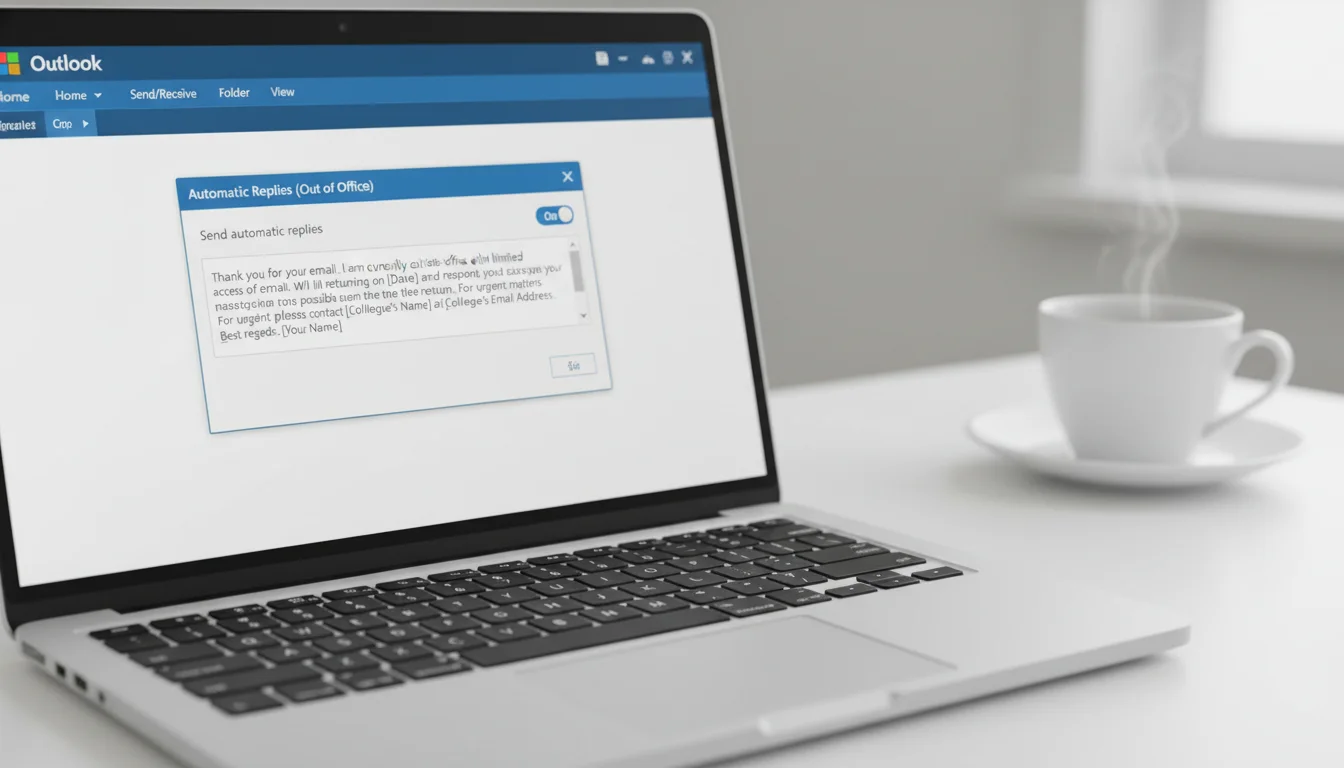
Automatic replies — also called out of office messages — let Microsoft Outlook respond to incoming emails on your behalf while you are away. Whether you are taking a vacation, attending a conference, or simply stepping away from your inbox, this feature ensures that senders know when to expect a response and who to contact if their matter is urgent.
Microsoft Outlook supports automatic replies across every platform: Classic Outlook desktop, the new Outlook for Windows (2024 and later), Outlook on the web, and Outlook mobile on iOS and Android. Each version follows a slightly different path, and this guide covers all of them.
Key Takeaways
- Classic Outlook desktop: File → Automatic Replies → configure message → OK
- New Outlook (2024+): View → View Settings → Accounts → Automatic Replies → toggle on → Save
- Outlook on the web: Settings → Account → Automatic replies → Save
- You can send different messages to colleagues inside your organization and to external contacts simultaneously
How Do I Set Up Automatic Replies in Outlook?
The exact steps depend on which version of Microsoft Outlook you use. Classic Outlook uses the File menu; the new Outlook (2024 and later) uses View Settings; Outlook on the web and mobile each have their own Settings path. All versions let you schedule a date range so replies start and stop automatically.
How to Set Up Out of Office in Outlook Desktop (Classic)
Classic Outlook desktop — the version bundled with Office 2019, Office 2021, and Office 2024 — stores Automatic Replies under the File menu.
- Open Microsoft Outlook and click File in the top-left corner.
- Select Automatic Replies (Out of Office) from the Info tab.
- In the dialog box, select Send automatic replies.
- Check Only send during this time range and set your Start time and End time using the date and time pickers. Outlook will turn replies on and off automatically.
- Click the Inside My Organization tab and type the message that colleagues at your company will receive.
- Optionally, click the Outside My Organization tab, check Auto-reply to people outside my organization, and type a message for external senders.
- Click OK to save. Outlook will display a yellow banner confirming that automatic replies are active.
To turn off automatic replies early, go back to File → Automatic Replies and select Do not send automatic replies, then click OK.
According to Microsoft Support, automatic replies are only available for Exchange, Microsoft 365, and Outlook.com accounts. POP/IMAP accounts require a rules-based workaround.
How to Set Up Automatic Replies in the New Outlook (2024)
Microsoft released a redesigned Outlook for Windows in 2024. If your Outlook interface looks different from the classic version, follow these steps:
- Open Microsoft Outlook and click View in the top menu bar.
- Select View Settings from the ribbon.
- In the Settings panel, click Accounts in the left sidebar.
- Select Automatic Replies.
- Toggle Automatic replies on to the on position.
- Check Send replies only during a time period and set your start and end dates.
- Type your message in the reply box. You can set a separate message for people outside your organization by enabling the Send replies outside your organization toggle.
- Click Save.
The new Outlook syncs settings instantly, so your replies activate immediately after saving.
How Do I Set Up Out of Office in Outlook on the Web?
Outlook on the web (formerly Outlook Web App) is accessible at outlook.office.com and is included with every Microsoft 365 subscription and many Exchange accounts.
- Sign in to Outlook on the web and click the Settings gear icon in the top-right corner.
- Select Account from the Settings menu.
- Click Automatic replies.
- Toggle Send automatic replies to on.
- Check Send replies only during a time period and enter your start and end dates.
- Type your message for people inside your organization.
- To reply to external senders as well, check Send replies outside your organization and type a separate message.
- Click Save.
Your automatic replies are now live for as long as the scheduled time period runs.
How to Set Up Auto Reply in Outlook Mobile (iOS & Android)
Microsoft Outlook is available as a free app on both iOS and Android. The automatic replies feature is available for Exchange and Microsoft 365 accounts connected to the app.
- Open the Outlook app on your iPhone or Android device.
- Tap your profile picture or the menu icon in the top-left corner.
- Tap the Settings gear icon (bottom of the sidebar).
- Scroll down and tap your email account name.
- Tap Automatic Replies.
- Toggle Automatic Replies to on.
- Set your start date and end date.
- Type your reply message.
- Tap the checkmark or Save button to confirm.
On iOS, changes save immediately. On Android, tap the back arrow and confirm when prompted.
Can I Send Different Auto-Replies to Internal and External Contacts?
Yes. Microsoft Outlook lets you configure separate messages for people inside your organization and for external contacts at the same time.
In Classic Outlook, the Automatic Replies dialog has two tabs:
- Inside My Organization — sent to colleagues sharing the same Exchange or Microsoft 365 tenant
- Outside My Organization — sent to anyone with an email address outside your domain
On the Outside My Organization tab, you can choose to reply to My Contacts only (people in your address book) or to Anyone outside my organization. Limiting external replies to your contacts reduces the risk of auto-replying to spam or marketing emails.
A common best practice is to share general availability information internally while providing a more formal message — including an emergency contact — for external senders. You might also consider adding a professional sign-off by learning how to set up an email signature in Outlook.
How Do I Schedule Automatic Replies for Specific Dates?
Every version of Microsoft Outlook supports a date range picker so your out of office replies start and stop without manual intervention.
In Classic Outlook, check Only send during this time range in the Automatic Replies dialog and set the exact hour, minute, and time zone. In the new Outlook and Outlook on the web, check Send replies only during a time period and use the calendar controls.
If you do not set an end date, Outlook will keep sending automatic replies until you turn them off manually. The desktop app displays a persistent yellow banner to remind you that replies are still active. Outlook on the web and mobile show a notification banner at the top of your inbox.
Tip: Set your end date to the evening of your last day away, not your first day back. This prevents Outlook from auto-replying to emails that arrive the morning you return.
Why Aren’t My Automatic Replies Working?
If your automatic replies are not sending, one of the following causes is usually responsible:
| Cause | Fix |
|---|---|
| Account type is POP or IMAP | Automatic Replies requires an Exchange or Microsoft 365 account. POP/IMAP accounts must use a rule-based workaround instead. |
| Replies are off or expired | Open File → Automatic Replies and confirm the toggle is on and the end date has not passed. |
| The reply was already sent to that sender | By default, Outlook sends only one automatic reply per sender per session. The sender will not receive a second reply unless you turn off and restart the feature. |
| Exchange Server connection issue | Outlook must be connected to your Exchange server for replies to work. Check your network connection and try restarting Outlook. |
| Admin policy blocks automatic replies | Some organizations restrict external automatic replies through Exchange admin settings. Contact your IT administrator. |
| New Outlook settings did not sync | Close and reopen Outlook, then verify settings in View → View Settings → Accounts → Automatic Replies. |
For further troubleshooting steps, refer to the official Microsoft Support article on automatic replies.
Out of Office Message Examples
A strong automatic reply message sets clear expectations and gives the sender a next step. Here are four ready-to-use templates.
Vacation / Holiday
Thank you for your email. I am out of the office on vacation from [start date] to [end date] and will have limited access to email during this time. I will respond to your message when I return on [return date]. For urgent matters, please contact [colleague name] at [email address].
Business Trip / Conference
Thank you for reaching out. I am currently attending [event/conference name] and will be checking emails periodically. I will do my best to respond within 24–48 hours. If you need immediate assistance, please contact [colleague name] at [email address] or call [phone number].
Parental Leave
Thank you for your email. I am currently on parental leave and will return on [date]. During my absence, please contact [colleague name] at [email address] for any urgent requests. I look forward to connecting with you when I return.
Short Absence (Same Day or Next Day)
I am out of the office today, [date], and will return tomorrow. I will reply to your email as soon as possible. For urgent matters, please call [phone number].
Frequently Asked Questions
Do automatic replies send to every email I receive?
By default, Microsoft Outlook sends one automatic reply per sender per session — not once per message. If the same person emails you multiple times, they will receive only one auto-reply. This prevents reply loops. Once you turn off and restart the feature, the counter resets.
Can I set up auto-replies without an Exchange account?
Not natively. The Automatic Replies feature in Microsoft Outlook requires an Exchange, Microsoft 365, or Outlook.com account. If you have a POP or IMAP account, you can simulate auto-replies by creating an Outlook rule that replies with a specific template — but this only works while Outlook is open and connected. If you need full Exchange features, upgrading to a license that includes Outlook with an Exchange-compatible account is the reliable path. The Office 2024 lifetime license guide explains what each edition includes.
Will Outlook send an auto-reply to the same person multiple times?
No. Outlook tracks which senders have already received a reply in the current session and will not send a duplicate. The exception is Outlook.com, which may send one reply per day per sender if you have the setting configured that way.
Can I include my signature in automatic replies?
Yes, but you need to add it manually. Outlook does not automatically append your default email signature to automatic replies. Type or paste your signature directly into the reply text box in the Automatic Replies dialog. If you need help creating a signature first, see how to set up an email signature in Outlook . For users who do not yet have Microsoft Outlook, affordable Microsoft Office keys are available at significant savings compared to full retail pricing.