How to Set Up Rules in Outlook to Organize Your Inbox
If your Microsoft Outlook inbox feels like a flood of unread messages every morning, email…
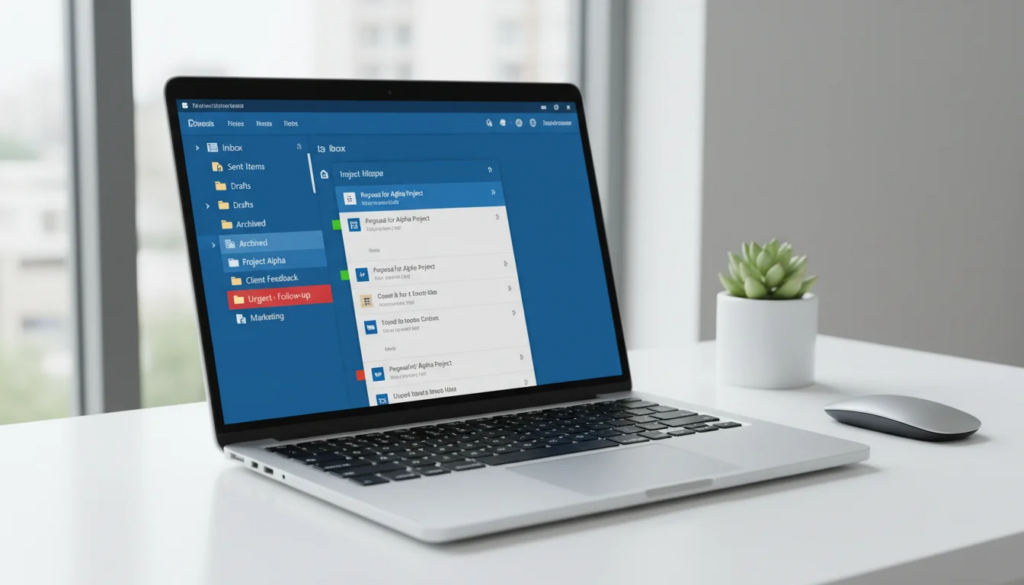
If your Microsoft Outlook inbox feels like a flood of unread messages every morning, email rules are the fix. Rules are automated instructions that tell Outlook what to do with incoming (or outgoing) messages the moment they arrive — move them to a folder, flag them, forward them, or delete them without you lifting a finger.
According to a McKinsey report, knowledge workers spend an average of 28% of their workday reading and answering email. Inbox automation through rules can cut that time significantly by ensuring the right messages surface at the right priority, while newsletters, notifications, and low-priority threads are quietly sorted out of your way.
Microsoft Outlook supports rules across all its versions — Classic Outlook desktop, the new Outlook 2024 app, and Outlook on the Web — making this one of the most universally available productivity features in the Microsoft 365 ecosystem.
Key Takeaways
- Outlook rules run automatically — once configured, they process every matching message without manual action.
- Three interfaces, same logic — Classic Outlook desktop, New Outlook 2024, and Outlook on the Web all support rules with slightly different menus.
- Rules execute in order — the sequence of your rules matters, and “Stop processing more rules” prevents conflicts.
How Do I Create a Rule in Outlook?
You create a rule in Microsoft Outlook through the Rules menu (Classic desktop) or through Settings > Mail > Rules (New Outlook and web). Each version walks you through picking a condition, choosing an action, and saving the rule — the whole process takes under two minutes.
Microsoft Outlook offers three ways to access rules depending on which version you use:
| Version | Access Path |
|---|---|
| Classic Outlook (desktop) | Home tab → Rules → Manage Rules & Alerts |
| New Outlook (2024+) | Settings (gear) → Mail → Rules |
| Outlook on the Web | Settings (gear) → Mail → Rules |
All three versions share the same underlying logic: you define a condition (what triggers the rule) and an action (what Outlook does when the condition is met). Optionally, you can add exceptions to exclude certain messages from the rule.
For a polished professional setup, pairing rules with features like automatic replies in Outlook gives you a fully automated inbox that handles both routing and communication while you’re away.
How to Create a Rule in Outlook Desktop (Classic)
Classic Outlook — the traditional desktop application included with Microsoft Office 2016, 2019, 2021, and 2024 — uses the Rules Wizard, which offers the most comprehensive rule options available in any Outlook version. If you need a copy of Outlook, see our Office 2024 lifetime license guide for pricing and edition comparisons.
Step-by-step:
- Open Microsoft Outlook and go to the Home tab on the ribbon.
- In the Move group, click Rules, then select Manage Rules & Alerts.
- In the Rules and Alerts dialog, click New Rule.
- Choose a template from the list — for example, “Move messages from someone to a folder” — or select “Apply rule on messages I receive” to start from scratch.
- Click Next.
- Check one or more conditions (e.g., from people or public group, with specific words in the subject). Click the underlined values in the rule description at the bottom to define them.
- Click Next.
- Check one or more actions (e.g., move it to the specified folder, flag message for follow up, assign it to the category). Configure each underlined value.
- Click Next.
- Optionally, check any exceptions (e.g., except if the subject contains specific words).
- Click Next.
- Give the rule a descriptive name (e.g., “Boss emails → Priority folder”).
- Check “Turn on this rule” and optionally “Run this rule now on messages already in Inbox”.
- Click Finish, then OK.
The rule is now active. Microsoft Outlook will apply it to every qualifying incoming message going forward. For reference, Microsoft’s official documentation on rules is available at support.microsoft.com.
Tip: Right-click any email in your inbox and choose Rules → Create Rule to pre-fill the condition based on that specific sender or subject — a faster starting point than the wizard.
How to Create a Rule in the New Outlook (2024)
The New Outlook, released as the default experience in 2024 for Windows 11 and Microsoft 365 subscribers, uses a streamlined rules interface inside Settings rather than the classic Rules Wizard. It covers the most common scenarios though it has fewer advanced options than Classic Outlook.
Step-by-step:
- Click the Settings gear icon in the top-right corner of the New Outlook window.
- In the Settings panel, select Mail from the left sidebar.
- Click Rules.
- Click Add new rule.
- Enter a name for your rule in the Name field (e.g., “Move newsletters to Reading”).
- Under Add a condition, open the dropdown and select your trigger — options include From, Subject includes, Sent to, Has attachment, and more.
- Enter the specific value for that condition (e.g., a sender’s email address or a keyword).
- Under Add an action, select what Microsoft Outlook should do — Move to, Flag, Mark as read, Delete, Forward to, etc.
- Select or create the destination folder if moving.
- Optionally click Add exception to exclude specific messages.
- Toggle Stop processing more rules if needed (see the section below for when to use this).
- Click Save.
The rule activates immediately for new incoming messages. Note that the New Outlook does not currently support running rules retroactively on existing inbox messages from within the rules interface — a limitation compared to Classic Outlook.
What Are the Most Useful Outlook Rules?
The most useful Microsoft Outlook rules are ones that either reduce noise (deleting or archiving low-value mail) or elevate important messages (flagging, categorizing, or moving them to priority folders). Here are six practical examples with exact setup steps.
1. Move all emails from your boss to a “Priority” folder
- Condition: From →
boss@company.com - Action: Move to folder → Priority (create it first)
- Why it works: Keeps executive communications instantly visible without scanning the whole inbox.
2. Flag emails with “urgent” or “ASAP” in the subject
- Condition: Subject includes →
urgent(add a second condition forASAP) - Action: Flag message → Today
- Why it works: Time-sensitive requests never get buried under routine mail.
3. Auto-categorize newsletters to a “Reading” category
- Condition: Subject includes →
unsubscribeOR Sent to → your newsletter alias - Action: Assign to category → Reading Later
- Why it works: Newsletters stay accessible for intentional reading without cluttering your primary view.
4. Forward invoices to your accounting team
- Condition: Subject includes →
invoice - Action: Forward to →
accounting@yourcompany.com - Exception: Except if from → internal team members (to avoid forwarding internal budget discussions)
- Why it works: Finance documents reach the right person automatically, reducing manual forwarding.
5. Delete emails from high-volume marketing senders
- Condition: From →
@marketingdomain.com(use sender domain patterns in Classic Outlook) - Action: Delete it (or Move to Deleted Items)
- Why it works: Permanently removes recurring junk without needing to unsubscribe from each list.
6. Play a sound when a VIP contact emails you
- Condition: From → (list your VIP contacts)
- Action: Play a sound → choose a .wav file
- Why it works: Provides an audible alert for high-priority senders even when Outlook is in the background. (Available in Classic Outlook desktop only.)
How Do I Automatically Move Emails to a Folder in Outlook?
To automatically move emails to a folder in Microsoft Outlook, create a rule with a sender or subject condition and a “Move to folder” action. This is the single most common Outlook rule and takes about 60 seconds to configure.
Detailed walkthrough (Classic Outlook):
- First, create your destination folder: right-click Inbox in the folder pane → New Folder → name it (e.g., “Client: Acme Corp”).
- Go to Home → Rules → Manage Rules & Alerts → New Rule.
- Select “Move messages from someone to a folder” under Stay Organized.
- In the rule description, click “people or public group” and enter the sender’s email address. Click OK.
- Click “specified” and select (or create) your destination folder. Click OK.
- Click Next twice, name the rule, and click Finish.
In New Outlook / Outlook on the Web:
- Settings → Mail → Rules → Add new rule.
- Name: “Move Acme Corp emails”
- Condition: From →
contact@acmecorp.com - Action: Move to → select or create folder
- Click Save.
From this point forward, every email from that sender lands directly in the designated folder — bypassing the main inbox entirely. You can also set up a signature in Outlook that applies automatically to emails you send from any folder. This approach works equally well for project-based sorting (condition: subject contains project code) and team-based sorting (condition: from a shared alias).
Why Isn’t My Outlook Rule Working?
When a Microsoft Outlook rule stops working or never fires at all, the cause is almost always one of a handful of common configuration issues. Use this table to diagnose and fix the problem.
| Symptom | Likely Cause | Fix |
|---|---|---|
| Rule never fires | Rule is disabled | Open Manage Rules & Alerts → check the checkbox next to the rule |
| Rule fires sometimes, not always | Conflicting rule higher in the list runs first and stops processing | Reorder rules; remove “Stop processing more rules” from the conflicting rule |
| Server-side rule not running | Rule uses a client-only action (play sound, display notification) | Client-only rules only run when Outlook is open — convert to server-side actions |
| Rule worked before, stopped after migration | Exchange/Microsoft 365 rule quota exceeded (default: 256 KB total) | Delete old or redundant rules to free up quota |
| Move-to-folder rule doesn’t move messages | Destination folder was deleted or renamed | Edit the rule and reselect the correct folder |
| Rule applies to sent items, not received | Condition scope is wrong | Confirm rule is set to apply to incoming messages, not outgoing |
If you’ve checked all of the above and the rule still doesn’t fire, try disabling and re-enabling it, or delete and recreate it from scratch. In some cases, a corrupted rule definition requires this reset. Microsoft’s support page on rules that aren’t working as expected provides additional diagnostic steps.
What Is “Stop Processing More Rules”?
“Stop processing more rules” is a checkbox in Microsoft Outlook’s rule editor that prevents any subsequent rules from running on a message once the current rule has matched and acted on it. It controls rule execution order and prevents unintended double-processing.
How rule execution works:
Microsoft Outlook evaluates rules from top to bottom in the Rules and Alerts list. Every rule whose condition matches the message will fire — unless one of those rules has “Stop processing more rules” checked, at which point Outlook stops evaluating the remaining rules for that message.
When to use it:
- You have a “Move to Priority” rule for your boss and a later “Mark all unread” rule for everyone — checking “Stop processing more rules” on the Priority rule prevents the unread rule from also running on boss emails.
- You want a catch-all rule at the bottom (e.g., “everything else → General”) without it interfering with more specific rules above.
- You have rules that could conflict — for example, one rule that moves a message to folder A and another that would move it to folder B.
How to set it:
In Classic Outlook, “Stop processing more rules” appears as a checkbox on the Actions step of the Rules Wizard. In New Outlook and Outlook on the Web, it’s a toggle at the bottom of the rule editor.
As a general best practice, enable “Stop processing more rules” on any rule that performs a definitive action (move, delete, forward) to keep your rule logic predictable and avoid unexpected behavior.
Frequently Asked Questions
Can I create rules in Outlook on the web?
Yes. Go to Settings → Mail → Rules → Add new rule. The interface is identical to New Outlook 2024. All rules created on the web apply server-side, meaning they run even when you’re not logged in.
How many rules can I have in Outlook?
Microsoft Exchange and Microsoft 365 accounts have a combined rule storage limit of 256 KB by default. The number of rules that fits within this quota varies — simple rules take roughly 1–2 KB each, so most users can comfortably maintain 50–100 rules. If you hit the limit, Outlook will warn you when trying to save a new rule; the fix is to delete unused rules.
Can I export and import Outlook rules?
Yes, but only in Classic Outlook desktop. Go to Home → Rules → Manage Rules & Alerts → Options → Export Rules. This saves a .rwz file you can import on another machine via the same dialog. New Outlook and Outlook on the Web do not currently support rule export/import.
Do Outlook rules work on mobile?
Server-side rules (those that perform actions like Move, Delete, Forward, or Mark as Read) run on the Exchange or Microsoft 365 server and apply on all devices, including the Outlook mobile app for iOS and Android. Client-only rules — those that require Outlook to be open on a PC, such as playing a sound or displaying a desktop alert — do not run on mobile.

by Editorial Team
Updated on April 5, 2026

by Editorial Team
Updated on April 5, 2026
ON THIS PAGE